Explore this direction
↗
PRODUCT CAMPAIGN
Product and campaign concepts
01
Create images from a text prompt or a reference photo. Explore image models, try a new visual style, and refine your ideas for product concepts, portraits, social posts and more.
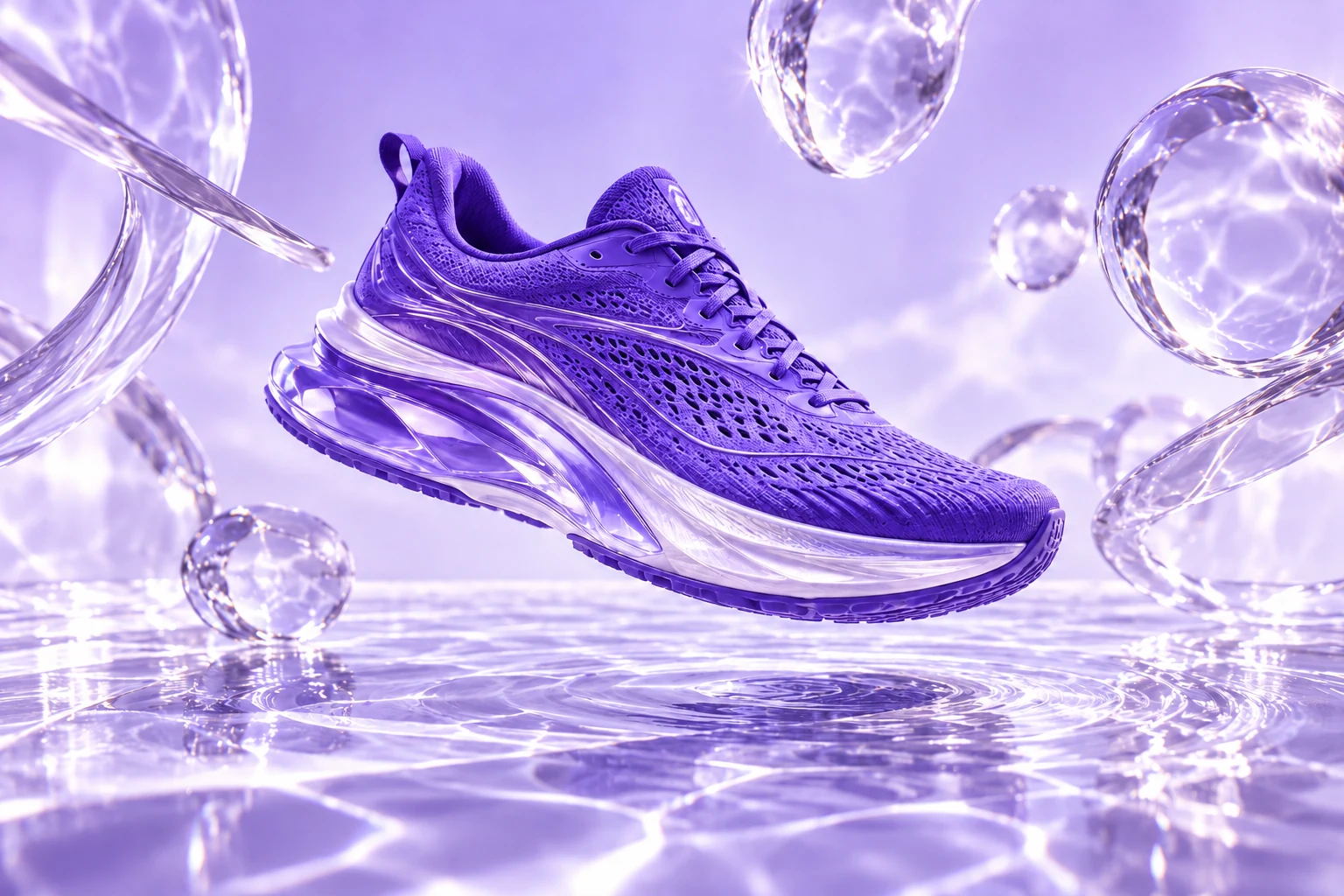
A violet sneaker. Liquid light.
A campaign beyond the studio.
Explore product scenes, portraits, illustrations and concept art. Use a suggested prompt as your starting brief, then adapt the image to your audience and format.
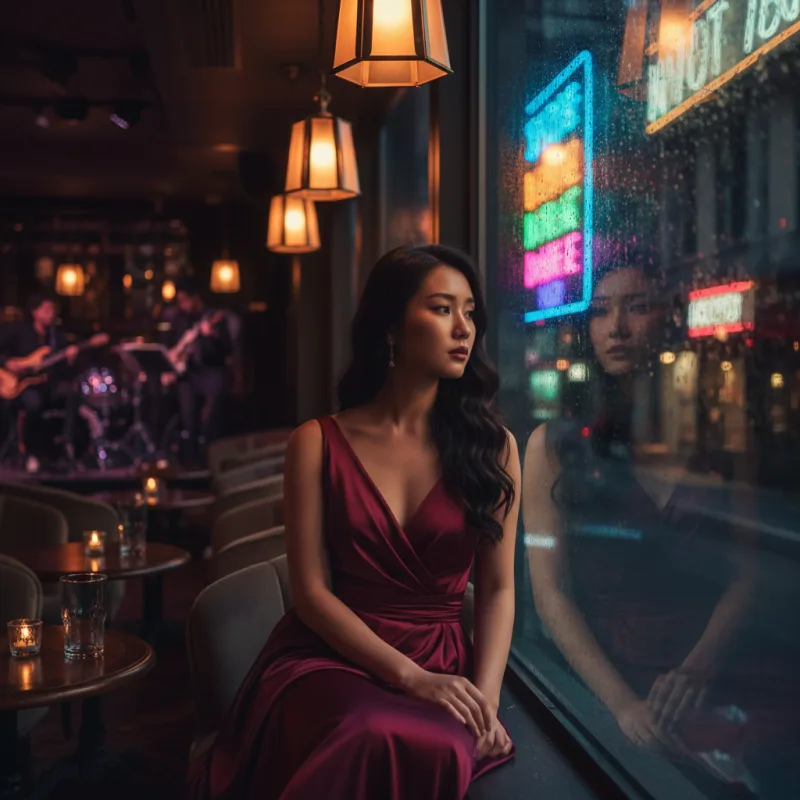
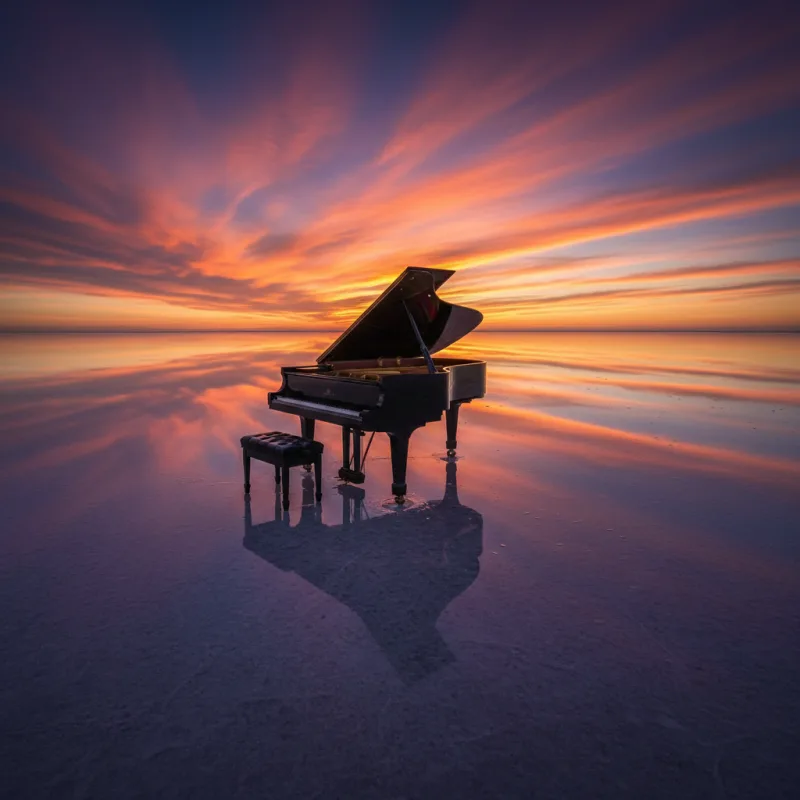
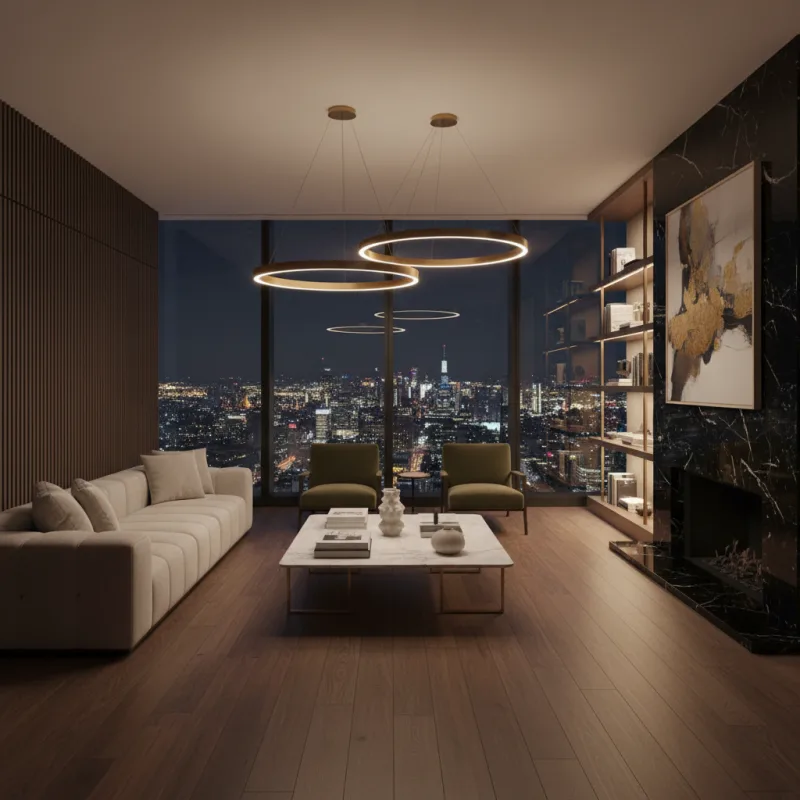
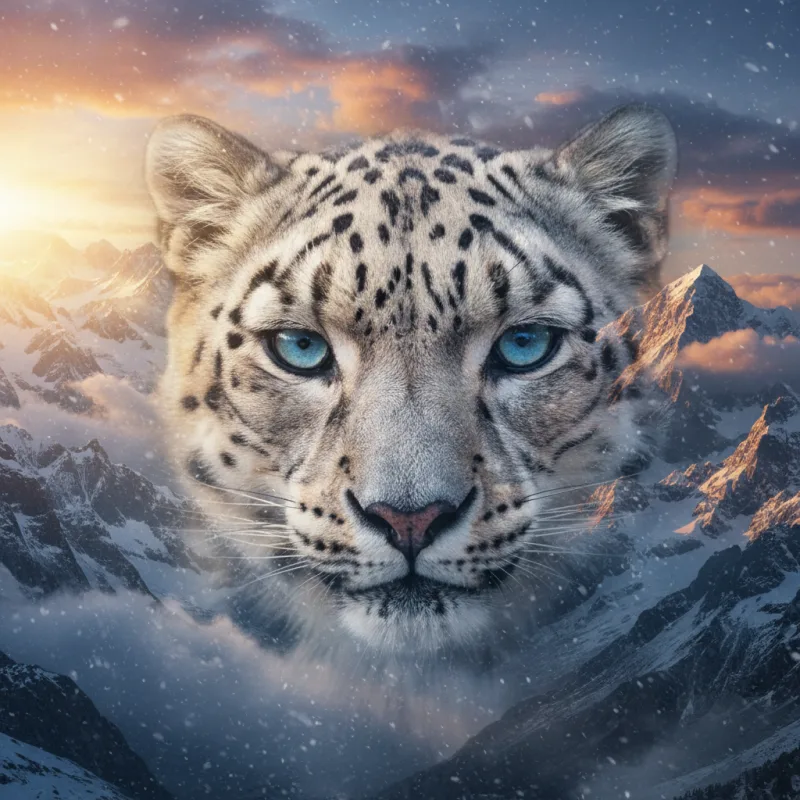
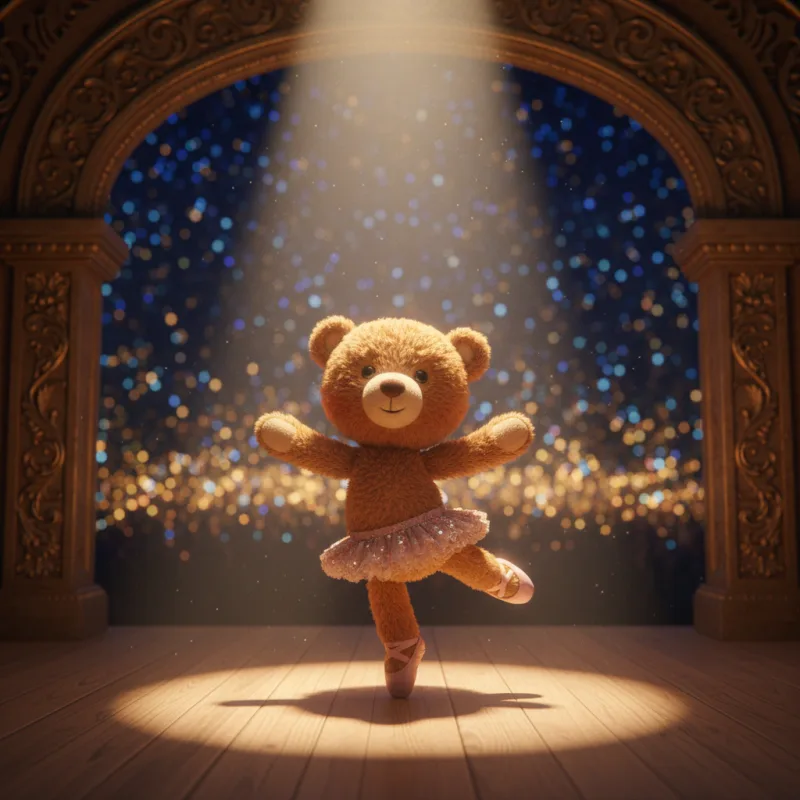
Choose a model for the task in front of you. Explore realistic characters with AKOOL Image, text-rich concepts with Nano Banana Pro, cinematic scenes with FLUX, or detailed briefs with GPT Image.
Explore portraits, illustrated characters and realistic scenes. Use a clear visual brief to develop a consistent direction across your image set, then check the face, styling and scene details in each result.
Explore AKOOL ImageModel versions, settings and credits vary. Check the image workspace and your plan for current access.
Choose a starting point, add your creative brief and generate. Keep the useful details in your prompt, then make focused changes to improve the result.
Name the subject, scene, style and lighting. Use a reference photo when its appearance should guide the result.
Open AKOOL to createStart from a reference, improve an image’s resolution or explore a different visual style. Choose the tools that suit the next step in your project.
Upload a reference and describe the changes you want to explore. Try a different setting, style or lighting, then compare the result with your original photo.
Explore image to image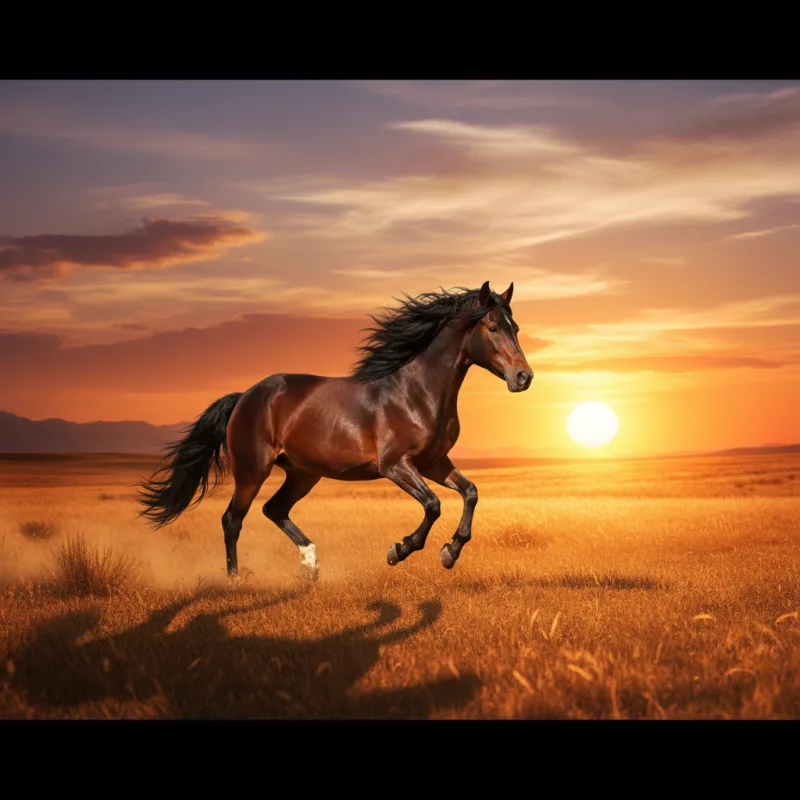
Improve an existing image with AKOOL’s upscaler. Review the available output options and compare the result at full size before preparing it for a page, post or presentation.
Explore image upscalingTurn a concept into a photographic scene, an illustration or an imagined world. Change one part of your brief at a time so you can see what improves the result.
Try a new directionStart an image-to-video project with a still you have created or uploaded. Add movement, an action or a camera direction, then choose the settings available for your selected video model.
Bring an image into videoExplore the AI video generatorA useful prompt names the subject, setting, lighting, style and composition. Try a brief below, then change one detail at a time instead of rewriting everything.
A ceramic coffee cup on a pale stone plinth, soft morning light, subtle shadow, minimalist studio, close-up product photography.
Copy promptAn editorial portrait by a rain-streaked window, soft reflected neon, natural skin texture, cinematic mood, shallow depth of field.
Copy promptA floating glass pavilion above a lavender sea, curved architecture, distant mountains, diffused daylight, surreal cinematic composition.
Copy promptPractical answers about prompts, photos, models, credits and the next step in your project.
Visit the help centerAn AI image generator creates an image from a written description or a reference photo. In AKOOL, you can choose an image model, describe the subject and visual style, and generate a result. Review the image, then refine your instructions to explore a different direction.
Open the image generator and choose Text to Image or Image to Image. Select an available model, add your prompt or reference, and review the settings before you generate. Afterward, compare the result with your brief and adjust the details that need another pass.
Yes. Use Image to Image to start with an uploaded reference photo. Describe the changes you want, such as a different setting, lighting or visual style. How closely the result follows your photo depends on the chosen model, prompt and settings.
AKOOL lists image models including AKOOL Image, Nano Banana Pro, Seedream, FLUX, GPT Image and Recraft. They offer different approaches to image creation. Check the live image workspace for the current versions and settings, and the pricing page for model access on your plan.
Name the subject, setting, lighting, style and composition. Add important details such as materials, colors, camera angle or space for a headline. A prompt like "a white ceramic mug on pale stone, soft window light, close-up product photo" gives a clearer direction than "a nice mug."
Yes. AKOOL supports prompt-based and reference-based image creation for product scenes and marketing concepts. Use a product photo when its appearance matters, and describe the setting you want. Check the shape, label, colors and other product details before using the result in a campaign.
AKOOL Image is designed for coherent characters and visual sequences. Use a consistent character brief and supported reference options, then compare each image for changes in the face, clothing and styling. A consistent direction is a creative goal, so review every image in the set.
AKOOL lists models that support text-rich image creation, including Nano Banana Pro and GPT Image. Include the exact wording and describe where it should appear. Check spelling, spacing and readability in the result, especially for product labels, posters and small text.
AKOOL provides image generation and a separate image upscaler. Use the upscaler to improve an existing image, or review the resolution options for your selected image model. Available output settings vary. Check the final dimensions and image quality before preparing an asset for print or a large display.
AKOOL offers free and paid plans and uses credits for generation. The models you can access, included credits and export limits depend on the plan and selected options. Check the current pricing page and review the credit cost shown in the workspace before you generate.
Choose a plan with the licence your project requires. AKOOL’s pricing page distinguishes personal, business and enterprise licences, so a paid subscription alone does not mean every commercial use is included. Review the current plan terms and use reference photos, logos and other materials you have permission to use.
Yes. Open AKOOL’s image-to-video tool and use your image as the starting frame. Add a prompt describing the subject’s movement and the camera direction, then choose an available video model and settings. Review the generated clip to see how the motion follows your brief.
Write a prompt or start with a photo. Create your next visual in AKOOL.
Create with AKOOLテキストからAI動画を生成し、画像に動きを加え、対応する参照素材でシーンを指定できます。AKOOLでVeo、Kling、Seedance、Wanを比較し、企画に合うモデルと設定を選びましょう。
プロンプトをコピーし、AKOOLを開いて生成します。利用できるモデル、設定、必要クレジットは異なります。
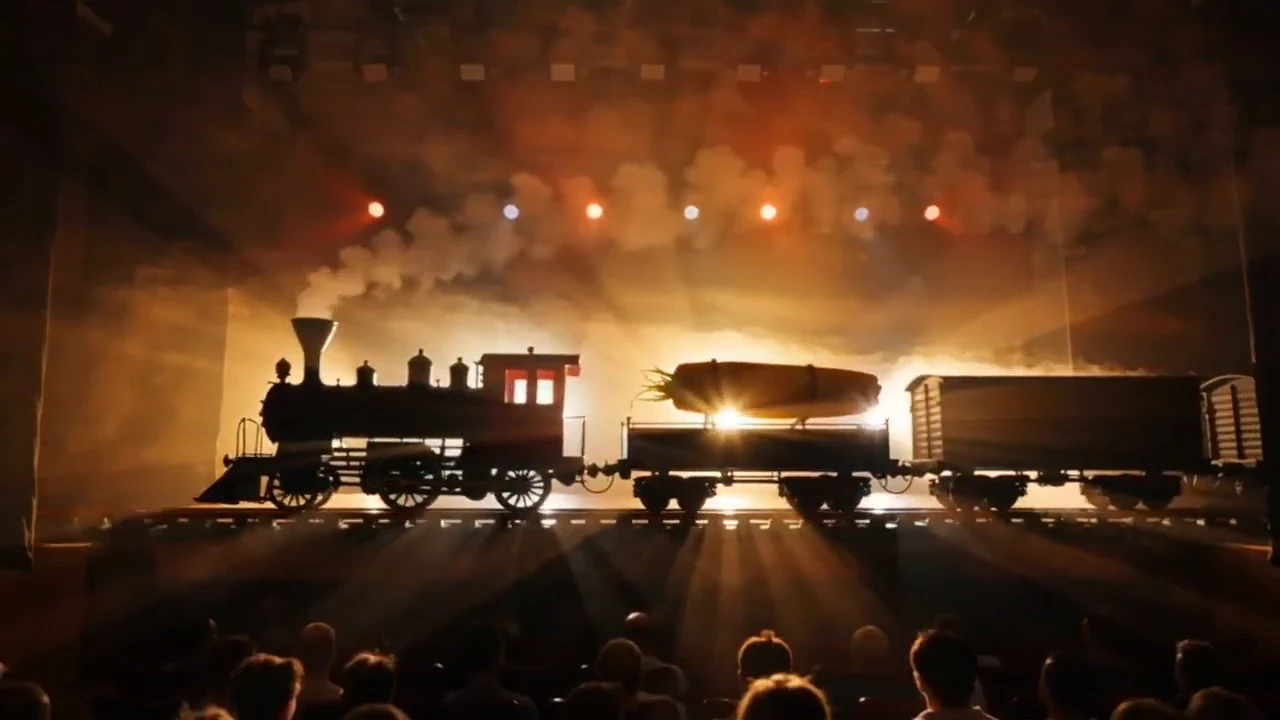
動画の作例を見る音声なしの作例:劇場の舞台に、蒸気機関車、金色の光、漂う煙。
Published AKOOL examples.AKOOLが公開した商品シーン、映画的な世界、ビジュアルの変化をご覧ください。クリップを開いて動きを観察し、自分の企画の出発点を見つけましょう。
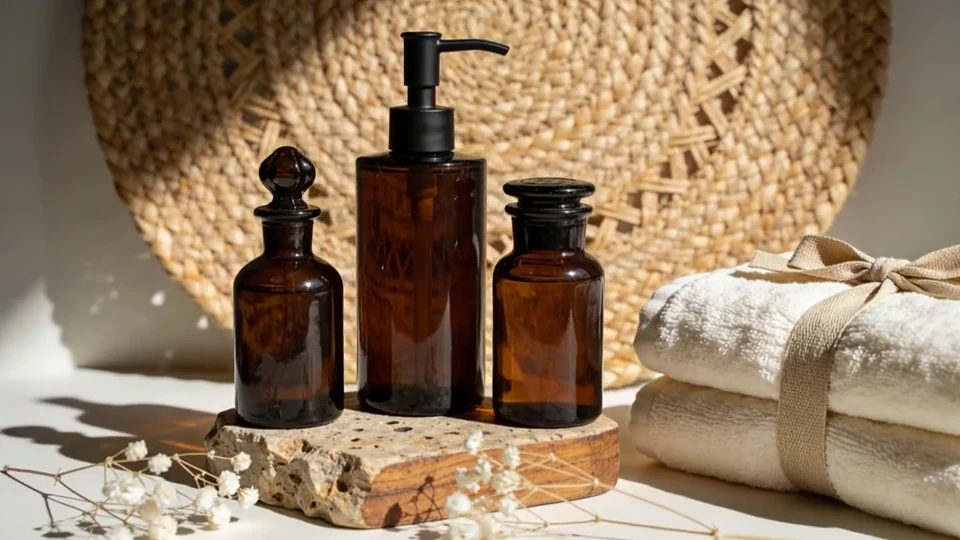 0:10音声なしのプレビュー
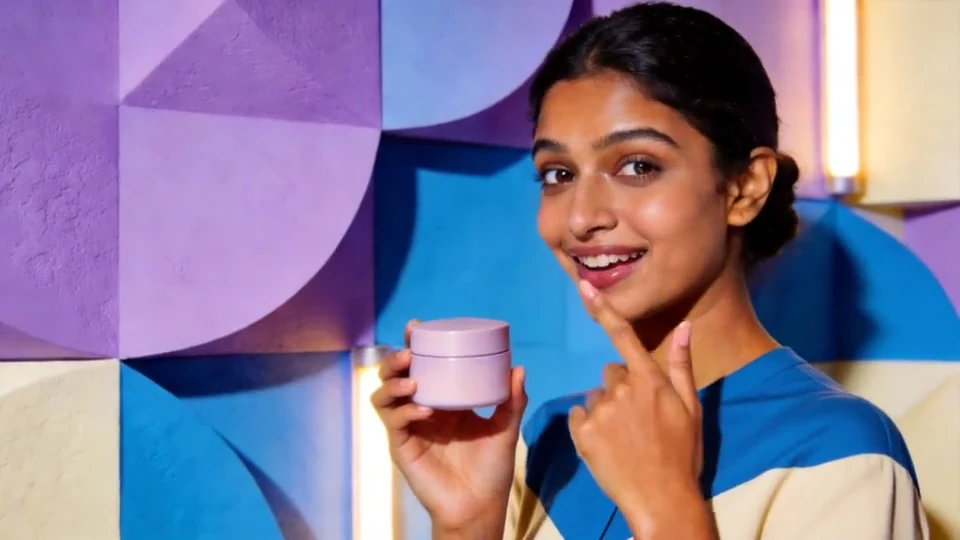
光と穏やかな動きで商品の見せ方を探ります。完成したクリップを、承認済みのパッケージや色と比較してください。
 0:20音声なしのプレビュー
シーンの被写体、動作、カメラの方向を指定します。次のショットを計画する前に、ビジュアルのコンセプトを固めましょう。
 0:10音声なしのプレビュー
人物を中心とした短い商品シーンを試します。使用する前に顔、手、パッケージを確認してください。
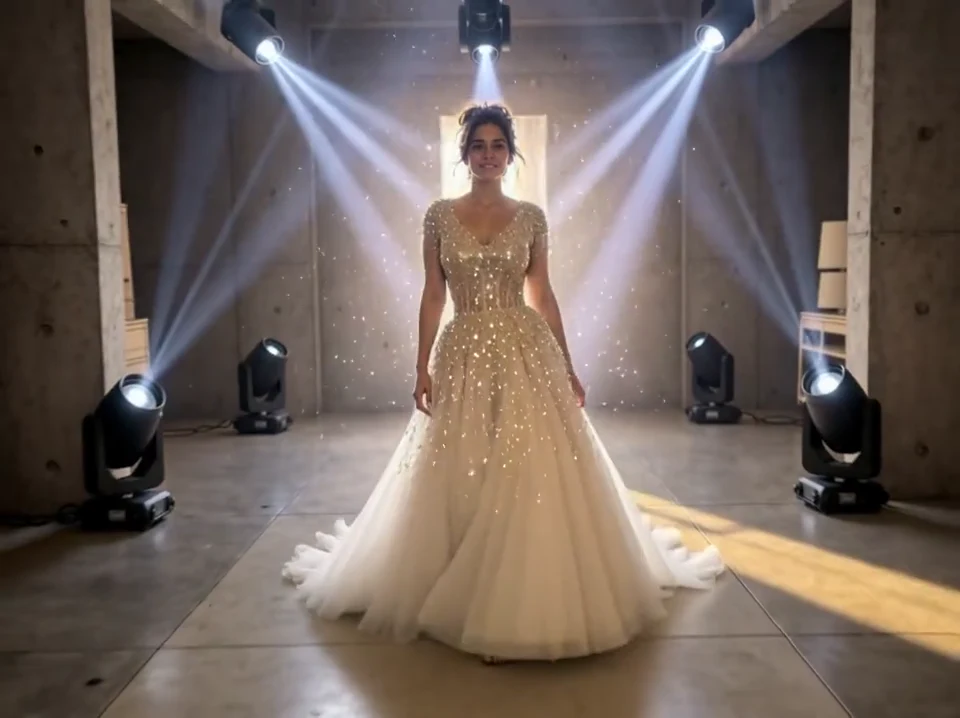 0:10音声なしのプレビュー
背景、衣装、雰囲気を変えてみましょう。意図する被写体とビジュアルの方向性を指示で明確にします。
 0:10音声なしのプレビュー
イラストから始め、時間とともにどう変化するかを説明します。動きと元の画像の見た目を確認してください。
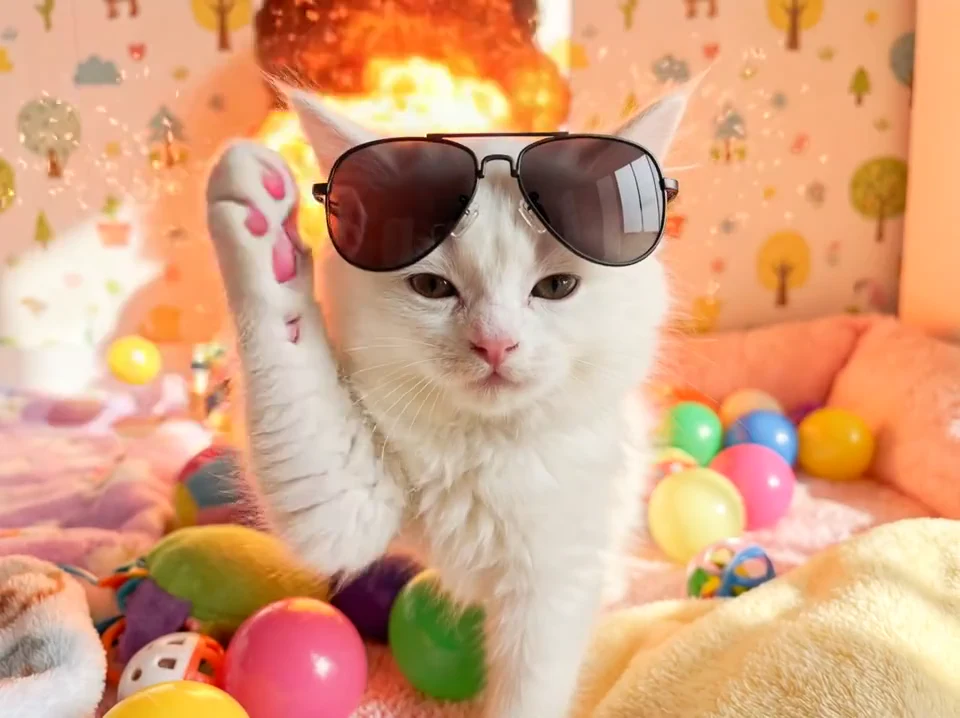 0:10音声なしのプレビュー
シンプルな動作で、遊び心のある見せ方を試します。視聴者が主役と展開を理解しやすいシーンにしましょう。
これらはAKOOLが公開した作例です。提案するプロンプトは似た方向性を試すための新しい例であり、各クリップで使われた設定の記録ではありません。
画像から動画への生成では、写真、イラスト、レンダリングに動きを加えます。鮮明な画像をアップロードし、具体的な動作を説明して、選んだモデルの設定を指定します。
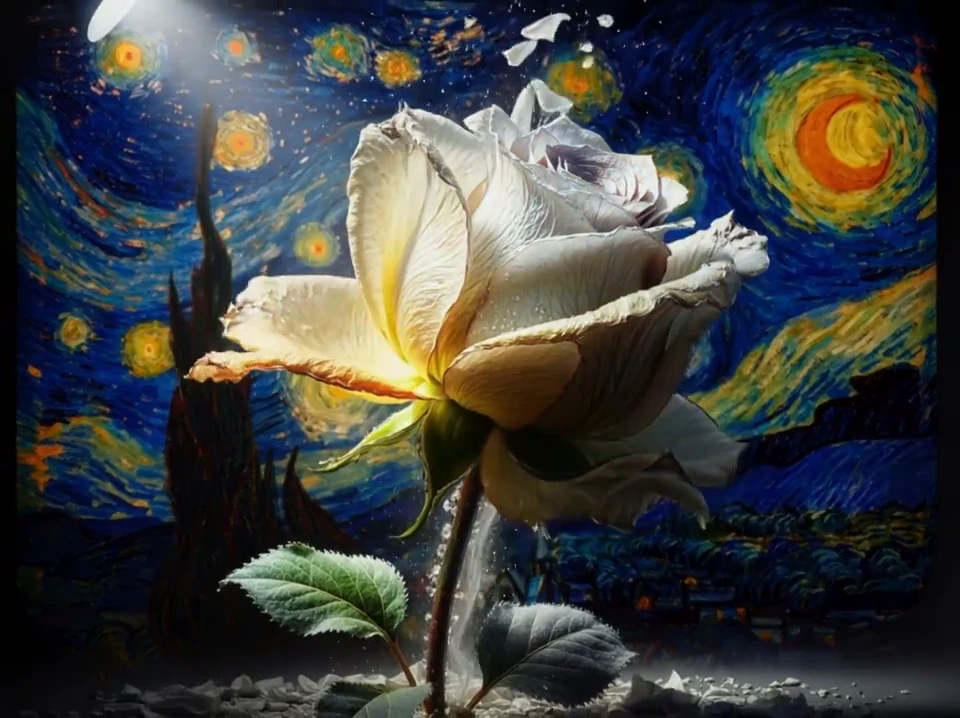
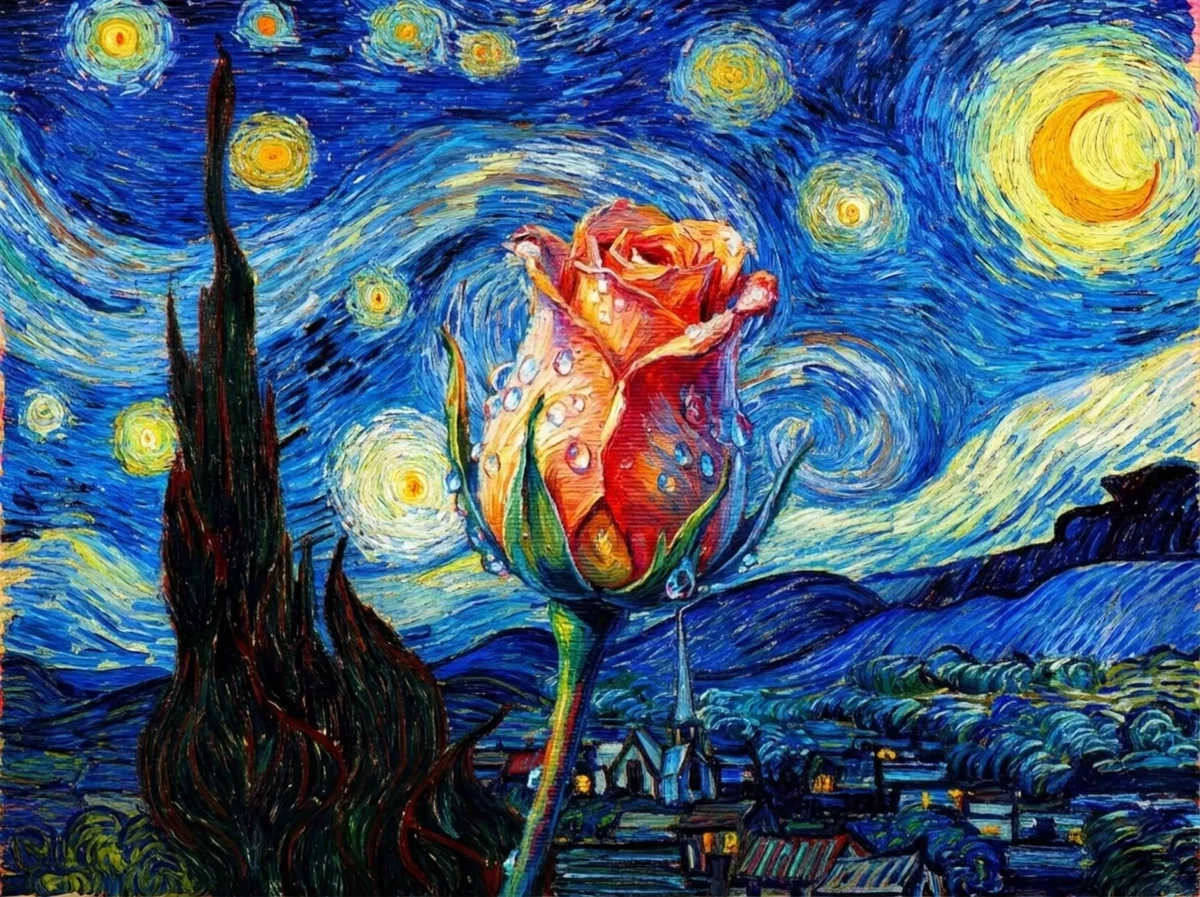 変化を見る
変化を見る「描かれた花がゆっくりと本物のようになる。穏やかなカメラの寄りと柔らかな自然光を使い、周囲の絵の構図は残す。」
An original example prompt. Results will depend on the uploaded image and model.新しいシーンにはテキストから動画、静止画が出発点なら画像から動画を選びます。複数の素材を使って指定する場合は、参照素材に対応するモデルを選んでください。
シーンを言葉で説明します。被写体と動作から始め、背景、照明、カメラの動きを加えてショットを明確にしましょう。
写真、イラスト、レンダリングをアップロードし、動きを説明します。被写体を明確にし、最初の動作を簡単にすると変化を評価しやすくなります。
対応する画像、動画、音声の参照素材で新しいクリップを指定します。被写体、スタイル、動きなど、各素材の役割を決めてください。利用できる入力はモデルによって異なります。
各モデルが受け付ける入力と、アイデアの表現方法を比較します。手元の素材を基に、必要な動き、音声、出力設定を確認してください。
承認済みの商品画像はありますか?同じ画像と簡単な動きのプロンプトで、参照素材対応のVeoとSeedanceを比較しましょう。各結果のパッケージと色を確認してください。
GoogleのVeoシリーズで参照素材を使ったシーンを試します。生成前に、選んだバージョンの画像、動き、音声の設定を確認してください。
SCENES · REFERENCES · MOTIONVeoを見るカメラワークを生かすシーンや複数ショットのアイデアを試します。Klingの参照素材と音声の機能はバージョンで異なるため、AKOOLで使える設定を比較してください。
CAMERA · SUBJECTS · SEQUENCESKlingを見る参照素材を使った動画作成を試します。Seedance 2.0は複数の参照形式に対応しています。利用可能な設定はバージョンとワークフローで異なります。
REFERENCES · VISUAL DIRECTIONSeedanceを見るWanシリーズで画像を基にした動きや短いシーンを試します。アカウントに表示されるバージョン、対応入力、音声設定を確認してください。
IMAGE MOTION · SCENE IDEASWanを見るAKOOLを開き、対応するワークフローを選び、プロンプトや参照素材を追加して設定します。クリップを生成して確認し、必要な部分を調整しましょう。
動画ワークスペースを開くひとつの主な動作を説明し、被写体、背景、カメラの方向を加えます。人物や商品の見た目が重要なら、鮮明な画像や対応する参照素材をアップロードしてください。
利用できる入力形式、長さ、縦横比、解像度、音声設定を確認します。生成前に表示される必要クレジットをチェックしてください。
動き、顔、手、商品の細部を最初から最後まで確認します。指示はひとつずつ変更しましょう。使える結果をダウンロードするか、次の工程に必要なAKOOLツールへ進みます。
生成はプロジェクトの一部です。ビジュアル、ナレーション、翻訳、プレゼンター動画に使えるAKOOLの関連ツールを探索しましょう。
役立つプロンプトは、誰や何が登場し、何が起こり、どう見せるかを説明します。これらの例を出発点に、自分の素材に合わせて調整してください。
承認済みのスキンケアボトル画像を使う。柔らかな日差しがガラスを移動する中、カメラがゆっくり近づく。ボトルを中央に置き、ラベルをカメラへ向ける。ひとつの連続ショット。
このプロンプトをコピー雨上がりの静かな街路。路面の反射、柔らかな夕方の光、穏やかな横移動のカメラ。落ち着いた雰囲気のひとつの連続ショット。文字は入れない。
このプロンプトをコピーまとめて生成する前に、モデルの利用条件と必要クレジットを確認してください。クライアント案件、広告、その他の業務利用では、アカウントのライセンスが用途をカバーすることを確認しましょう。
現在のプランを比較AI動画生成ツールは、テキスト、画像、その他の対応する参照素材から動く映像を作成します。AKOOLではワークフローとモデルを選び、指示を加えてクリップを生成・確認します。入力、操作、出力の選択肢は選んだ設定によって異なります。
AKOOLのテキストから動画を開き、被写体、動作、背景、カメラワークを説明します。利用可能なモデルと設定を選び、必要クレジットを確認して生成してください。クリップを見直し、次の版をつくる前にプロンプトを調整します。
はい。AKOOLの画像から動画では、静止画に動きを加えられます。鮮明な写真、アート作品、レンダリングをアップロードし、動かしたい部分を説明してください。商品では、形、色、包装、ラベルを中心に、結果全体を承認済み画像と比較します。
画像から動画は、動かしたい1枚の静止画を出発点にします。参照素材から動画は、対応する素材でキャラクター、商品、スタイル、動きなどを指定して新しいクリップを生成します。参照形式やアップロード上限はモデルによって異なります。
手元の入力に対応し、必要な操作ができるモデルを選びましょう。AKOOLにはVeo、Kling、Seedance、Wanなどのシリーズがあります。同じ指示で利用可能な2つのモデルを比べ、使える結果、必要クレジット、修正量を評価してください。
一部のモデルバージョンは動画と同時に音声を生成します。後からナレーションを加える方法とは異なります。選んだモデルの音声設定を確認してください。AKOOLには、台本やボイスオーバーなどに使う独立した音声ツールもあります。
クリップの長さはモデル、ワークフロー、利用可能な設定で異なります。撮影計画の前にAKOOLに表示される長さを確認してください。生成された1本のクリップと、複数を組み合わせた完成動画は別です。長いストーリーは必要に応じて複数のシーンに分けましょう。
AKOOLには複数の縦横比や解像度の選択肢があります。利用可否はモデルとプランによって異なります。その解像度で直接生成するのか、生成後にアップスケールするのかを確認し、公開先に合う形式を選んでください。
AKOOLは無料アクセスと有料プランを提供しています。利用可能なモデル、クレジット、透かしの条件はアカウントによって異なります。動画を生成・ダウンロードする前に、最新の料金ページとワークスペースの選択肢を確認してください。
すべての動画で同じクレジット数になるわけではありません。モデル、長さ、画質、その他の設定で費用は変わります。生成前に表示される数値を確認してください。複数本をつくる場合は、使える結果を得るまでの追加試行も見込んでください。
用途をカバーするプランとライセンスを利用し、AKOOLの最新規約と該当するモデルの条件を確認してください。入力する人物、画像、音楽などの権利処理も必要です。有料契約だけで広告や顧客案件に必要なすべての権利が確保されるわけではありません。
鮮明で承認済みの参照素材と、具体的な動きの指示を使いましょう。重要な元素材を固定し、変更はひとつずつ試してください。クリップ全体で人物の変化、包装の変形、意図しない動きを確認します。参照素材は結果を導きますが、完全な一致を保証しません。
プロンプトを書くか、画像を用意しましょう。次の動画に出発点を。
AKOOLで動画を作成AI 主導の編集でゲーム動画を簡単に強化し、クリエイターやエージェンシーの創造性を高め、時間を節約できます。

魅力的なゲーム動画を簡単に作成できます。ストリーマーやエージェンシーが視聴者を魅了し、リーチを急速に拡大するのに最適です。
編集時間を大幅に短縮します。動画制作の最適化を検討している多忙なクリエイターや代理店に最適です。
高度な AI 機能でグラフィックスを強化します。傑出したビジュアルを求めるゲーム開発者やマーケティング担当者に最適です。
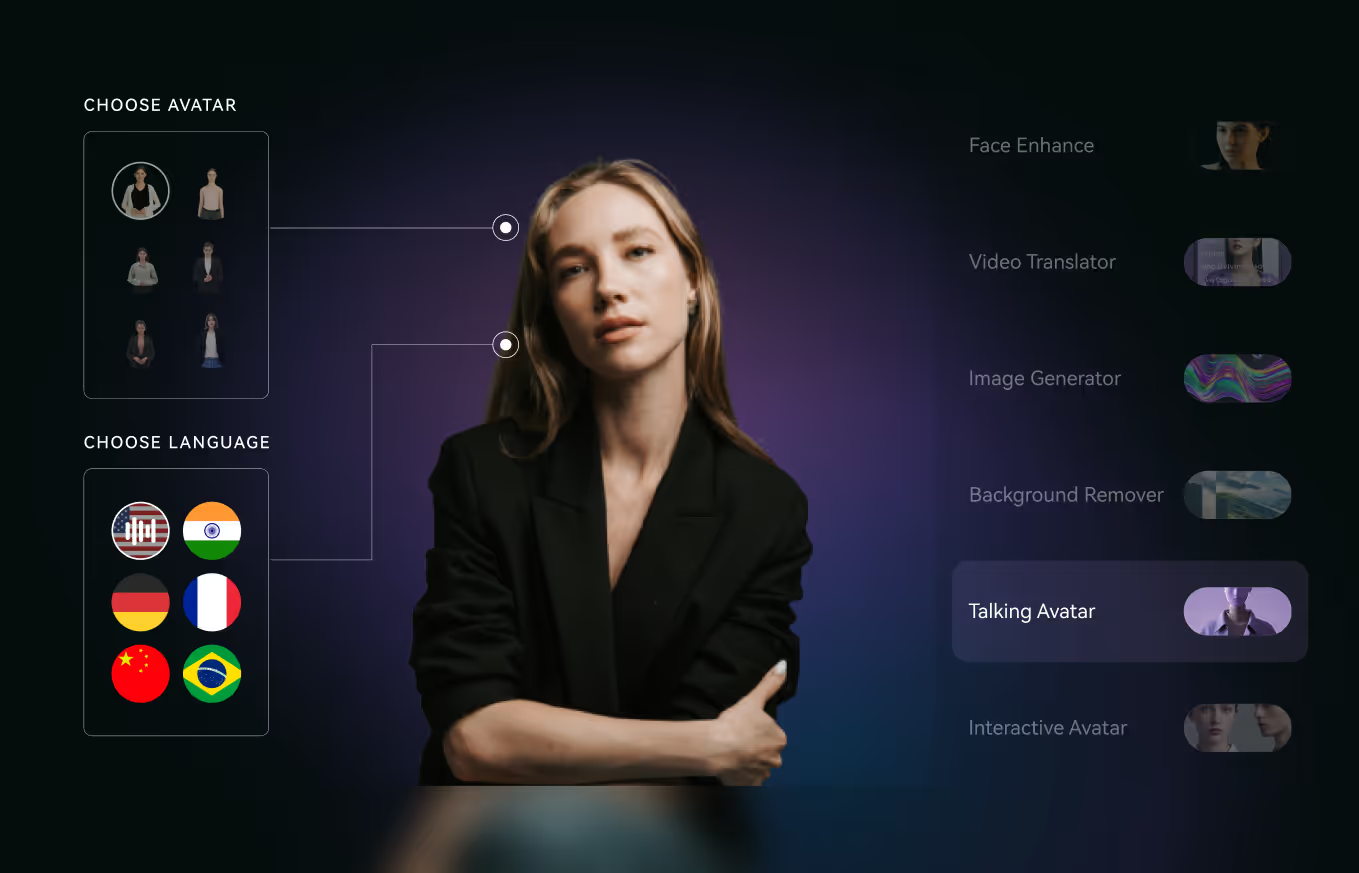

視聴者のインタラクションを高めるために、パーソナライズされた動画コンテンツを作成しましょう。ゲームインフルエンサーやデジタルマーケターにとって不可欠です。

すべてのハイライトリールを強化するように設計された高度なAIツールでeスポーツコンテンツを変身させましょう。スリリングなゲームプレイを紹介し、高品質の動画コンテンツでより多くの視聴者を引き付けたいと考えているeスポーツチームやトーナメント主催者に最適です。
インディーゲームデベロッパーは、魅力的なビデオ予告編を簡単に制作できるようになりました。当社のAIゲーム動画エディターは、インディーズスタジオがユニークなゲームプレイ機能や芸術的なビジョンを強調するのに役立ち、混雑した市場で彼らの作品が注目されるようにします。
教育者やチュートリアルクリエーターに最適な当社のAIツールは、魅力的で有益なゲーム動画の作成プロセスを簡素化します。インタラクティブでダイナミックなコンテンツを通じて、教育における重要な場面を強調し、視聴者が学習している間も魅了され続けられるようにします。
何時間ものゲームプレイ映像からハイライトリールを簡単にコンパイルして編集できます。当社のAIテクノロジーは最もエキサイティングな瞬間を識別して抽出するので、アクションを見逃すことなく、最高のゲーム成果を迅速かつ効率的に共有できます。
数回クリックするだけで、ソーシャルメディアプラットフォーム向けの人目を引くショートクリップを作成できます。当社のAI搭載エディターは、ゲーム動画のエンゲージメントを最大化できるよう最適化し、オンラインでの存在感を高め、世界中のゲームコミュニティとつながるのに役立ちます。
AI 主導のインサイトを活用して視聴者のエンゲージメントを高めることで、動画の収益性を高めましょう。さまざまなプラットフォームでの収益化基準を満たすようにゲーム動画をカスタマイズすることで、最高のコンテンツ品質を維持しながら収益を最大化できます。
30%OFF
0.05米ドル/クレジット
(年額252ドルで請求)
0.05米ドル/クレジット
(月額 30 ドルで請求)
0.05米ドル/クレジット
(月額 119 ドルで請求)
0.042米ドル/クレジット
(年間500ドルで請求)
0.05米ドル/クレジット
(年額252ドルで請求)
0.035米ドル/クレジット
(年額252ドルで請求)
0.033米ドル/クレジット
(年額948ドルで請求)
0.05米ドル/クレジット
(年間4200ドルで請求)
What is an AI Gaming Video Editor?
An AI Gaming Video Editor is a software tool that uses artificial intelligence to automate and enhance the video editing process specifically for gaming content. It helps gamers and content creators produce high-quality videos with less effort and time.
How does AI enhance gaming video editing?
AI enhances gaming video editing by automatically detecting key moments, suggesting edits, applying effects, and optimizing video quality, all while reducing the manual effort typically required in traditional video editing.
Can AI Gaming Video Editor improve my video quality?
Yes, AI Gaming Video Editor can significantly improve your video quality by using advanced algorithms to enhance visual and audio elements, stabilize footage, and upscale resolution, resulting in a more professional-looking final product.
Is AI Gaming Video Editor compatible with all gaming platforms?
AI Gaming Video Editor is designed to be compatible with a wide range of gaming platforms, including PC, console, and mobile games, ensuring that you can edit videos from your favorite games seamlessly.
Does AI Gaming Video Editor support live streaming content?
Yes, AI Gaming Video Editor supports live streaming content by allowing you to edit and enhance recorded streams, highlight key moments, and create engaging recap videos for your audience.
How user-friendly is the AI Gaming Video Editor interface?
The AI Gaming Video Editor is designed with user-friendliness in mind, offering an intuitive interface that caters to both beginners and experienced editors, making the editing process smooth and efficient.
Can I customize the edits made by the AI Gaming Video Editor?
Yes, you can customize the edits made by the AI Gaming Video Editor. While the AI provides automated suggestions, you have full control to tweak and personalize the edits to match your unique style and preferences
What are the subscription options for the AI Gaming Video Editor?
The AI Gaming Video Editor offers various subscription options, including monthly and annual plans, to cater to different needs and budgets. Each plan provides access to a range of features and tools to enhance your gaming video editing experience.