
Product photos can carry a listing, yet static images often lose attention in a fast moving feed. Image to video AI helps you add purposeful motion without scheduling a new shoot for every concept. You can turn approved product assets into short social clips, launch teasers, and ad variations while keeping the item recognizable. Good results depend on clean source files, focused prompts, and a careful review process before anything reaches a campaign.
Which Product Images Work Best for Image to Video AI?
The strongest product images are clear, well lit, and easy to read at a glance. Give image to video AI a sharp product subject, a controlled background, and visible detail around the edges. Tiny objects, crowded scenes, hard crops, and reflective surfaces can create distortions once motion enters the frame.
Keep One Product in Clear View
Use an image with one obvious focal point. A sneaker, serum bottle, coffee maker, bag, or candle should fill enough of the frame for viewers to recognize the item quickly. Leave some open space around the product for a gentle camera move.
A front or three quarter angle often works well because it shows depth without hiding key details. Packaging needs a visible side panel when shape matters. Apparel can use a clean on body photo when fit, drape, or fabric movement drives the story.
For Google Shopping listings, the primary image needs to show the full product accurately, with minimal staging. Each product variant also needs an image that matches its real color, pattern, and material.
Capture the Details That Drive the Sale
Choose an image that shows the feature your customer cares about. Jewelry needs controlled reflections. Skin care products need readable labels. Furniture needs visible material texture. Electronics need clean edges and accurate ports or controls.
People searching for ai image to video often focus on motion first. Product accuracy comes first. A clean source photo gives you a much better chance of preserving the features that influence a purchase.
Prepare Clean Product Photos, Reference Frames, and Brand Elements
Your source files set the ceiling for the finished clip. Before opening an ai image to video generator, collect the approved assets that keep your product, logo, and campaign style consistent across every version.
Use your product page image as the factual reference. Keep lifestyle photos in a separate folder. The first file helps you confirm the real SKU. The second file gives you room to create mood, movement, and context for social content.
Prepare these materials before generating:
- A high resolution product photo with a clear full view
- A second approved angle for texture, hardware, color, or packaging checks
- Your logo, color palette, and font rules
- A product fact sheet with size, material, color, included items, and approved claims
At AKOOL, you can turn clear product photos into dynamic clips, with output available up to 4K. Build a small set of variations from an approved asset, then compare each result with the original product photo before publishing.
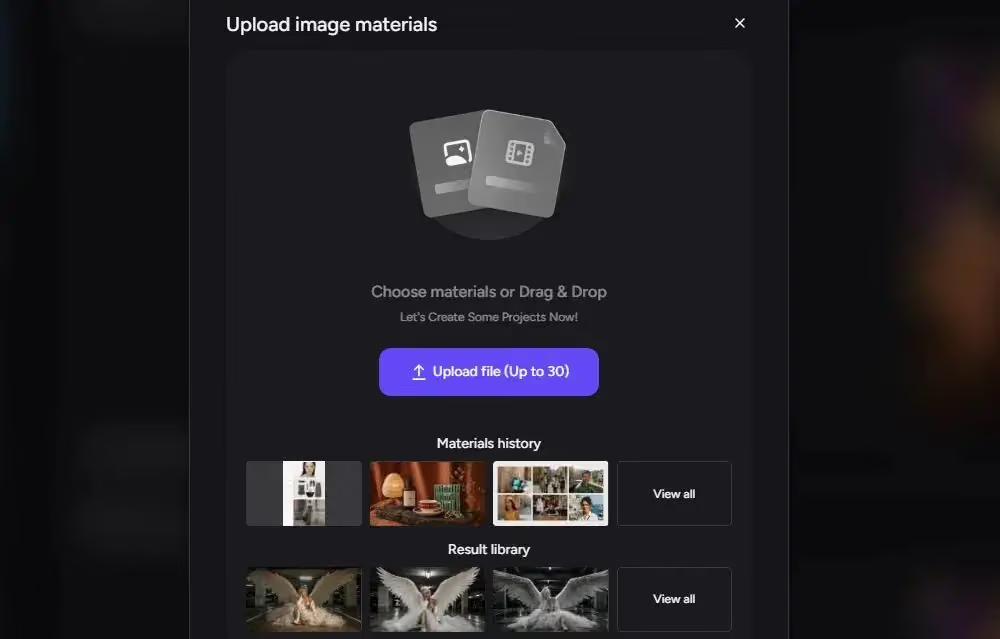
Keep product variants separate during production. A blue bag needs its own source image and its own export. A multipack needs every included item visible. This simple organization prevents a strong visual from creating confusion on the product page.
Use Motion Prompts to Add Camera Movement and Visual Energy
A motion prompt tells the model what should move, how the camera should behave, and what visual mood should remain stable. Your image to video ai generator works best with one clear motion idea. Too many competing actions can pull attention away from the product.
If the visual direction still feels unfinished, explore these prompt ideas for AI visuals to refine lighting, material cues, and composition before you animate the product image.
Build prompts with four details:
Product: “A matte black insulated bottle on a stone counter.”
Motion: “The bottle rotates slowly clockwise.”
Camera: “A gentle push in moves from a medium view to a close product view.”
Visual Style: “Soft daylight, premium commercial product photography, clean background.”
Use motion that feels physically believable. A necklace can catch a shifting highlight. A jacket can move in a light breeze. A ceramic mug can turn slowly on a tabletop. Large shape changes and abrupt camera swings create extra risk for small details, labels, and logos.
An ai video generator from image can produce several versions of the same idea. Change one element per test. Reduce the motion if the product looks right but the scene feels busy. Add a gentle camera slide if the frame feels too still. You will see the effect of each change much faster.
If you need a quick reminder of how to turn a product image into a video, review the upload, prompt, and generation steps before creating variations. Keep each prompt focused on one camera cue and one visible product detail, then review the first result before creating further variations.
Turn Static Product Assets Into Short Social and Ad Clips
Image to video AI works well for short visual moments with a single job. One clip can reveal a product. Another can show a material detail. A third can create a mood for a launch post. Keep the product visible in the opening second so viewers understand the subject before the motion develops.
Use a full product view first, then move into a detail when the platform gives you only a few seconds. Save text overlays for versions designed for social feeds. Google Merchant Center product images cannot contain promotional text, watermarks, or overlays that cover the product.
The best image to video AI setup for product work keeps the creative idea simple and the product easy to inspect. Produce one clean retail version and one more expressive social version. Each can serve a different purpose while showing the same item accurately.
If you are planning several campaign formats from one approved product asset, AKOOL’s customer stories offer practical examples of AI-led creative workflows and brand-consistent production.
Check Product Accuracy Before Using the Video in Campaigns
Review every image to video AI clip against the real product before launch. Generative motion can soften a logo, shift a color, add a feature, remove a component, or change the look of a reflective surface. A polished clip still creates risk if it shows something customers will not receive.
Check the first frame, the last frame, and the point where movement is strongest. Review the clip on a phone screen and at full size. Compare every result with the approved product image and the live product page.
Confirm four details:
- Logo, color, material, label, and product shape match the item you sell
- The video does not show an extra accessory, feature, or bundle component
- Price, offer, and performance claims have the required supporting information
- The product page matches the version shown in the campaign
When you use a product visual in a Google Shopping campaign, make sure it presents an accurate, realistic, and truthful offer. Any qualification in a video should remain onscreen long enough for viewers to notice, read, and understand it.
Make Static Product Assets Work Harder With AI Video
Image to video AI helps you turn approved product photos into a useful set of social and ad clips without rebuilding every asset from scratch. Keep each motion choice tied to the product, review exports at their final placement size, and retain the approved image as your reference. For additional workflow ideas, see practical creative workflows from AKOOL. Create your first product video with a free AKOOL account, then build a reveal and a detail clip from the same approved asset. When you are ready to produce on an ongoing basis, find a plan that fits your output needs.