



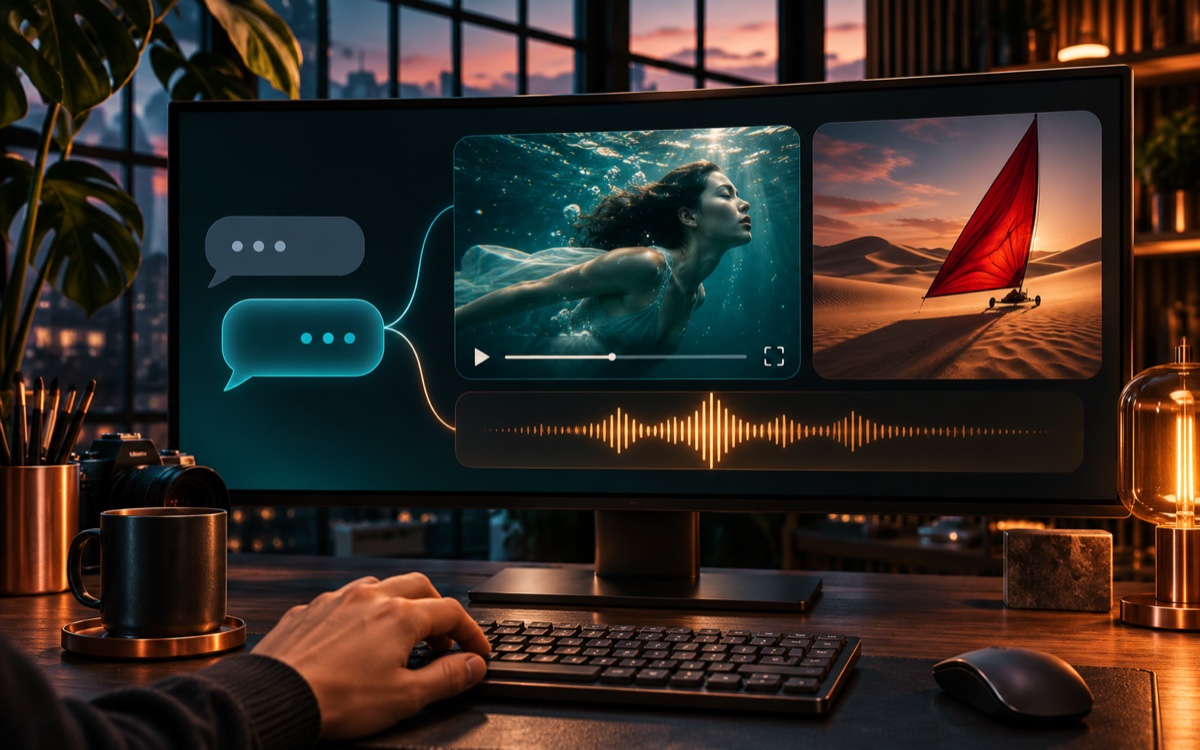



The AKOOL MCP server connects AKOOL's AI image, video, face swap and voice tools to AI assistants such as Claude, ChatGPT and OpenAI Codex through the Model Context Protocol (MCP). Once connected, you can ask your assistant in plain language to generate an image, animate it into a video, swap a face or create a voiceover, and it calls AKOOL for you, with no manual API code.
Key takeaways
- MCP is an open standard that lets AI assistants use external tools. AKOOL's MCP server exposes its creative tools to any compatible assistant.
- Supported assistants include Claude, Claude Code, ChatGPT, OpenAI Codex, Cursor, Windsurf and Kiro.
- ChatGPT and Codex connect in one click with the official AKOOL plugin: open Connect AI agents in AKOOL, install the plugin and sign in.
- For Claude and other MCP clients, add the AKOOL server URL and your AKOOL client ID and secret to the assistant's MCP settings.
- Available tools cover image generation and upscaling, image-to-video, face swap (image, video and live), avatars, text-to-speech and face detection.
- Generation uses your AKOOL account credits. Ask the assistant to check your balance before large jobs.
What Is the AKOOL MCP Server?
The Model Context Protocol is an open standard for connecting AI assistants to tools and data. An MCP server describes a set of tools, and an assistant that supports MCP can decide when to call them based on your request.
The AKOOL MCP server makes AKOOL's generative tools available this way. Instead of opening several apps or writing API calls, you describe what you want in a chat, and the assistant runs the right AKOOL tools, waits for the results and returns the finished files.
What Can You Do with AKOOL in Claude or ChatGPT?
- Create images: generate product shots, concept art or social graphics, then upscale them.
- Turn images into video: animate a still image into a short clip with motion and effects, and add audio.
- Swap faces: place a face into an image or video, including multi-face scenes.
- Generate voiceovers: pick a voice and turn a script into speech.
- Work with avatars: browse avatars and create character swaps.
- Analyze faces: detect and analyze faces before a swap.
- Check your account: see your credit balance and available models.
Who Is AKOOL MCP For?
- Marketers and creators who already plan campaigns in Claude or ChatGPT and want visuals and video in the same conversation.
- Developers using Claude Code, Codex or Cursor who want to add AI media to apps and prototypes without leaving their editor.
- Agencies that want repeatable, prompt-driven creative workflows.
- Product teams exploring AI agents that produce images, video and voice as part of larger tasks.
How to Use AKOOL in ChatGPT
The fastest way to use AKOOL in ChatGPT is the official AKOOL plugin, which connects ChatGPT to the AKOOL MCP server for you. No API keys or configuration files are needed.
- Sign in to AKOOL, open Connect AI agents and choose ChatGPT.
- Click Connect to ChatGPT. ChatGPT opens the AKOOL plugin page.
- Install the plugin, then sign in to AKOOL when asked.
- Start a new chat and ask ChatGPT for an image or video, for example: "Create a cinematic product shot of our new sneaker and turn it into a 5-second vertical video."
How to Use AKOOL in OpenAI Codex
Codex uses the same AKOOL plugin flow. In AKOOL, open Connect AI agents, choose Codex and click Connect to Codex. Codex opens the AKOOL plugin page; install the plugin, sign in to AKOOL, then start a new chat and ask Codex for an image or video. Working in the terminal? Copy the Codex CLI command shown in the same panel instead.
How to Use AKOOL in Claude and Other MCP Clients
The Connect AI agents panel in AKOOL also includes setup for Claude and Claude Code. You can also connect any MCP-compatible assistant manually.
Step 1: Get Your AKOOL Credentials
Sign in to AKOOL and open your API credentials in the dashboard to find your client ID and client secret. Keep them private and never commit them to code repositories.
Step 2: Add the AKOOL Server to Your Assistant
Every client uses the same server details: the URL https://openapi.akool.com/mcp/v1, connection type HTTP, and two headers, x-client-id and x-client-secret, set to your credentials.
- Claude Desktop: open Settings, then Developer, then Edit Config, and add the AKOOL server to your configuration file. Restart Claude; the tools icon shows when AKOOL is ready.
- Claude Code: add the server with the
claude mcp addcommand and the two headers, then runclaude mcp listto confirm. - Cursor, Windsurf and Kiro: add the server in the app's MCP settings or config file and restart.
Exact file paths and copy-ready configuration are in the AKOOL MCP setup guide.
Step 3: Test the Connection
Ask your assistant: "Check my AKOOL credit balance." If it returns your balance, AKOOL is connected. A 401 error means the credentials need checking.
Step 4: Start Creating
Describe what you want in plain language. For example:
- "Create a photorealistic image of a ceramic coffee mug on a marble counter in morning light, then turn it into a 5-second video with steam rising."
- "Write a 20-second product intro for our new running shoe and generate a voiceover with a warm female voice."
- "Swap the face in this campaign image with the face in this photo, then upscale the result."
Most AKOOL jobs run asynchronously, so the assistant checks progress and returns the result when it is ready.
Example Workflow: From Brief to Video in One Chat
- Paste a campaign brief into Claude or ChatGPT and ask for three visual concepts.
- Pick one and ask the assistant to generate the hero image with AKOOL.
- Ask for a short image-to-video version for social media.
- Ask for a script and a matching voiceover.
- Download the image, clip and audio, or keep refining in the same conversation.
The same flow works in Claude Code or Codex for developers who want to save generated assets straight into a project.
Best Practices
- Protect credentials: store them in environment variables or your client's secure settings, not in shared files.
- Check credits first: ask for your balance before large batches.
- Be specific: include style, lighting, length and aspect ratio in prompts.
- Get consent: only swap faces or clone voices you have the rights to use.
- Review outputs: check images and videos before publishing, especially product details and text.
Conclusion: Your AI Assistant, Now a Creative Studio
With the AKOOL MCP server, the assistant you already use for planning and coding can also produce images, video and voice. Connect it once and turn ideas into finished media in a single conversation. Read the AKOOL MCP setup guide to connect Claude, Cursor and other MCP clients, or open Connect AI agents in AKOOL to add AKOOL to ChatGPT or Codex in one click.
Related Use Cases
Frequently Asked Questions
What is the AKOOL MCP server?
It is a Model Context Protocol server that lets AI assistants like Claude, ChatGPT and OpenAI Codex use AKOOL's image, video, face swap, avatar and voice tools through natural-language requests.
Which AI assistants work with AKOOL MCP?
AKOOL works with Claude, Claude Code, ChatGPT, OpenAI Codex, Cursor, Windsurf and Kiro. ChatGPT and Codex connect through the official AKOOL plugin; other clients connect with the AKOOL server URL and API credentials.
How do I add AKOOL to ChatGPT?
In AKOOL, open Connect AI agents, choose ChatGPT and click Connect to ChatGPT. Install the AKOOL plugin on the page that opens, sign in to AKOOL, then start a new chat and ask for an image or video.
Does AKOOL MCP cost extra?
Using the MCP server consumes AKOOL credits for the jobs you run, the same as using AKOOL directly. You can ask your assistant to check your credit balance at any time.
Do I need to know how to code?
No. In ChatGPT you install the AKOOL plugin and sign in, and in Claude Desktop you add the server details once. After that you work in plain language. Developers can also use it from Claude Code, Codex or Cursor.
Can I generate videos with AKOOL MCP?
Yes. The image-to-video tools animate still images into short clips, and you can add audio. Video jobs run asynchronously and return when ready.