Explore this direction
↗
PRODUCT CAMPAIGN
Product and campaign concepts
01
Create images from a text prompt or a reference photo. Explore image models, try a new visual style, and refine your ideas for product concepts, portraits, social posts and more.
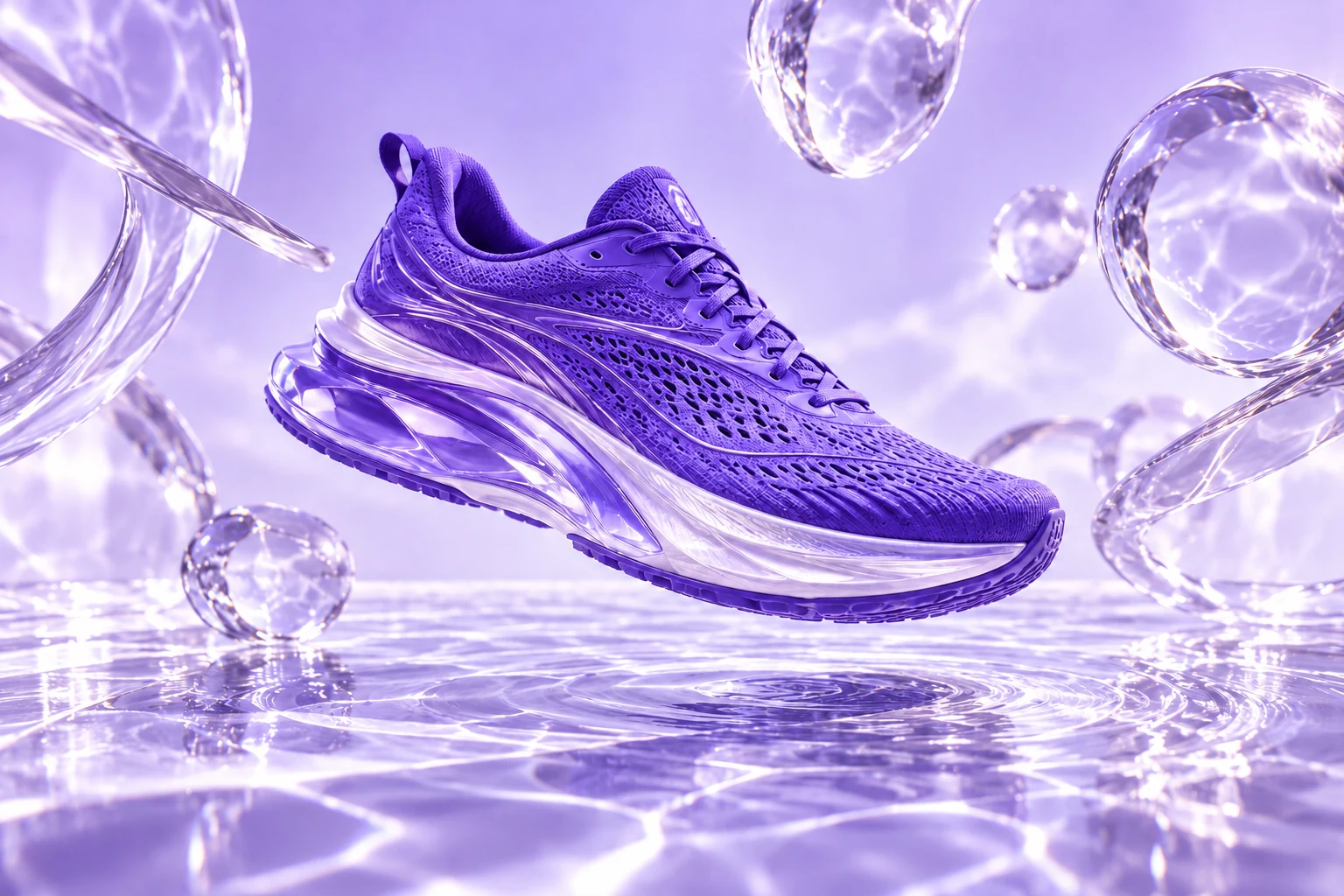
A violet sneaker. Liquid light.
A campaign beyond the studio.
Explore product scenes, portraits, illustrations and concept art. Use a suggested prompt as your starting brief, then adapt the image to your audience and format.
Choose a model for the task in front of you. Explore realistic characters with AKOOL Image, text-rich concepts with Nano Banana Pro, cinematic scenes with FLUX, or detailed briefs with GPT Image.
Explore portraits, illustrated characters and realistic scenes. Use a clear visual brief to develop a consistent direction across your image set, then check the face, styling and scene details in each result.
Explore AKOOL ImageModel versions, settings and credits vary. Check the image workspace and your plan for current access.
Choose a starting point, add your creative brief and generate. Keep the useful details in your prompt, then make focused changes to improve the result.
Name the subject, scene, style and lighting. Use a reference photo when its appearance should guide the result.
Open AKOOL to createStart from a reference, improve an image’s resolution or explore a different visual style. Choose the tools that suit the next step in your project.
Upload a reference and describe the changes you want to explore. Try a different setting, style or lighting, then compare the result with your original photo.
Explore image to image
Improve an existing image with AKOOL’s upscaler. Review the available output options and compare the result at full size before preparing it for a page, post or presentation.
Explore image upscalingTurn a concept into a photographic scene, an illustration or an imagined world. Change one part of your brief at a time so you can see what improves the result.
Try a new directionStart an image-to-video project with a still you have created or uploaded. Add movement, an action or a camera direction, then choose the settings available for your selected video model.
Bring an image into videoExplore the AI video generatorA useful prompt names the subject, setting, lighting, style and composition. Try a brief below, then change one detail at a time instead of rewriting everything.
A ceramic coffee cup on a pale stone plinth, soft morning light, subtle shadow, minimalist studio, close-up product photography.
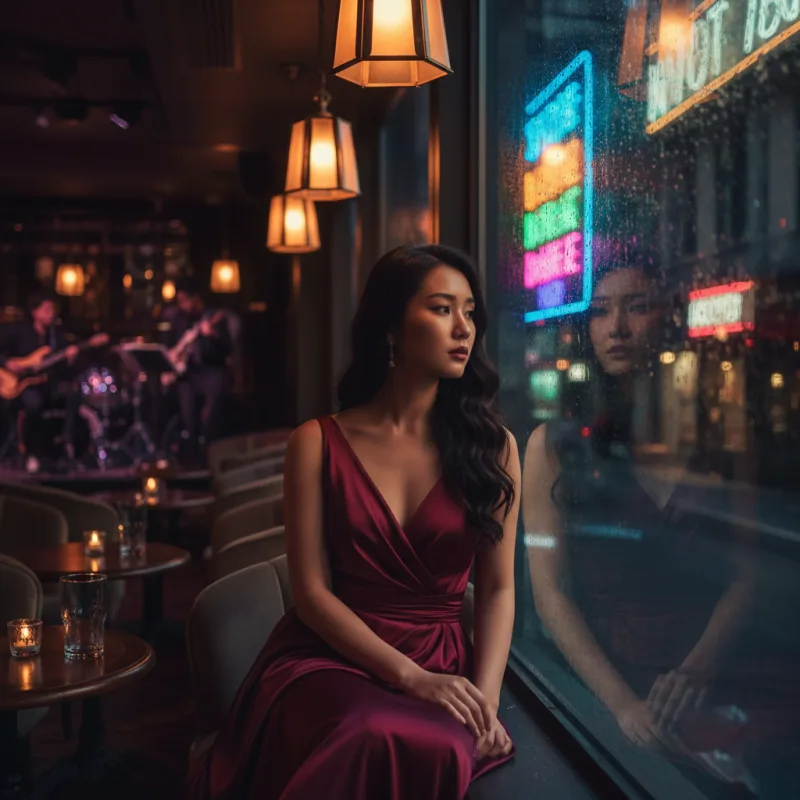
Copy promptAn editorial portrait by a rain-streaked window, soft reflected neon, natural skin texture, cinematic mood, shallow depth of field.
Copy promptA floating glass pavilion above a lavender sea, curved architecture, distant mountains, diffused daylight, surreal cinematic composition.
Copy promptPractical answers about prompts, photos, models, credits and the next step in your project.
Visit the help centerAn AI image generator creates an image from a written description or a reference photo. In AKOOL, you can choose an image model, describe the subject and visual style, and generate a result. Review the image, then refine your instructions to explore a different direction.
Open the image generator and choose Text to Image or Image to Image. Select an available model, add your prompt or reference, and review the settings before you generate. Afterward, compare the result with your brief and adjust the details that need another pass.
Yes. Use Image to Image to start with an uploaded reference photo. Describe the changes you want, such as a different setting, lighting or visual style. How closely the result follows your photo depends on the chosen model, prompt and settings.
AKOOL lists image models including AKOOL Image, Nano Banana Pro, Seedream, FLUX, GPT Image and Recraft. They offer different approaches to image creation. Check the live image workspace for the current versions and settings, and the pricing page for model access on your plan.
Name the subject, setting, lighting, style and composition. Add important details such as materials, colors, camera angle or space for a headline. A prompt like "a white ceramic mug on pale stone, soft window light, close-up product photo" gives a clearer direction than "a nice mug."
Yes. AKOOL supports prompt-based and reference-based image creation for product scenes and marketing concepts. Use a product photo when its appearance matters, and describe the setting you want. Check the shape, label, colors and other product details before using the result in a campaign.
AKOOL Image is designed for coherent characters and visual sequences. Use a consistent character brief and supported reference options, then compare each image for changes in the face, clothing and styling. A consistent direction is a creative goal, so review every image in the set.
AKOOL lists models that support text-rich image creation, including Nano Banana Pro and GPT Image. Include the exact wording and describe where it should appear. Check spelling, spacing and readability in the result, especially for product labels, posters and small text.
AKOOL provides image generation and a separate image upscaler. Use the upscaler to improve an existing image, or review the resolution options for your selected image model. Available output settings vary. Check the final dimensions and image quality before preparing an asset for print or a large display.
AKOOL offers free and paid plans and uses credits for generation. The models you can access, included credits and export limits depend on the plan and selected options. Check the current pricing page and review the credit cost shown in the workspace before you generate.
Choose a plan with the licence your project requires. AKOOL’s pricing page distinguishes personal, business and enterprise licences, so a paid subscription alone does not mean every commercial use is included. Review the current plan terms and use reference photos, logos and other materials you have permission to use.
Yes. Open AKOOL’s image-to-video tool and use your image as the starting frame. Add a prompt describing the subject’s movement and the camera direction, then choose an available video model and settings. Review the generated clip to see how the motion follows your brief.
Write a prompt or start with a photo. Create your next visual in AKOOL.
Create with AKOOLCreate AI video from a text prompt, animate an image, or use supported references to guide a scene. Explore Veo, Kling, Seedance and Wan in AKOOL, then choose the model and settings that fit your brief.
Copy your prompt, then open AKOOL to generate. Model access, settings and credit costs vary.
Watch video examples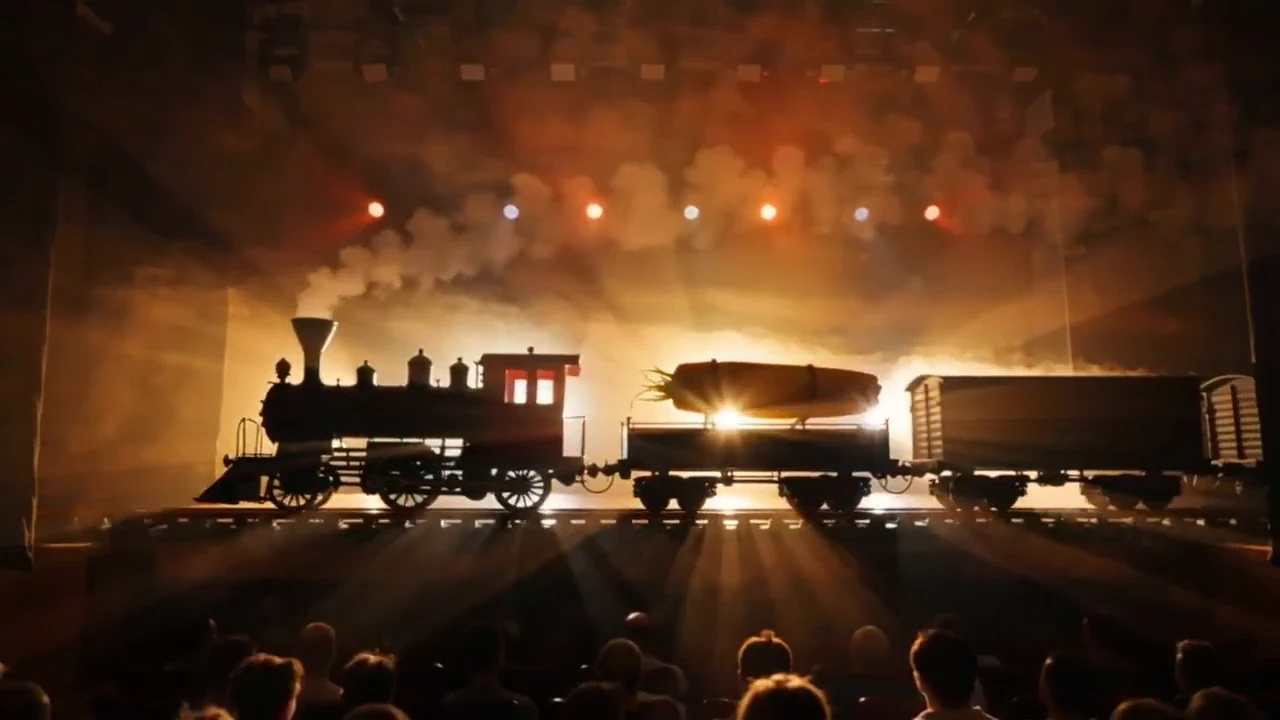 Cinematic worlds01 / TEXT TO VIDEO
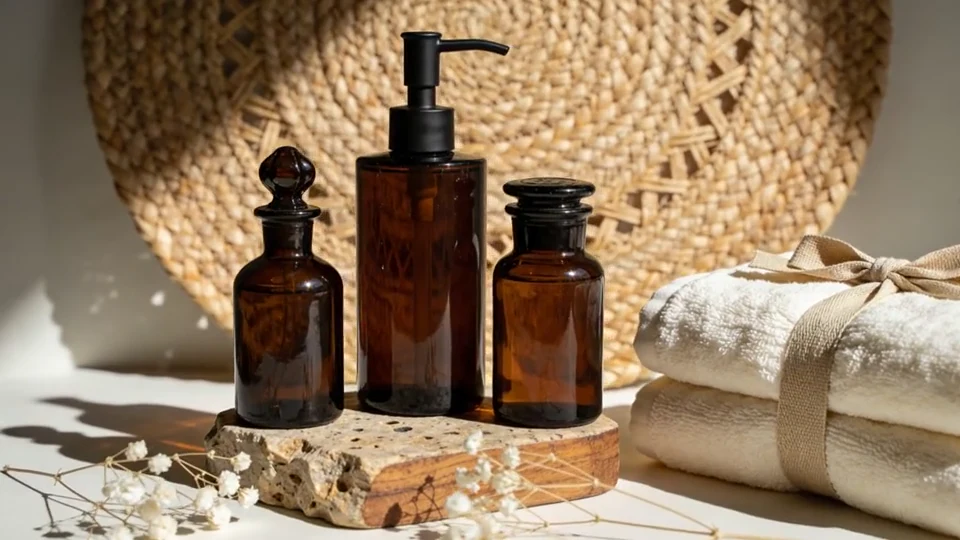 Product stories02 / IMAGE TO VIDEO
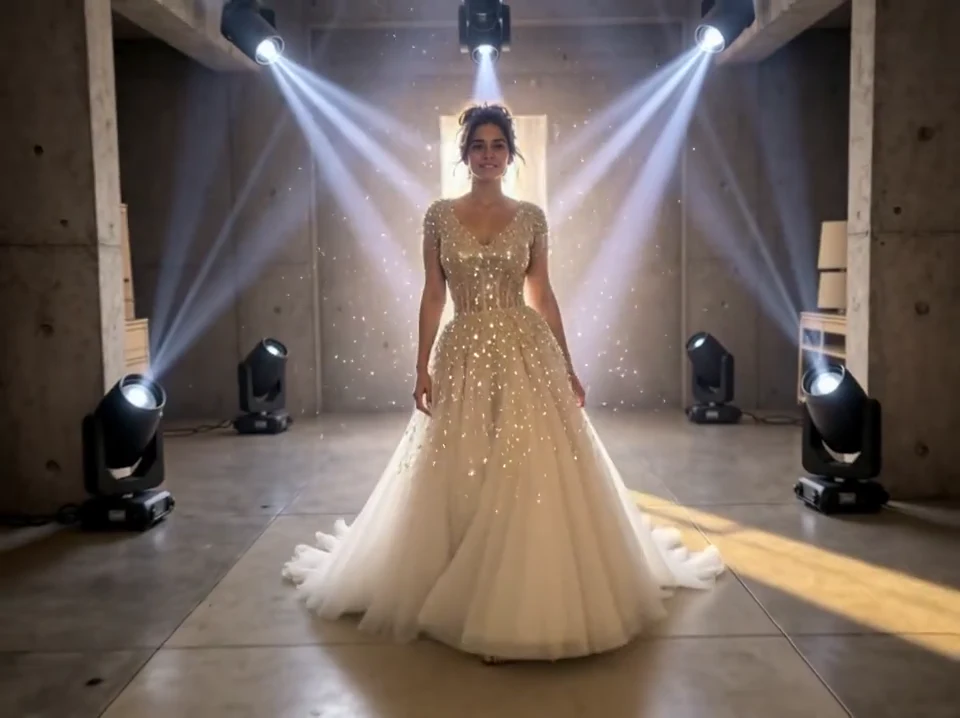 New perspectives03 / IMAGE TO VIDEO
Silent showcase: a steam train, golden light and drifting smoke in a theatrical scene.
Published AKOOL examples.Explore product scenes, cinematic worlds and visual transformations published by AKOOL. Open a clip, study the movement and borrow a creative starting point for your own project.
0:10SILENT PREVIEWUse light and gentle movement to explore a product reveal. Review the final clip against your approved packaging and colors.
0:20SILENT PREVIEWGive the scene a subject, an action and a camera direction. Build a visual concept before planning the next shot.
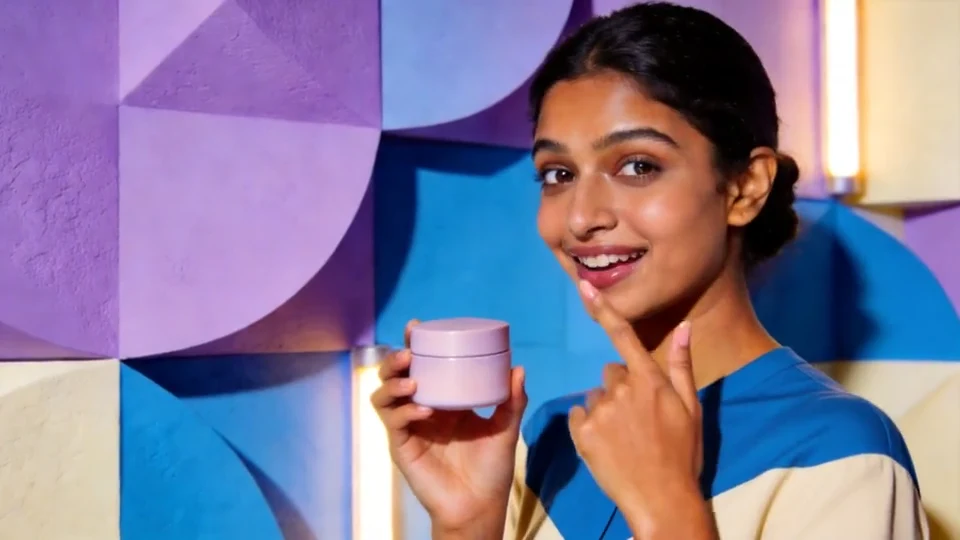 0:10SILENT PREVIEW
Explore a short, character-led product scene. Check the face, hands and packaging before using the result.
0:10SILENT PREVIEWTry a change of setting, wardrobe or atmosphere. Keep the intended subject and visual direction clear in your brief.
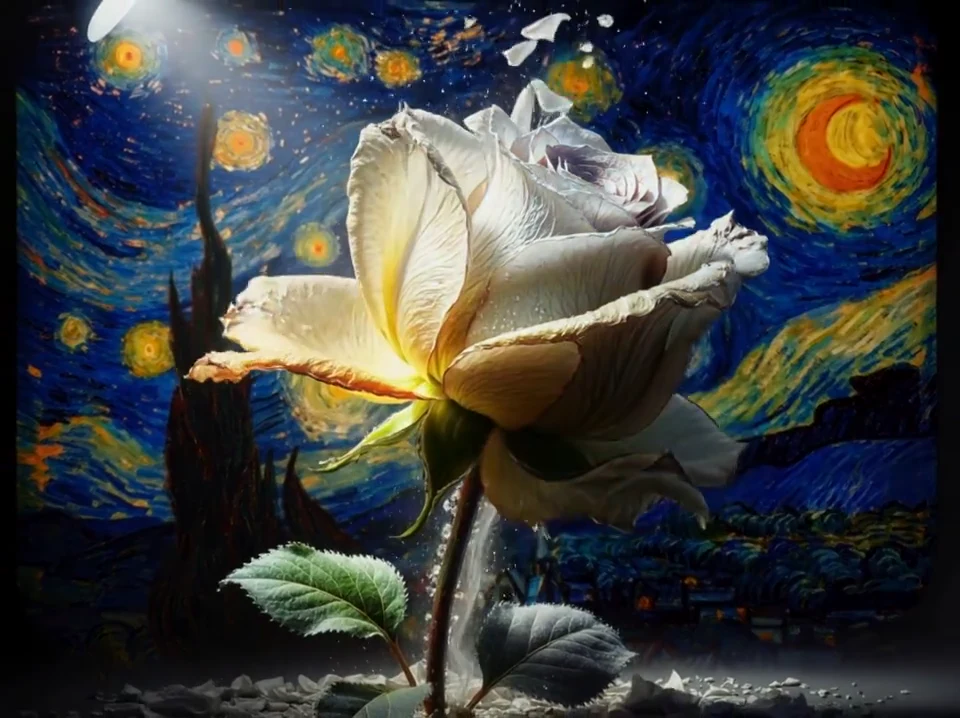 0:10SILENT PREVIEW
Start with an illustration and describe how it changes over time. Review the movement alongside the look of the original image.
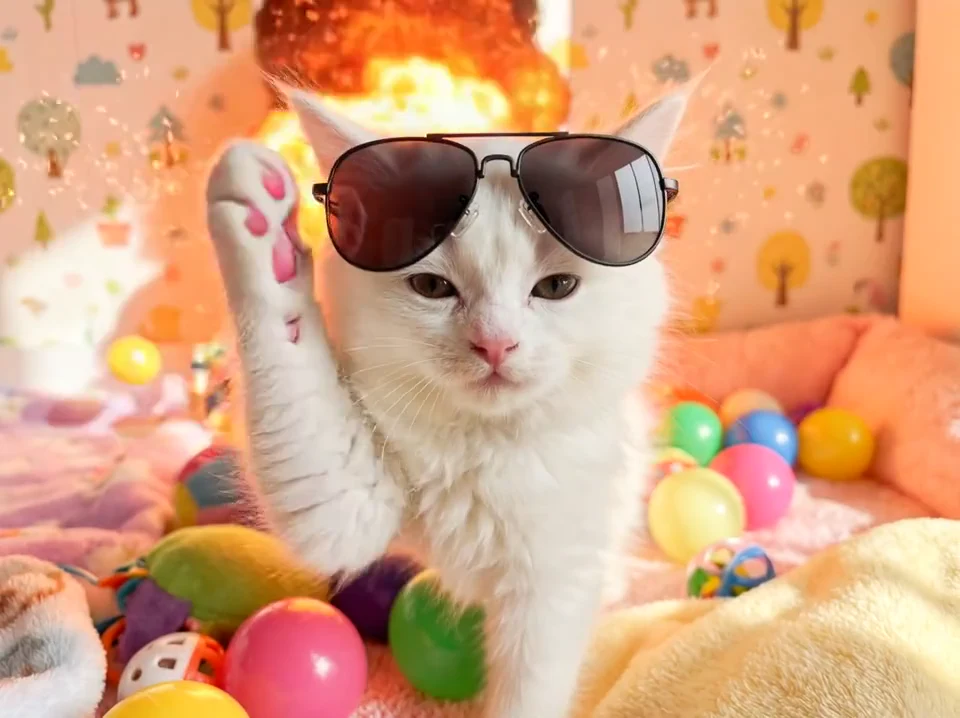 0:10SILENT PREVIEW
Explore a playful visual hook with a simple action. Give the viewer an obvious subject and a scene that is easy to follow.
These are published AKOOL showcases. Suggested prompts are new examples for exploring a similar direction; they are not a record of the settings used for each clip.
Image-to-video adds movement to a photo, illustration or render. Upload a clear image, describe a focused action and choose the available settings for your selected model.
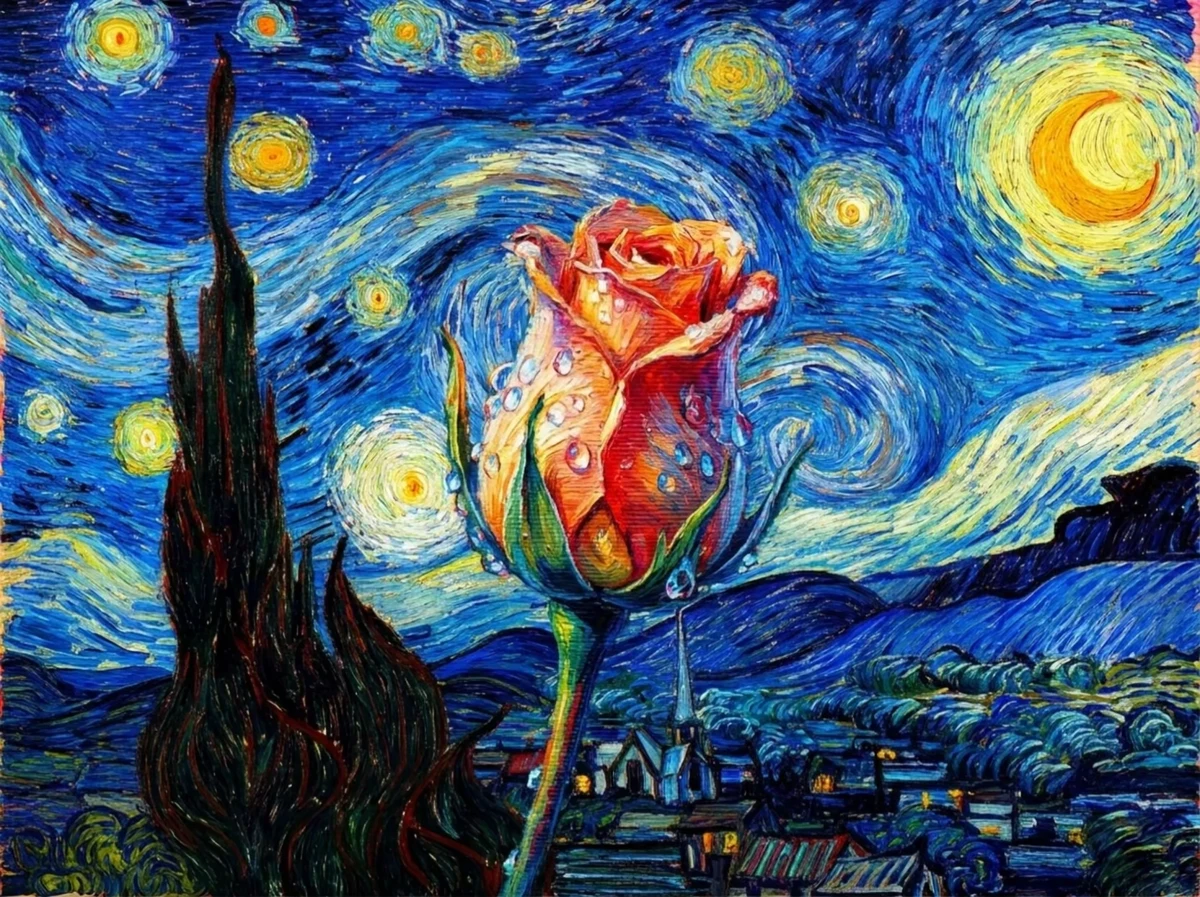 WATCH THE TRANSFORMATION
“A painted flower slowly becomes lifelike. Use a gentle camera push-in and soft natural light. Keep the surrounding painted composition visible.”
An original example prompt. Results will depend on the uploaded image and model.Choose text-to-video to explore a new scene. Choose image-to-video when a still is your starting point. Use a reference-capable model when several assets need to guide a new clip.
Describe a scene in words. Start with the subject and action, then add the setting, lighting and camera movement that make the shot clear.
Upload a photo, illustration or render and describe the motion. Use a clear subject and keep the first action simple so you can judge what changes.
Guide a new clip with supported image, video or audio references. Give each asset a role, such as subject, style or motion. Available inputs depend on the model.
Compare what each available model accepts and how it handles your idea. Start with the inputs you have, then check the motion, audio and output options you need.
Have an approved product image? Compare reference-capable Veo and Seedance options with the same image and a simple motion prompt. Review packaging and colors in every result.
Explore reference-guided scenes with Google's Veo family. Check the selected version's image, motion and audio options before generating.
SCENES · REFERENCES · MOTIONExplore VeoExplore camera-led scenes and multi-shot ideas. Kling versions offer different reference and audio features, so compare the controls available in AKOOL.
CAMERA · SUBJECTS · SEQUENCESExplore KlingExplore reference-led video creation. Seedance 2.0 supports several reference types; the version and workflow determine the options you can use.
REFERENCES · VISUAL DIRECTIONExplore SeedanceExplore image-led motion and short scene ideas with the Wan family. Confirm the version, supported inputs and audio controls shown in your account.
IMAGE MOTION · SCENE IDEASExplore WanOpen AKOOL, choose a supported workflow, add your prompt or references, and select the available settings. Generate a clip, review it and refine the parts that need work.
Open the video workspaceDescribe one main action. Add the subject, setting and camera direction. Upload a clear image or supported references when the look of a person or product matters.
Review the input types, clip length, aspect ratio, resolution and audio options available for your selection. Check the credit cost shown before you generate.
Look at movement, faces, hands and product details from start to finish. Change one part of the brief at a time. Download the useful result or move to the AKOOL tool your next step needs.
Generation is one part of a project. Explore AKOOL's related tools for visuals, narration, translation and presenter-led content.
A useful prompt says who or what is in the scene, what happens and how we see it. Start with these examples and change the details to fit your own material.
Use my approved skincare bottle image. A slow camera push-in as soft sunlight moves across the glass. Keep the bottle centered and the label facing the camera. One continuous shot.
Copy this promptA quiet city street just after rain. Reflections on the pavement, soft evening light and a gentle sideways camera move. One continuous shot with a calm mood. No text.
Copy this promptReview model access and credit costs before starting a batch. For client work, ads or other business use, confirm that the licence attached to your account covers the project.
Compare current plansPlan the action and review the details that matter.
Read the guideLearn how references guide subjects, style and motion.
Read the guideReview the plan, the inputs and what appears in the output.
Read the guideClear answers about inputs, models, sound, cost and using the result.
Visit the help centerAn AI video generator creates moving visuals from a text prompt, an image or other supported reference material. In AKOOL, you choose a workflow and model, add your direction, then generate and review a clip. The inputs, controls and output options depend on your selection.
Open AKOOL's text-to-video workflow and describe the shot. Include the subject, action, setting and camera movement. Choose an available model and its settings, check the credit cost, then generate. Review the clip and adjust the prompt before creating another version.
Yes. AKOOL's image-to-video workflow adds motion to a still image. Upload a clear photo, artwork or render and describe what should move. For product work, compare the full result with the approved image, especially the shape, colors, packaging and label.
Image-to-video starts from a still you want to animate. Reference-to-video uses supported assets to guide a newly generated clip, such as a character, product, style or movement. The reference types and upload limits depend on the selected model.
Choose a model that accepts your inputs and offers the controls your shot needs. AKOOL lists families including Veo, Kling, Seedance and Wan. Compare two available options with the same brief, then judge the useful output, the credit cost and the changes needed.
Some model versions generate audio with the video. That is different from adding narration afterward. Check the audio controls for your selected model. AKOOL also provides separate voice tools if your project needs a written script, voiceover or another audio workflow.
Clip length depends on the selected model, workflow and available settings. Check the duration shown in AKOOL before planning a shot. A single generated clip is different from a finished video built from several clips, so plan a longer story as separate scenes when needed.
AKOOL supports video workflows with different aspect ratios and resolution options. Availability depends on the model and plan. Check whether the selected option creates the video at that resolution or upscales it afterward, and choose a format that fits your publishing channel.
AKOOL offers free access alongside paid plans. The included model access, credits and watermark conditions depend on your account. Check the current pricing page and the options shown in the workspace before generating or downloading a video.
There is no single credit cost for every video. The model, duration, quality and other settings can change the cost. Review the amount shown for your selection before generating. For a batch, include the extra attempts you may need to get a usable clip.
Use a plan and licence that cover your intended project, and check AKOOL's current terms and any applicable model terms. You also need permission for people, images, music and other assets you provide. A paid subscription alone does not establish every right needed for an ad or client project.
Use clear, approved references and a focused motion prompt. Keep the important source assets stable while testing one change at a time. Review the full clip for identity drift, altered packaging and unwanted movement. References guide the output; they do not guarantee an exact match.
Write a prompt or bring an image. Give your next video somewhere to begin.
Create a video with AKOOLBuild film and TV shots with AKOOL. Work from approved references, refine source clips, prepare dialogue versions, and hand selected assets to your editor.
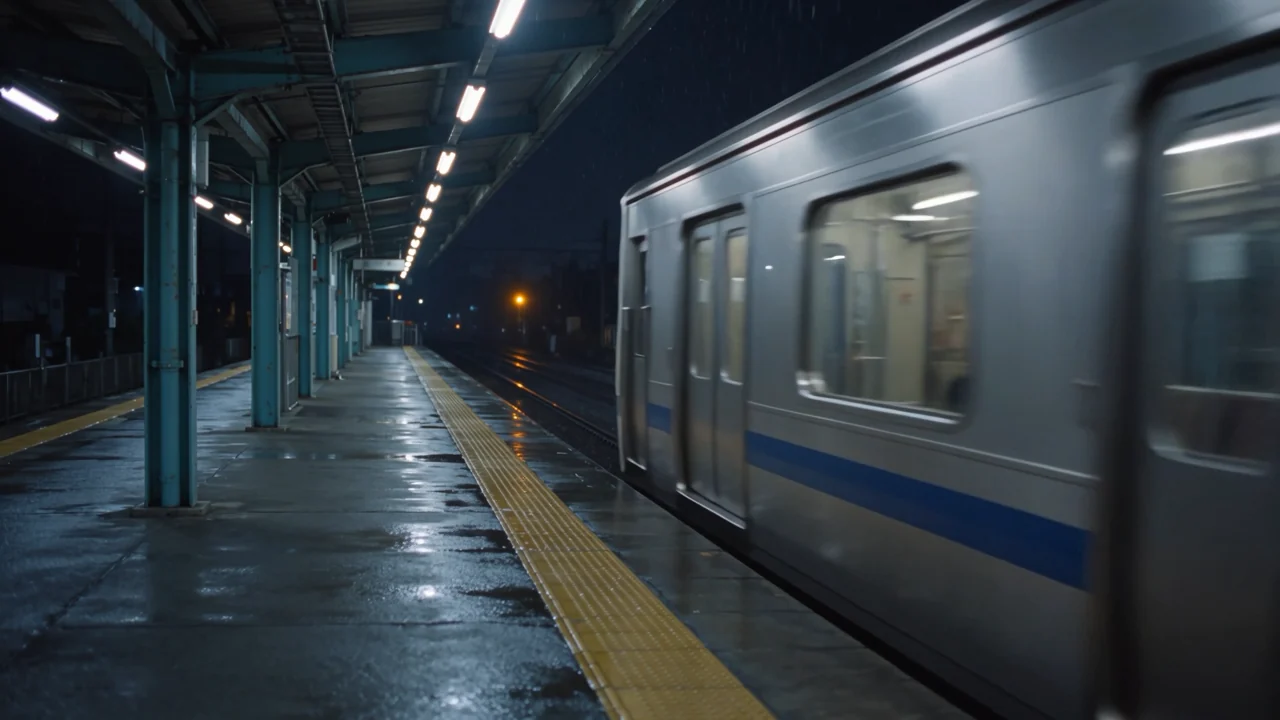
Give your next scene a clear path from reference to review. Use AKOOL’s AI video generator to create short shots, explore focused changes, and prepare selected assets for your production team.
Generate clips in AKOOL. Inputs, duration, audio, and export options depend on the selected model and plan.
AI film production brings generated images, video shots, source edits, and dialogue versions into a wider production workflow. In AKOOL, producers and small studios can develop these pieces with supported tools and models, then pass approved takes to an editor. Build around a clear brief, check each result, and keep final assembly, sound, and color decisions in your editing workflow.
Use each scene to think about framing, motion, continuity, and what the next editor needs.
A reference for scene geography, mood, and restrained camera direction.
A vertical creative reference. Review the action in its original portrait composition.
An existing animated narrative reference for reviewing scene rhythm and readable action.
Examples show AKOOL’s general video capabilities. They are existing creative references; the prompt recipes below were not used to make them.
Create an establishing view, object insert, or imagined environment around an approved brief. Give each shot a role in the sequence. Check architecture, props, lighting, and character details before approving a take.
Explore a different background, lighting direction, or visual treatment using a supported source-editing mode. Keep the request focused so reviewers can compare versions and choose a direction.
Use an approved dialogue clip for video translation. Have a fluent reviewer check meaning, performance, pronunciation, and mouth movement. Deliver the selected language version with its review notes.
Keep the brief, source assets, selected takes, and review notes connected.
Gather the approved script extract, character and location references, source clips, and rights notes. Give each file a shot or asset ID. State what should stay consistent and what needs to change.
Open the AI video generator. Choose a model and input mode that support your assets. Describe one action and the camera behavior, then check available settings and the credit estimate before generating a short test.
Review the whole clip for changing faces, props, lighting, and motion. Change one part of the brief at a time. Where supported, test a source edit or prepare a translated dialogue version. Record which version the team approves.
Download the selected files and pair them with their references and review notes. Assemble the sequence in your chosen external editor. Finish dialogue, sound, music, color, titles, and delivery checks there before release.
Use approved references to guide a character, location, or visual direction where supported. Seedance 2.5 is one option to explore. Inputs and controls vary by model, workspace, and plan. References guide generation; they do not guarantee continuity.
Choose a supported editing workflow to explore a change to existing footage. Name the change and what should remain. Compare the result with the source rather than assuming untouched areas will stay identical.
Use video translation to create another language version of an approved clip, then review translation and lip sync. Confirm permission for every performer, voice, and avatar, including the intended distribution.
Keep the script, language label, and selected take together.
A useful production handoff includes the decision behind the file, not just the latest download.
| Production asset | Include in the handoff | Review before approval |
|---|---|---|
| Reference pack | Approved character, wardrobe, prop, and location images | Correct version, intended role, and permission to use |
| Selected shots | Shot ID, chosen take, source references, and generation notes | Motion, continuity, composition, and unwanted changes |
| Source edits | Original clip, revised clip, and the requested change | Requested edit and any changes outside its scope |
| Dialogue versions | Language label, approved script, selected file, and reviewer notes | Meaning, pronunciation, performance, and lip sync |
| Finishing brief | Sequence order, sound and music notes, titles, and destination requirements | Assembly, grade, rights, and final delivery specifications |
These illustrative recipes are untested creative starting points. Adapt them to your approved assets and the controls available in your selected workflow.
Use the approved station reference for the visual direction. An empty rural platform at blue hour, one overhead lamp glowing through light mist. The camera makes a slow, steady push toward the shelter. Keep the platform layout readable. One continuous shot, no people, no added signs or lettering.
Use the supplied brass key and blue fabric references. Close view of the key resting on folded blue cloth beside a window. A soft reflection moves across the metal as the camera slides slightly right. Preserve the intended shape and color. No hands, extra objects, lettering, or scene changes.
Using the approved source clip in a supported editing mode, explore a warmer evening lighting direction. Keep the intended action, framing, wardrobe, and room layout. Make no other requested changes. Produce a visual comparison for review; check the entire result against the original before approving it.
It is for producers, editors, independent filmmakers, and small studios. Create individual shots and language versions that your team can review and assemble into a wider production.
Build longer productions from separate shots and scenes. Approve the useful pieces, then assemble them in an editor. A complete film still needs story decisions, continuity review, sound, and finishing.
Continuity is not guaranteed. Reuse approved references where supported and compare every take. Replace shots that change the face, clothing, props, or setting.
Some models and workflows accept source video for editing. Check the selected mode, make a focused request, retain the original, and review both intended and unwanted changes.
Start with your assets and the shot’s main requirement. Check available inputs, duration, aspect ratio, resolution, audio options, and credit estimate. Availability differs by model, workspace, and plan.
Use video translation with a clip you may adapt. Have a fluent speaker review meaning and pronunciation, then check performance and lip sync before approving the language version.
Use your chosen external editor to assemble shots, manage sound and music, refine color, add exact titles, and check the final file against the destination’s delivery requirements.
Check the rights for the specific performer, voice, avatar, and distribution. AKOOL's stock avatars require AKOOL's explicit written consent for TV broadcasting. A paid plan alone does not clear every asset or use.
Bring an approved reference and one clear action to the AI video generator. Create a short test, review the result, and build your production from the takes that work.
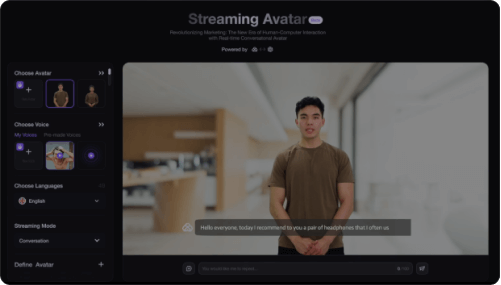
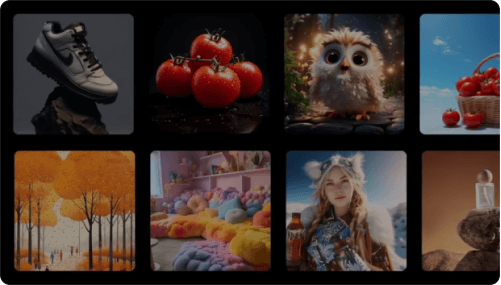

Create content programmatically with our easy to use API
-30%
$ 0.05 USD / Credit
(billed yearly as $252)
25 images or 1.5 mins of video
3 Customized Instant Avatars
Upload file size limited to 150M and 30s
$ 0.05 USD / Credit
(billed monthly as $30)
$ 0.05 USD / Credit
(billed monthly as $119)
$ 0.042 USD / Credit
(billed yearly as $500)
$ 0.05 USD / Credit
(billed yearly as $252)
25 images or 1.5 mins of video
3 Customized Instant Avatars
Upload file size limited to 150M and 30s
$ 0.035 USD / Credit
(billed yearly as $252)
$ 0.033 USD / Credit
(billed yearly as $948)
$ 0.05 USD / Credit
(billed yearly as $4200)