Explore this direction
↗
PRODUCT CAMPAIGN
Product and campaign concepts
01
Create images from a text prompt or a reference photo. Explore image models, try a new visual style, and refine your ideas for product concepts, portraits, social posts and more.
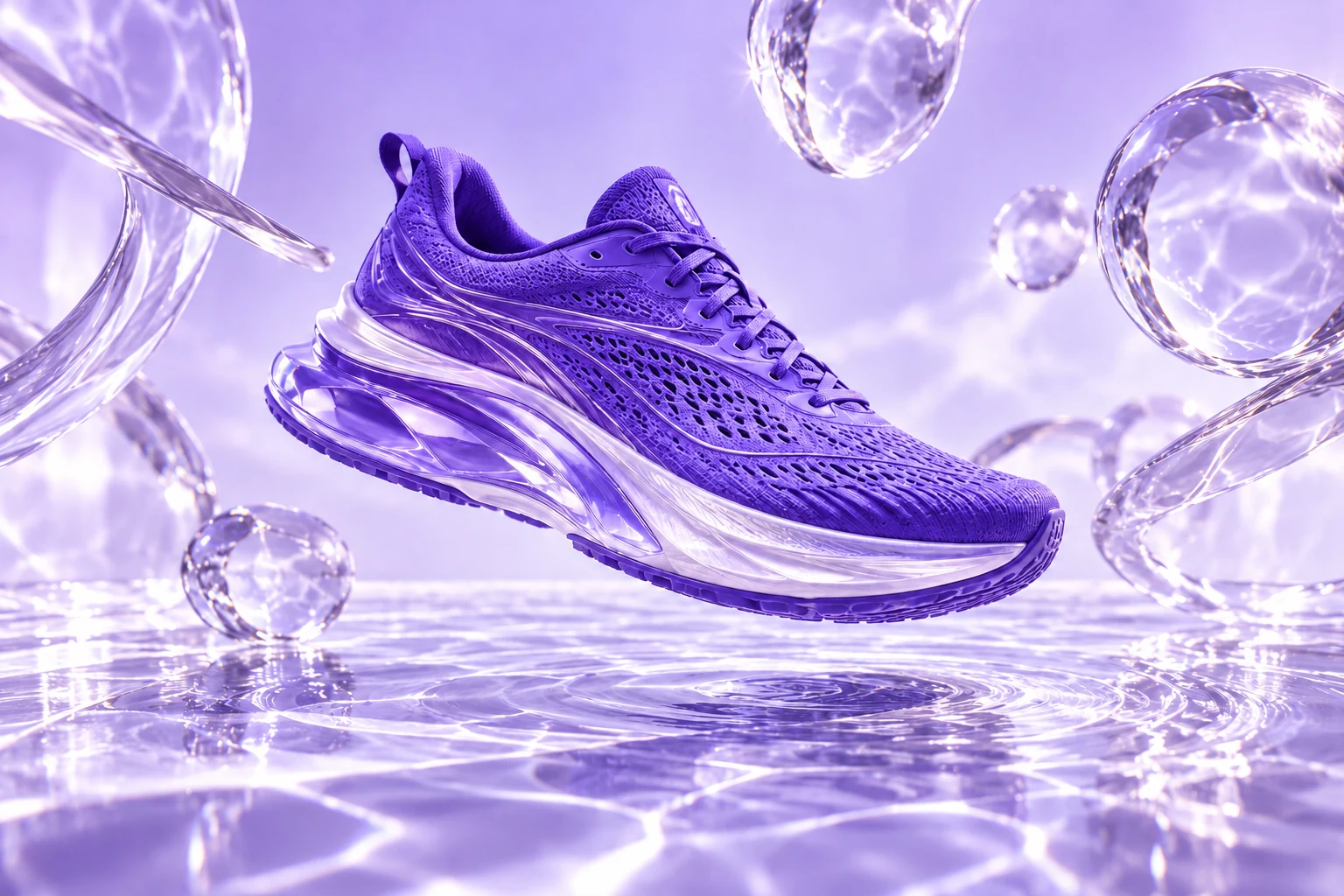
A violet sneaker. Liquid light.
A campaign beyond the studio.
Explore product scenes, portraits, illustrations and concept art. Use a suggested prompt as your starting brief, then adapt the image to your audience and format.
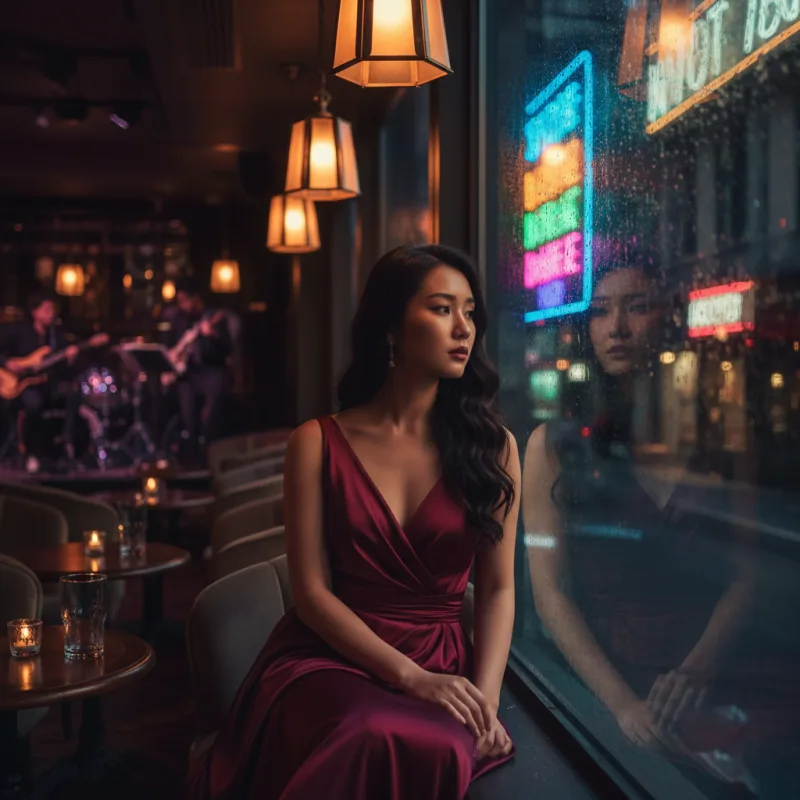

Choose a model for the task in front of you. Explore realistic characters with AKOOL Image, text-rich concepts with Nano Banana Pro, cinematic scenes with FLUX, or detailed briefs with GPT Image.
Explore portraits, illustrated characters and realistic scenes. Use a clear visual brief to develop a consistent direction across your image set, then check the face, styling and scene details in each result.
Explore AKOOL ImageModel versions, settings and credits vary. Check the image workspace and your plan for current access.
Choose a starting point, add your creative brief and generate. Keep the useful details in your prompt, then make focused changes to improve the result.
Name the subject, scene, style and lighting. Use a reference photo when its appearance should guide the result.
Open AKOOL to createStart from a reference, improve an image’s resolution or explore a different visual style. Choose the tools that suit the next step in your project.
Upload a reference and describe the changes you want to explore. Try a different setting, style or lighting, then compare the result with your original photo.
Explore image to image
Improve an existing image with AKOOL’s upscaler. Review the available output options and compare the result at full size before preparing it for a page, post or presentation.
Explore image upscalingTurn a concept into a photographic scene, an illustration or an imagined world. Change one part of your brief at a time so you can see what improves the result.
Try a new directionStart an image-to-video project with a still you have created or uploaded. Add movement, an action or a camera direction, then choose the settings available for your selected video model.
Bring an image into videoExplore the AI video generatorA useful prompt names the subject, setting, lighting, style and composition. Try a brief below, then change one detail at a time instead of rewriting everything.
A ceramic coffee cup on a pale stone plinth, soft morning light, subtle shadow, minimalist studio, close-up product photography.
Copy promptAn editorial portrait by a rain-streaked window, soft reflected neon, natural skin texture, cinematic mood, shallow depth of field.
Copy promptA floating glass pavilion above a lavender sea, curved architecture, distant mountains, diffused daylight, surreal cinematic composition.
Copy promptPractical answers about prompts, photos, models, credits and the next step in your project.
Visit the help centerAn AI image generator creates an image from a written description or a reference photo. In AKOOL, you can choose an image model, describe the subject and visual style, and generate a result. Review the image, then refine your instructions to explore a different direction.
Open the image generator and choose Text to Image or Image to Image. Select an available model, add your prompt or reference, and review the settings before you generate. Afterward, compare the result with your brief and adjust the details that need another pass.
Yes. Use Image to Image to start with an uploaded reference photo. Describe the changes you want, such as a different setting, lighting or visual style. How closely the result follows your photo depends on the chosen model, prompt and settings.
AKOOL lists image models including AKOOL Image, Nano Banana Pro, Seedream, FLUX, GPT Image and Recraft. They offer different approaches to image creation. Check the live image workspace for the current versions and settings, and the pricing page for model access on your plan.
Name the subject, setting, lighting, style and composition. Add important details such as materials, colors, camera angle or space for a headline. A prompt like "a white ceramic mug on pale stone, soft window light, close-up product photo" gives a clearer direction than "a nice mug."
Yes. AKOOL supports prompt-based and reference-based image creation for product scenes and marketing concepts. Use a product photo when its appearance matters, and describe the setting you want. Check the shape, label, colors and other product details before using the result in a campaign.
AKOOL Image is designed for coherent characters and visual sequences. Use a consistent character brief and supported reference options, then compare each image for changes in the face, clothing and styling. A consistent direction is a creative goal, so review every image in the set.
AKOOL lists models that support text-rich image creation, including Nano Banana Pro and GPT Image. Include the exact wording and describe where it should appear. Check spelling, spacing and readability in the result, especially for product labels, posters and small text.
AKOOL provides image generation and a separate image upscaler. Use the upscaler to improve an existing image, or review the resolution options for your selected image model. Available output settings vary. Check the final dimensions and image quality before preparing an asset for print or a large display.
AKOOL offers free and paid plans and uses credits for generation. The models you can access, included credits and export limits depend on the plan and selected options. Check the current pricing page and review the credit cost shown in the workspace before you generate.
Choose a plan with the licence your project requires. AKOOL’s pricing page distinguishes personal, business and enterprise licences, so a paid subscription alone does not mean every commercial use is included. Review the current plan terms and use reference photos, logos and other materials you have permission to use.
Yes. Open AKOOL’s image-to-video tool and use your image as the starting frame. Add a prompt describing the subject’s movement and the camera direction, then choose an available video model and settings. Review the generated clip to see how the motion follows your brief.
Write a prompt or start with a photo. Create your next visual in AKOOL.
Create with AKOOLCreate AI video from a text prompt, animate an image, or use supported references to guide a scene. Explore Veo, Kling, Seedance and Wan in AKOOL, then choose the model and settings that fit your brief.
Copy your prompt, then open AKOOL to generate. Model access, settings and credit costs vary.
Watch video examples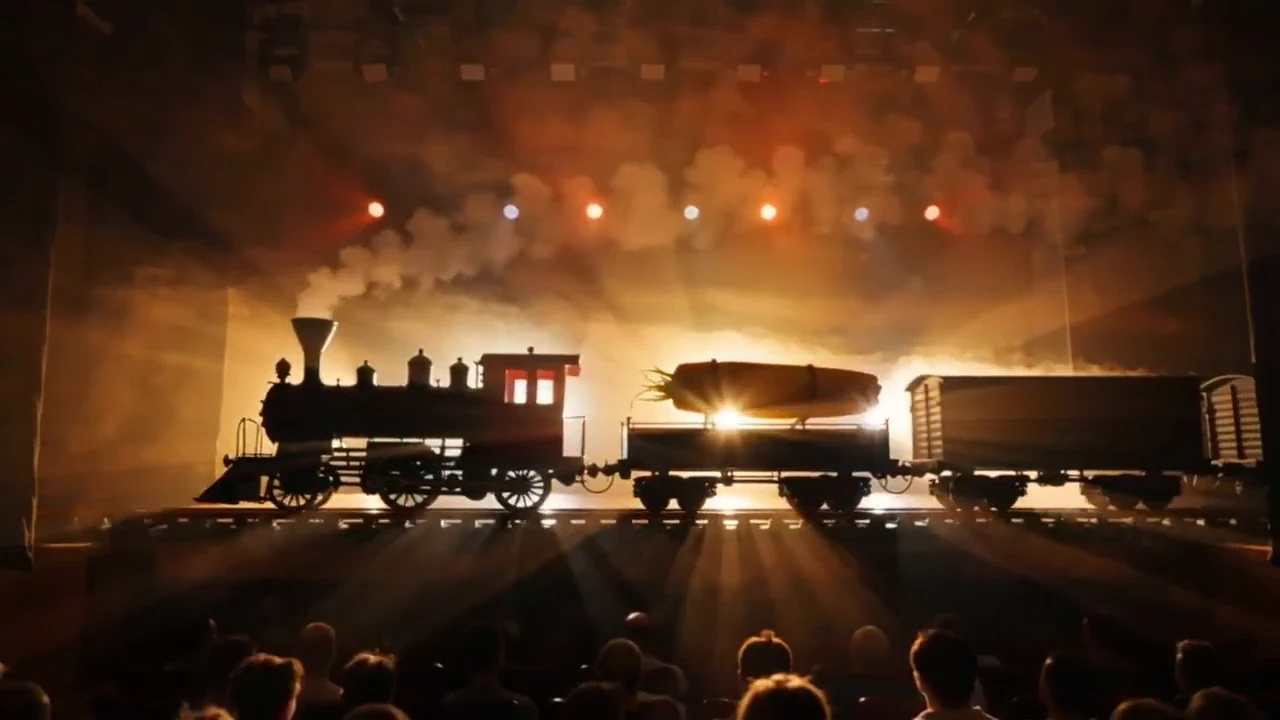 Cinematic worlds01 / TEXT TO VIDEO
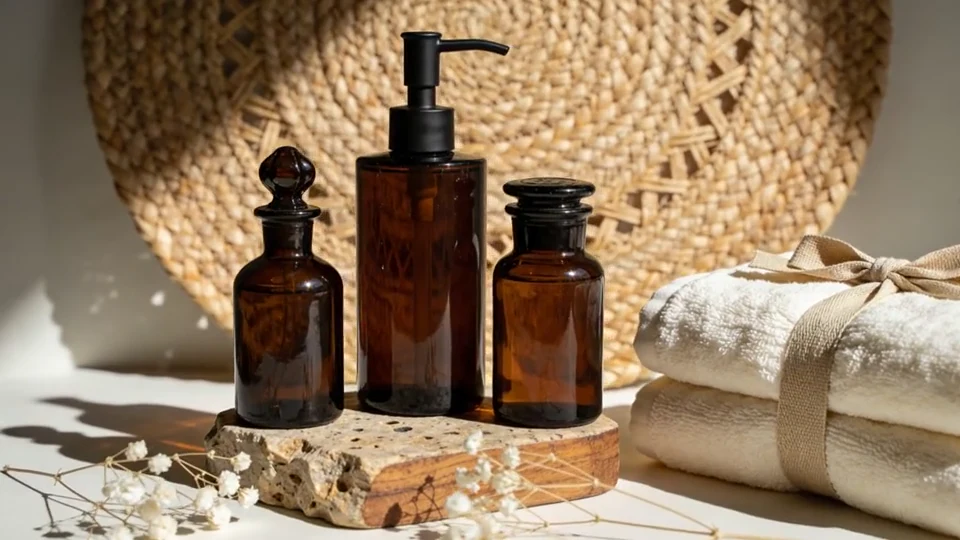 Product stories02 / IMAGE TO VIDEO
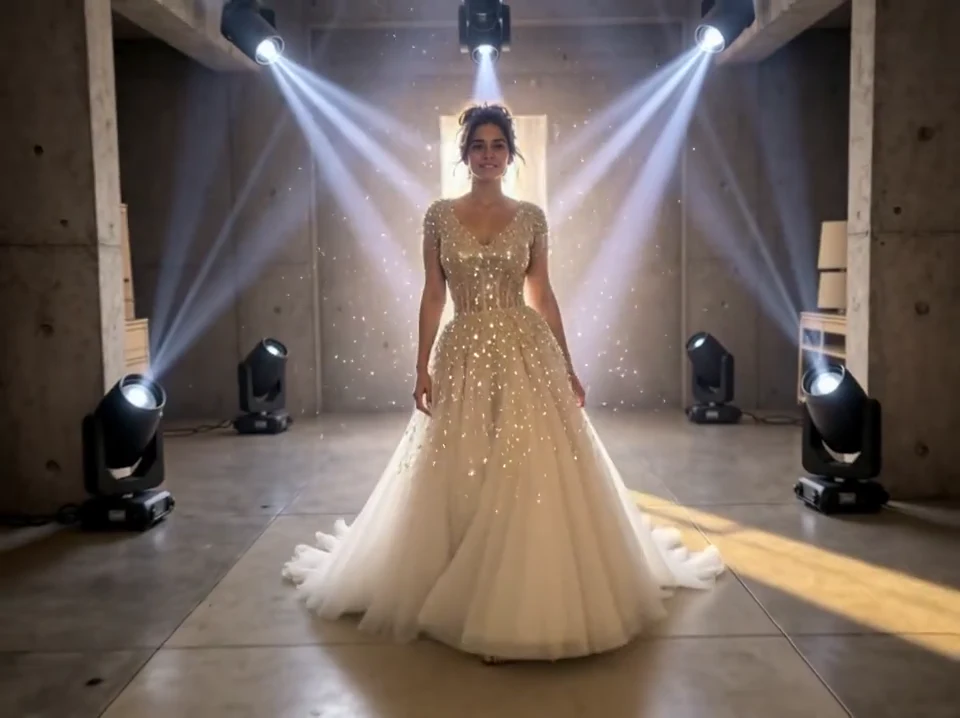 New perspectives03 / IMAGE TO VIDEO
Silent showcase: a steam train, golden light and drifting smoke in a theatrical scene.
Published AKOOL examples.Explore product scenes, cinematic worlds and visual transformations published by AKOOL. Open a clip, study the movement and borrow a creative starting point for your own project.
0:10SILENT PREVIEWUse light and gentle movement to explore a product reveal. Review the final clip against your approved packaging and colors.
0:20SILENT PREVIEWGive the scene a subject, an action and a camera direction. Build a visual concept before planning the next shot.
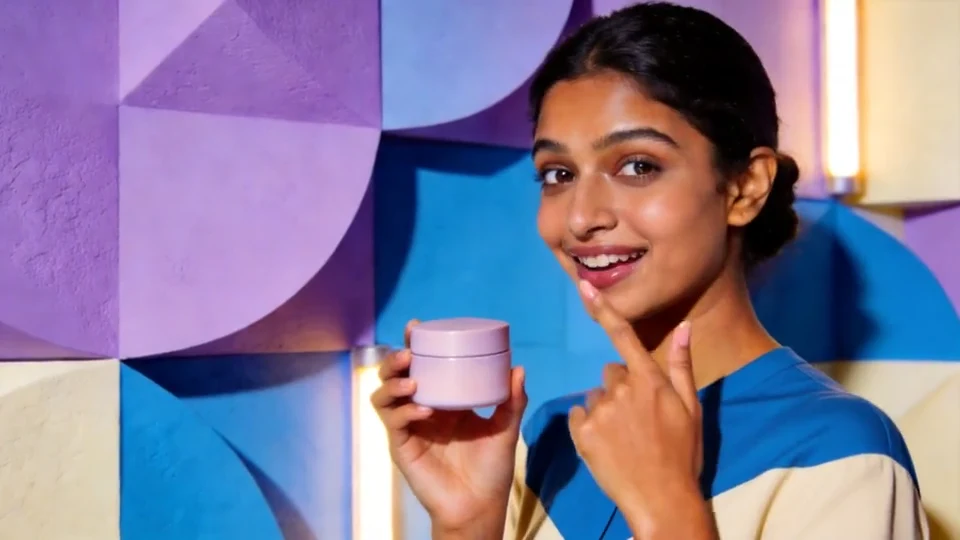 0:10SILENT PREVIEW
Explore a short, character-led product scene. Check the face, hands and packaging before using the result.
0:10SILENT PREVIEWTry a change of setting, wardrobe or atmosphere. Keep the intended subject and visual direction clear in your brief.
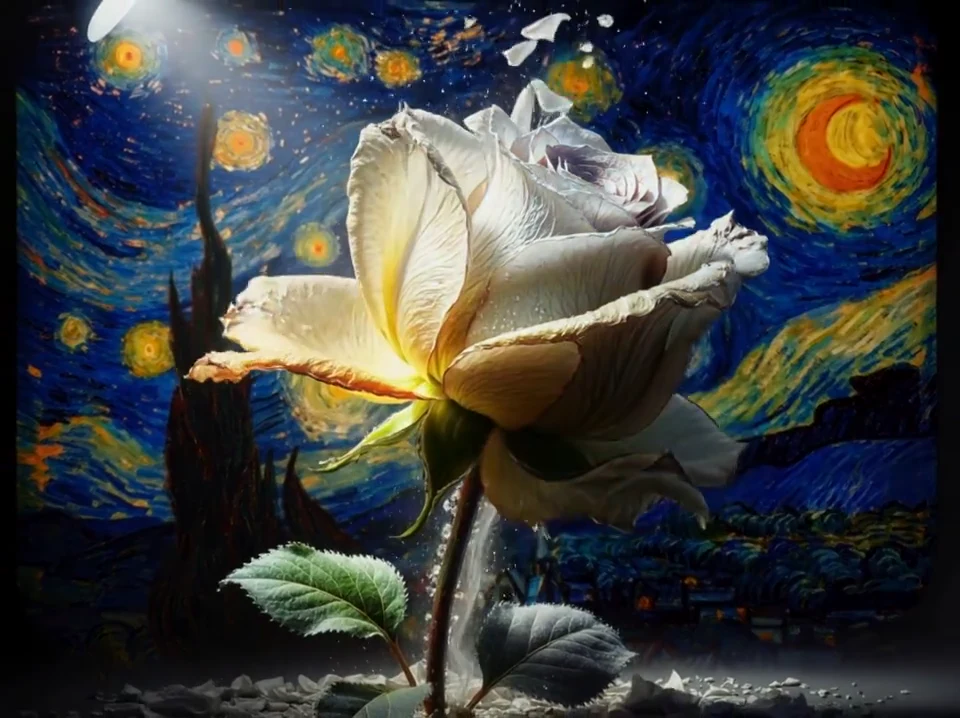 0:10SILENT PREVIEW
Start with an illustration and describe how it changes over time. Review the movement alongside the look of the original image.
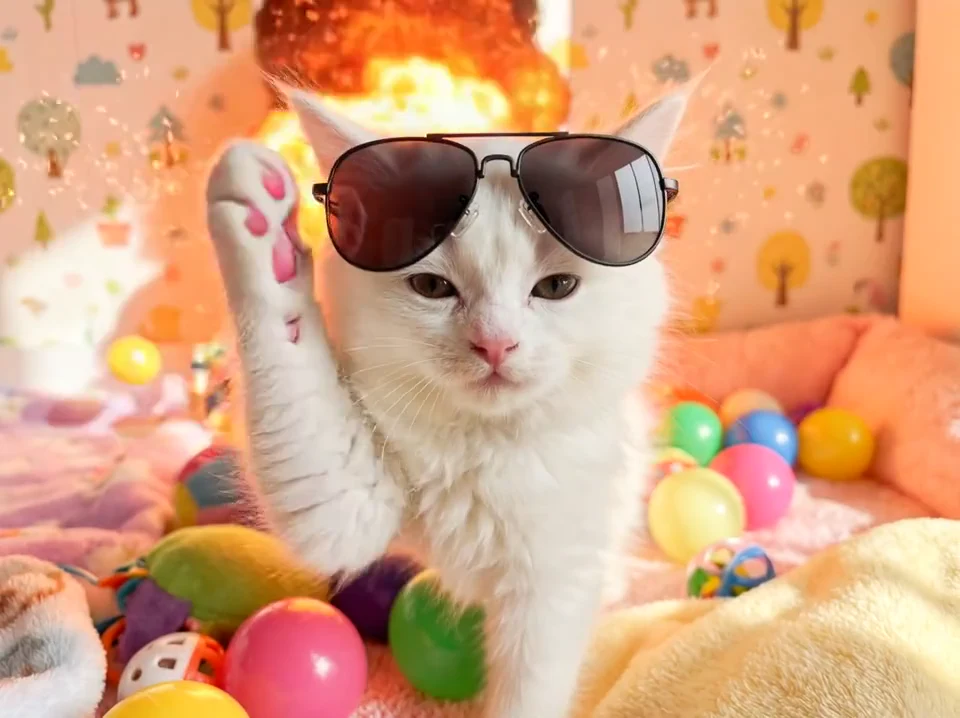 0:10SILENT PREVIEW
Explore a playful visual hook with a simple action. Give the viewer an obvious subject and a scene that is easy to follow.
These are published AKOOL showcases. Suggested prompts are new examples for exploring a similar direction; they are not a record of the settings used for each clip.
Image-to-video adds movement to a photo, illustration or render. Upload a clear image, describe a focused action and choose the available settings for your selected model.
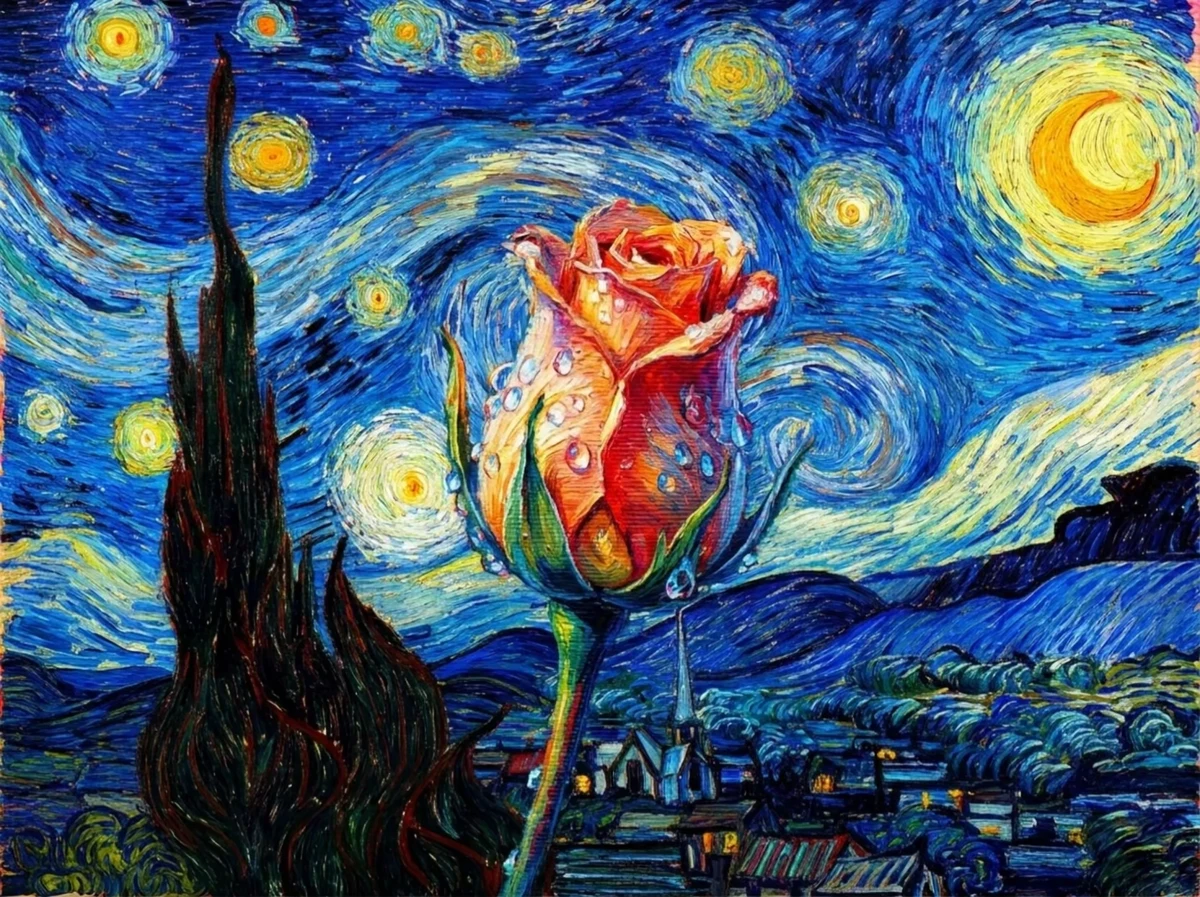 WATCH THE TRANSFORMATION
“A painted flower slowly becomes lifelike. Use a gentle camera push-in and soft natural light. Keep the surrounding painted composition visible.”
An original example prompt. Results will depend on the uploaded image and model.Choose text-to-video to explore a new scene. Choose image-to-video when a still is your starting point. Use a reference-capable model when several assets need to guide a new clip.
Describe a scene in words. Start with the subject and action, then add the setting, lighting and camera movement that make the shot clear.
Upload a photo, illustration or render and describe the motion. Use a clear subject and keep the first action simple so you can judge what changes.
Guide a new clip with supported image, video or audio references. Give each asset a role, such as subject, style or motion. Available inputs depend on the model.
Compare what each available model accepts and how it handles your idea. Start with the inputs you have, then check the motion, audio and output options you need.
Have an approved product image? Compare reference-capable Veo and Seedance options with the same image and a simple motion prompt. Review packaging and colors in every result.
Explore reference-guided scenes with Google's Veo family. Check the selected version's image, motion and audio options before generating.
SCENES · REFERENCES · MOTIONExplore VeoExplore camera-led scenes and multi-shot ideas. Kling versions offer different reference and audio features, so compare the controls available in AKOOL.
CAMERA · SUBJECTS · SEQUENCESExplore KlingExplore reference-led video creation. Seedance 2.0 supports several reference types; the version and workflow determine the options you can use.
REFERENCES · VISUAL DIRECTIONExplore SeedanceExplore image-led motion and short scene ideas with the Wan family. Confirm the version, supported inputs and audio controls shown in your account.
IMAGE MOTION · SCENE IDEASExplore WanOpen AKOOL, choose a supported workflow, add your prompt or references, and select the available settings. Generate a clip, review it and refine the parts that need work.
Open the video workspaceDescribe one main action. Add the subject, setting and camera direction. Upload a clear image or supported references when the look of a person or product matters.
Review the input types, clip length, aspect ratio, resolution and audio options available for your selection. Check the credit cost shown before you generate.
Look at movement, faces, hands and product details from start to finish. Change one part of the brief at a time. Download the useful result or move to the AKOOL tool your next step needs.
Generation is one part of a project. Explore AKOOL's related tools for visuals, narration, translation and presenter-led content.
A useful prompt says who or what is in the scene, what happens and how we see it. Start with these examples and change the details to fit your own material.
Use my approved skincare bottle image. A slow camera push-in as soft sunlight moves across the glass. Keep the bottle centered and the label facing the camera. One continuous shot.
Copy this promptA quiet city street just after rain. Reflections on the pavement, soft evening light and a gentle sideways camera move. One continuous shot with a calm mood. No text.
Copy this promptReview model access and credit costs before starting a batch. For client work, ads or other business use, confirm that the licence attached to your account covers the project.
Compare current plansPlan the action and review the details that matter.
Read the guideLearn how references guide subjects, style and motion.
Read the guideReview the plan, the inputs and what appears in the output.
Read the guideClear answers about inputs, models, sound, cost and using the result.
Visit the help centerAn AI video generator creates moving visuals from a text prompt, an image or other supported reference material. In AKOOL, you choose a workflow and model, add your direction, then generate and review a clip. The inputs, controls and output options depend on your selection.
Open AKOOL's text-to-video workflow and describe the shot. Include the subject, action, setting and camera movement. Choose an available model and its settings, check the credit cost, then generate. Review the clip and adjust the prompt before creating another version.
Yes. AKOOL's image-to-video workflow adds motion to a still image. Upload a clear photo, artwork or render and describe what should move. For product work, compare the full result with the approved image, especially the shape, colors, packaging and label.
Image-to-video starts from a still you want to animate. Reference-to-video uses supported assets to guide a newly generated clip, such as a character, product, style or movement. The reference types and upload limits depend on the selected model.
Choose a model that accepts your inputs and offers the controls your shot needs. AKOOL lists families including Veo, Kling, Seedance and Wan. Compare two available options with the same brief, then judge the useful output, the credit cost and the changes needed.
Some model versions generate audio with the video. That is different from adding narration afterward. Check the audio controls for your selected model. AKOOL also provides separate voice tools if your project needs a written script, voiceover or another audio workflow.
Clip length depends on the selected model, workflow and available settings. Check the duration shown in AKOOL before planning a shot. A single generated clip is different from a finished video built from several clips, so plan a longer story as separate scenes when needed.
AKOOL supports video workflows with different aspect ratios and resolution options. Availability depends on the model and plan. Check whether the selected option creates the video at that resolution or upscales it afterward, and choose a format that fits your publishing channel.
AKOOL offers free access alongside paid plans. The included model access, credits and watermark conditions depend on your account. Check the current pricing page and the options shown in the workspace before generating or downloading a video.
There is no single credit cost for every video. The model, duration, quality and other settings can change the cost. Review the amount shown for your selection before generating. For a batch, include the extra attempts you may need to get a usable clip.
Use a plan and licence that cover your intended project, and check AKOOL's current terms and any applicable model terms. You also need permission for people, images, music and other assets you provide. A paid subscription alone does not establish every right needed for an ad or client project.
Use clear, approved references and a focused motion prompt. Keep the important source assets stable while testing one change at a time. Review the full clip for identity drift, altered packaging and unwanted movement. References guide the output; they do not guarantee an exact match.
Write a prompt or bring an image. Give your next video somewhere to begin.
Create a video with AKOOLGenerate realistic voiceovers for ads and videos instantly. Save budget and ship faster without a studio.


Turn blog posts into engaging YouTube shorts and podcasts instantly. Fill your content calendar without hitting record.
Using an AI voice creator significantly speeds up the production process compared to traditional recording methods. Instead of booking studio time and waiting for finished audio files, users can input text and receive a voiceover immediately. This speed is particularly helpful when scripts change; a user can simply edit the text and regenerate the audio file in seconds, avoiding the need to schedule re-recording sessions.
Hiring professional voice talent, renting studio space, and paying for audio engineers can be expensive. An artificial intelligence speaker generator lowers these barriers by providing high-quality narration for a fraction of the cost. This allows small businesses and independent creators to produce professional-sounding audio content, such as explainer videos or podcasts, without needing a large budget for production.
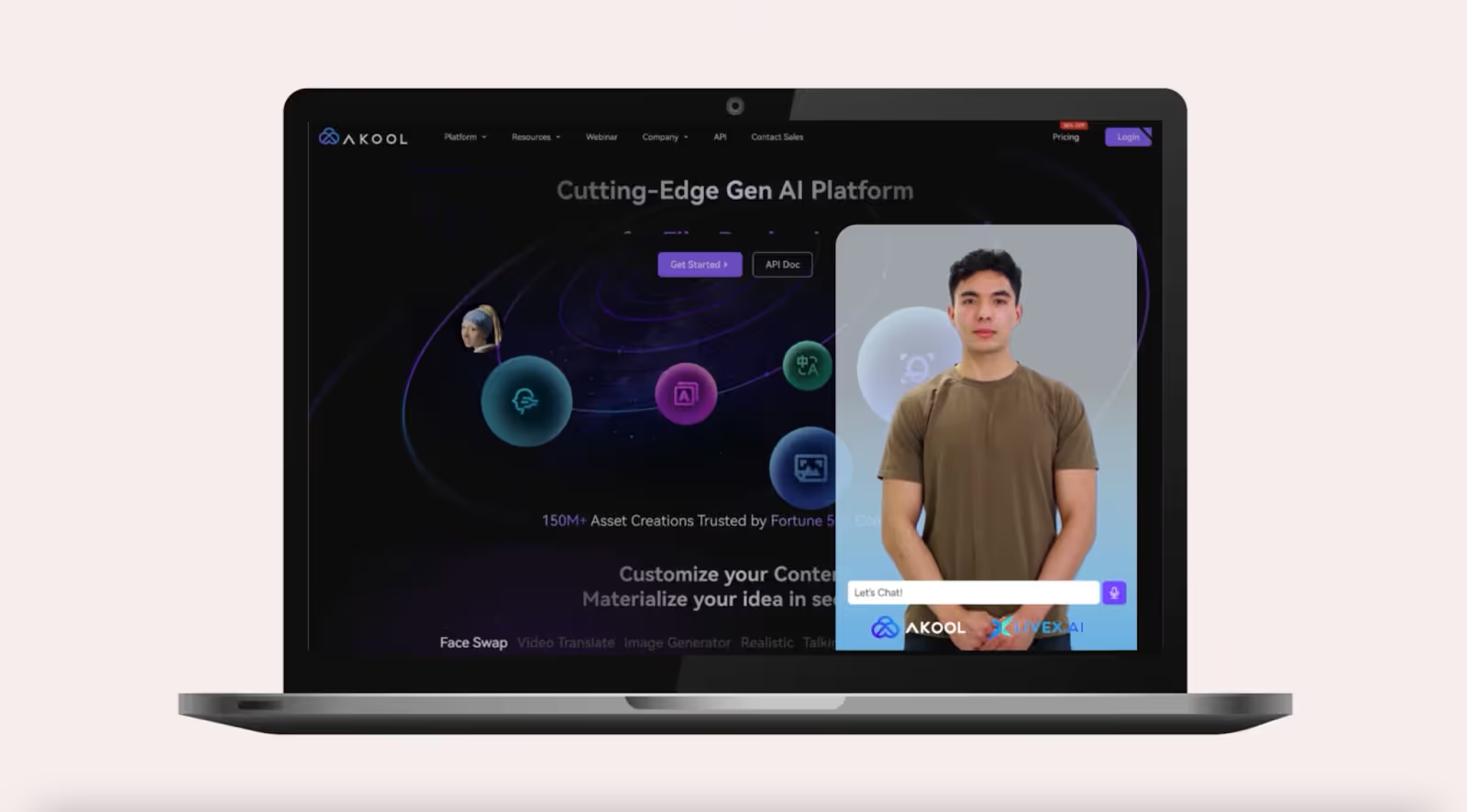
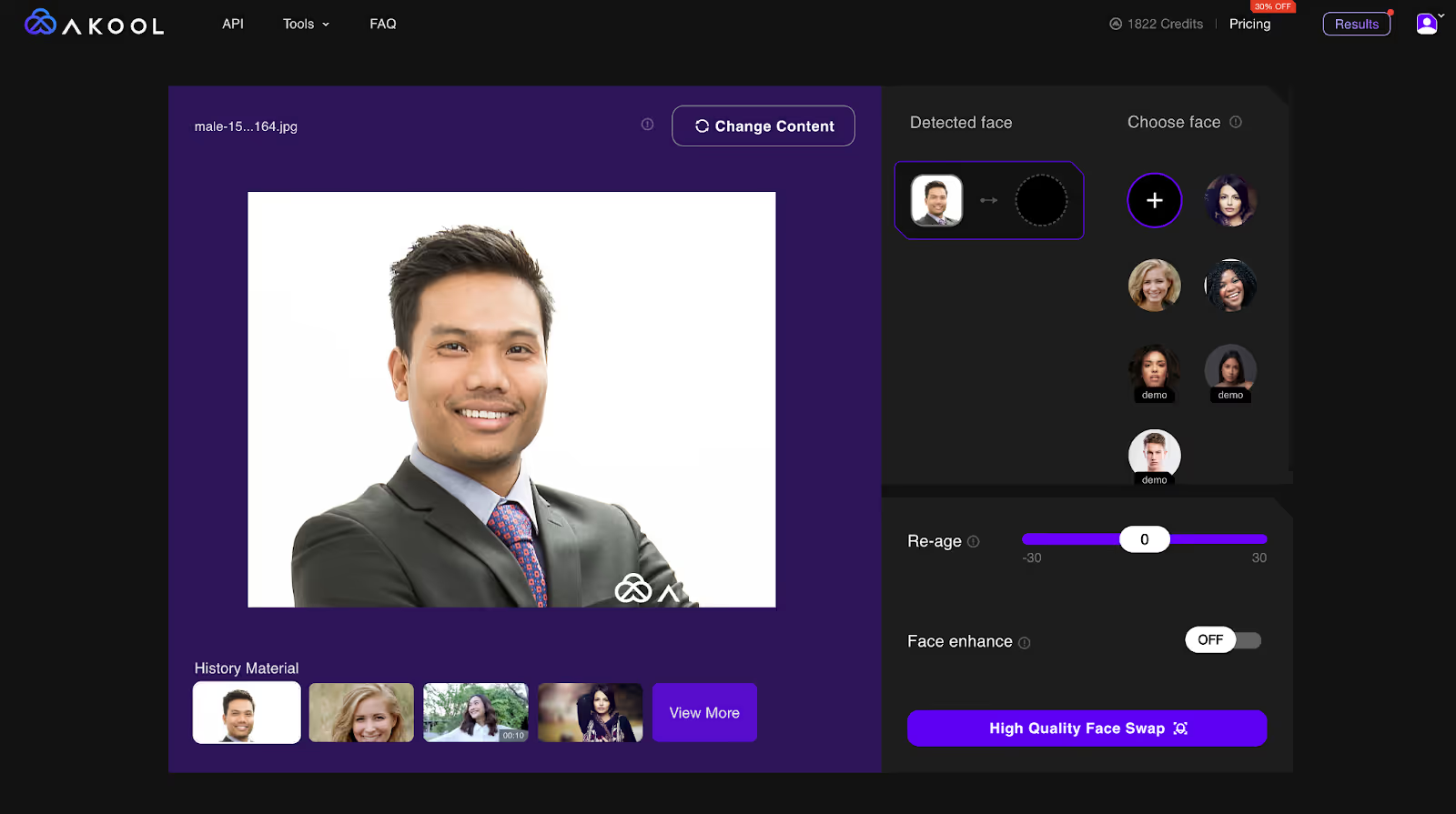
A synthetic speech maker enables creators to convert content into dozens of languages and accents instantly. This capability allows businesses to localize their message for international markets without hiring separate actors for every language. For example, a company can take a single training video and generate audio tracks in Spanish, French, and Japanese, ensuring their message is understood by a global audience.

Create content programmatically with our easy to use API
Educators and course designers use AI-driven vocalization tools to convert written textbooks and lesson plans into audio lectures. This makes learning materials accessible to students who have visual impairments or those who learn better by listening. It also allows teachers to update course content quickly; if a fact changes, they update the script and the software produces new audio without needing a new recording session.
Marketing teams utilize automated voice software to produce multiple versions of video ads and social media content for A/B testing. Instead of committing to one expensive voiceover, they can test different tones, accents, and pacing to see what resonates with their audience. This flexibility helps agencies optimize their campaigns and produce high volumes of promotional content on tight deadlines.
Call centers deploy neural speech synthesis to manage high volumes of customer support inquiries. Rather than relying on static, pre-recorded messages, these systems generate natural-sounding responses in real-time based on caller data. This improves the customer experience by providing specific, relevant answers immediately, reducing the time customers spend on hold and allowing human agents to focus on complex problems.
Game developers use virtual voice actors to prototype character dialogue during the early stages of production. This helps the team visualize scenes without hiring a full cast immediately. For indie developers with limited resources, these tools provide a way to voice non-player characters (NPCs) and create immersive worlds without the high costs associated with traditional voice acting talent.
News outlets and book publishers use text-to-speech generators to turn written articles and novels into audio formats. This creates new ways for audiences to consume content, such as listening to news reports during a commute. By offering an 'audio mode' for articles, publishers can increase engagement and reach users who prefer audiobooks or podcasts over reading long-form text on screens.
HR departments rely on digital voice cloning to create consistent onboarding videos and compliance modules. When company policies change, training managers can edit the text script to update the video narration instantly. This eliminates the logistical headache of finding the original voice actor to record a few new lines, ensuring that internal training materials remain accurate and compliant at all times.
-30%
$ 0.05 USD / Credit
(billed yearly as $252)
25 images or 1.5 mins of video
3 Customized Instant Avatars
Upload file size limited to 150M and 30s
$ 0.05 USD / Credit
(billed monthly as $30)
$ 0.05 USD / Credit
(billed monthly as $119)
$ 0.042 USD / Credit
(billed yearly as $500)
$ 0.05 USD / Credit
(billed yearly as $252)
25 images or 1.5 mins of video
3 Customized Instant Avatars
Upload file size limited to 150M and 30s
$ 0.035 USD / Credit
(billed yearly as $252)
$ 0.033 USD / Credit
(billed yearly as $948)
$ 0.05 USD / Credit
(billed yearly as $4200)