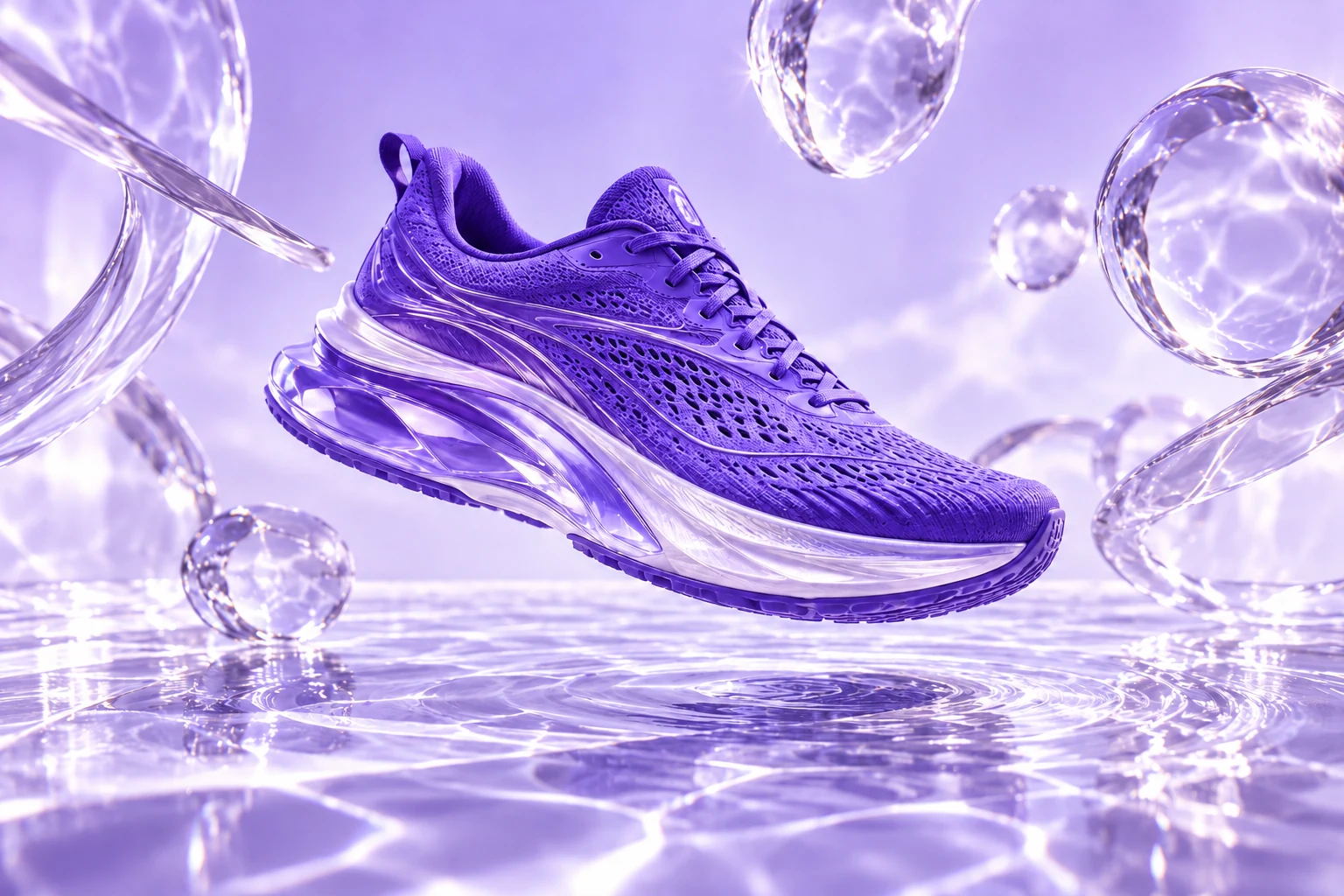
Explore this direction
↗
PRODUCT CAMPAIGN
Product and campaign concepts
01
Create images from a text prompt or a reference photo. Explore image models, try a new visual style, and refine your ideas for product concepts, portraits, social posts and more.
A violet sneaker. Liquid light.
A campaign beyond the studio.
Explore product scenes, portraits, illustrations and concept art. Use a suggested prompt as your starting brief, then adapt the image to your audience and format.
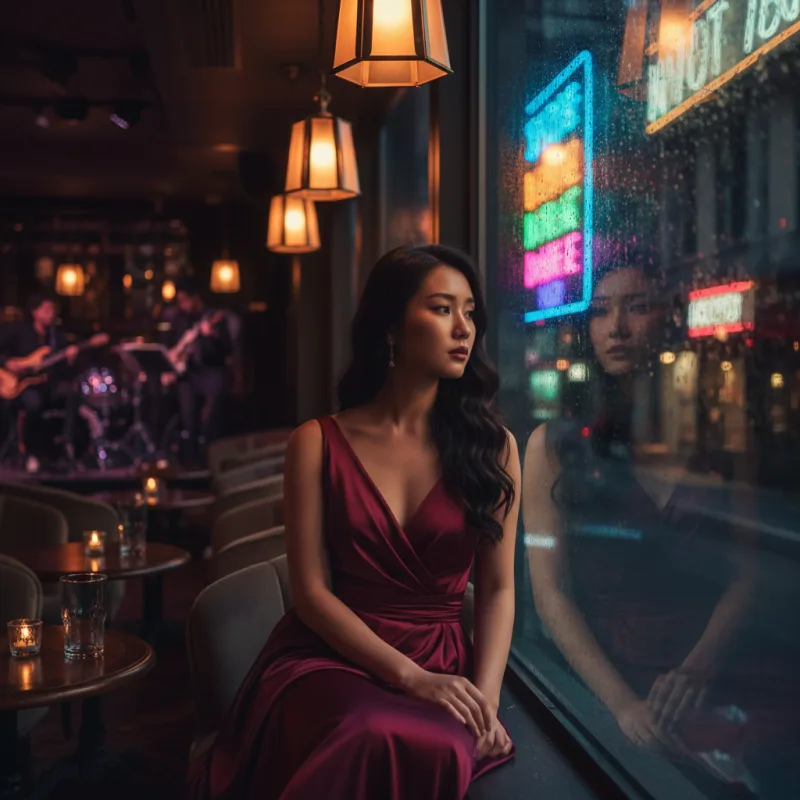
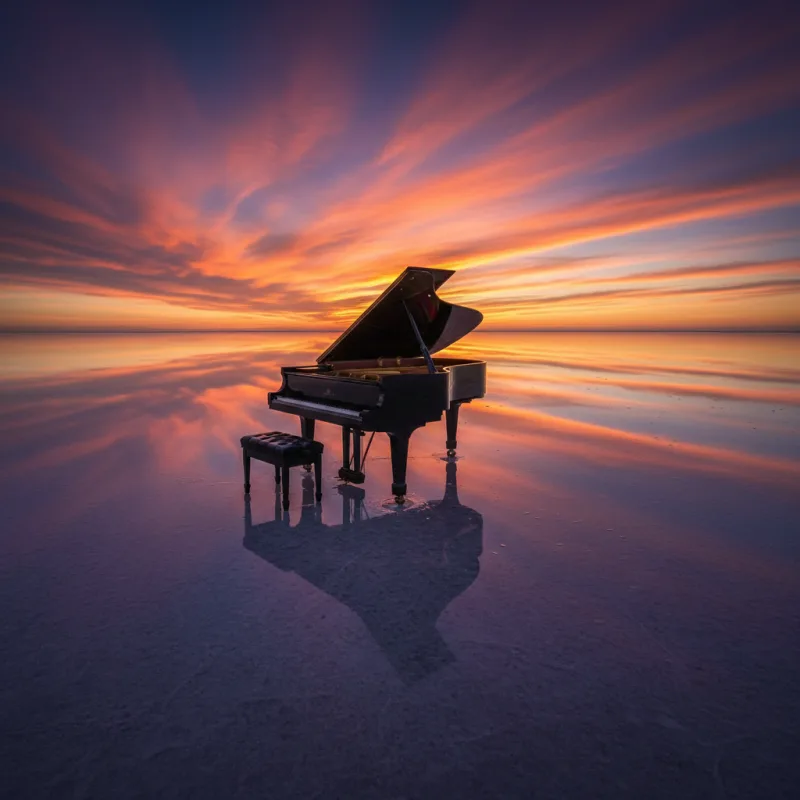
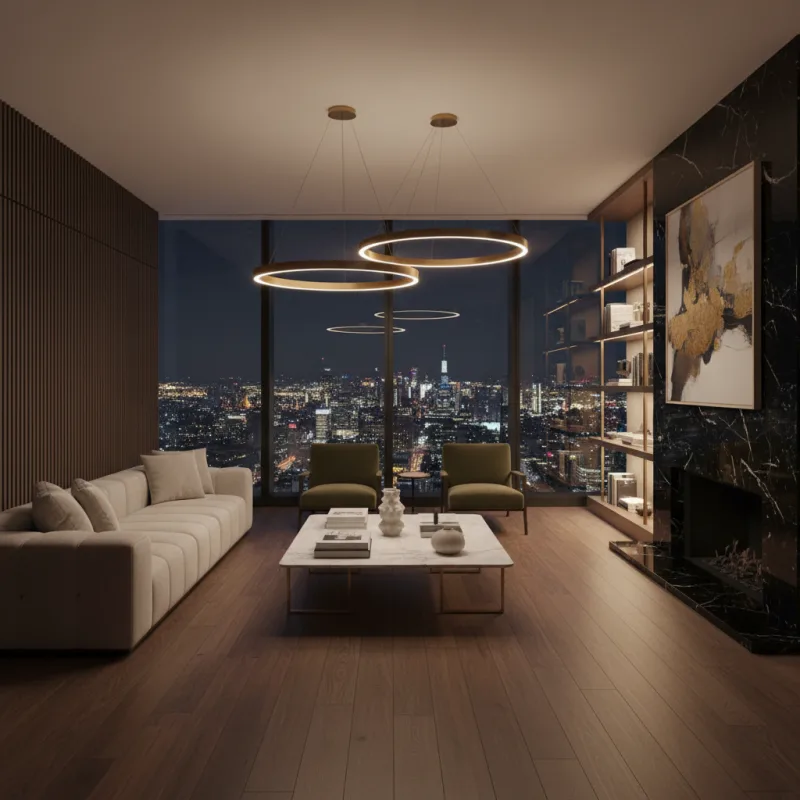
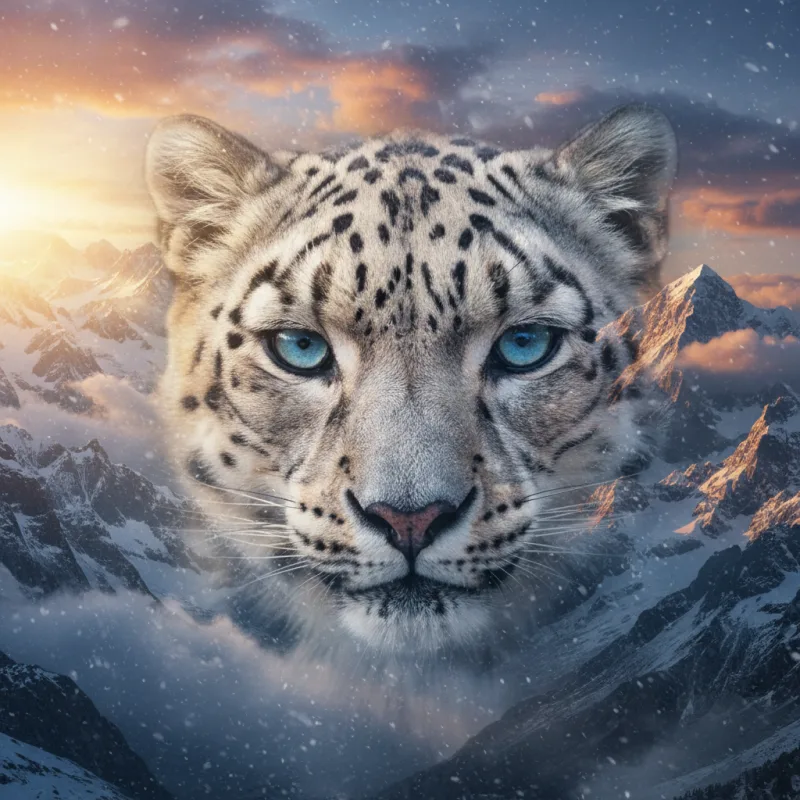
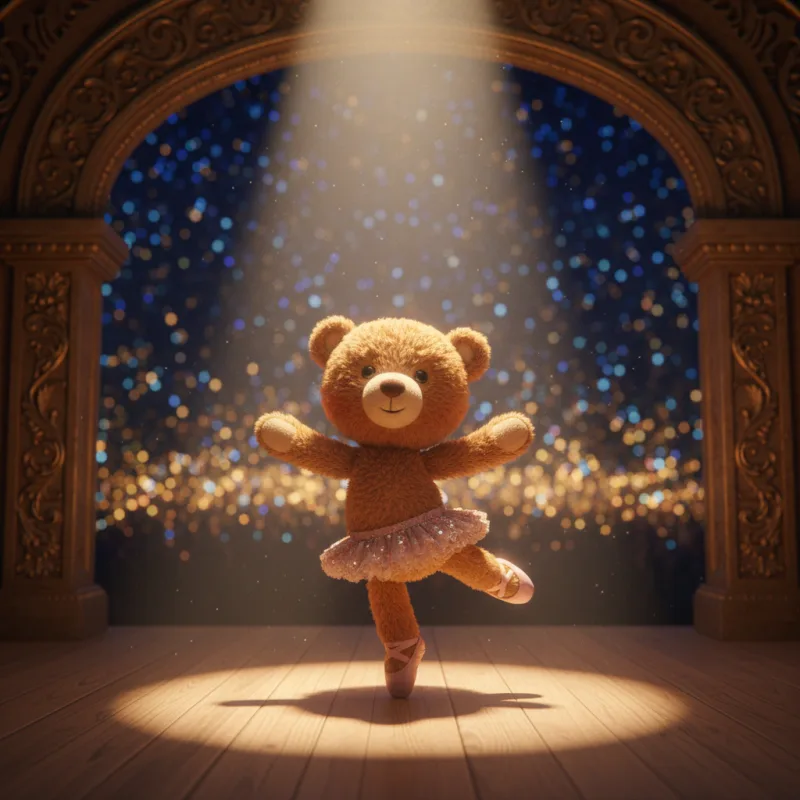
Choose a model for the task in front of you. Explore realistic characters with AKOOL Image, text-rich concepts with Nano Banana Pro, cinematic scenes with FLUX, or detailed briefs with GPT Image.
Explore portraits, illustrated characters and realistic scenes. Use a clear visual brief to develop a consistent direction across your image set, then check the face, styling and scene details in each result.
Explore AKOOL ImageModel versions, settings and credits vary. Check the image workspace and your plan for current access.
Choose a starting point, add your creative brief and generate. Keep the useful details in your prompt, then make focused changes to improve the result.
Name the subject, scene, style and lighting. Use a reference photo when its appearance should guide the result.
Open AKOOL to createStart from a reference, improve an image’s resolution or explore a different visual style. Choose the tools that suit the next step in your project.
Upload a reference and describe the changes you want to explore. Try a different setting, style or lighting, then compare the result with your original photo.
Explore image to image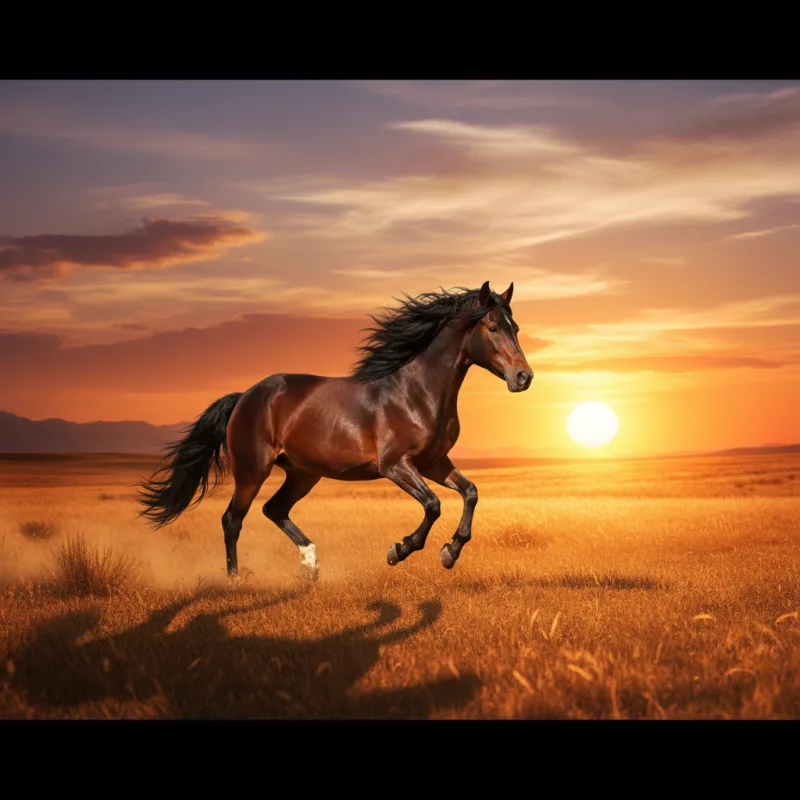
Improve an existing image with AKOOL’s upscaler. Review the available output options and compare the result at full size before preparing it for a page, post or presentation.
Explore image upscalingTurn a concept into a photographic scene, an illustration or an imagined world. Change one part of your brief at a time so you can see what improves the result.
Try a new directionStart an image-to-video project with a still you have created or uploaded. Add movement, an action or a camera direction, then choose the settings available for your selected video model.
Bring an image into videoExplore the AI video generatorA useful prompt names the subject, setting, lighting, style and composition. Try a brief below, then change one detail at a time instead of rewriting everything.
A ceramic coffee cup on a pale stone plinth, soft morning light, subtle shadow, minimalist studio, close-up product photography.
Copy promptAn editorial portrait by a rain-streaked window, soft reflected neon, natural skin texture, cinematic mood, shallow depth of field.
Copy promptA floating glass pavilion above a lavender sea, curved architecture, distant mountains, diffused daylight, surreal cinematic composition.
Copy promptPractical answers about prompts, photos, models, credits and the next step in your project.
Visit the help centerAn AI image generator creates an image from a written description or a reference photo. In AKOOL, you can choose an image model, describe the subject and visual style, and generate a result. Review the image, then refine your instructions to explore a different direction.
Open the image generator and choose Text to Image or Image to Image. Select an available model, add your prompt or reference, and review the settings before you generate. Afterward, compare the result with your brief and adjust the details that need another pass.
Yes. Use Image to Image to start with an uploaded reference photo. Describe the changes you want, such as a different setting, lighting or visual style. How closely the result follows your photo depends on the chosen model, prompt and settings.
AKOOL lists image models including AKOOL Image, Nano Banana Pro, Seedream, FLUX, GPT Image and Recraft. They offer different approaches to image creation. Check the live image workspace for the current versions and settings, and the pricing page for model access on your plan.
Name the subject, setting, lighting, style and composition. Add important details such as materials, colors, camera angle or space for a headline. A prompt like "a white ceramic mug on pale stone, soft window light, close-up product photo" gives a clearer direction than "a nice mug."
Yes. AKOOL supports prompt-based and reference-based image creation for product scenes and marketing concepts. Use a product photo when its appearance matters, and describe the setting you want. Check the shape, label, colors and other product details before using the result in a campaign.
AKOOL Image is designed for coherent characters and visual sequences. Use a consistent character brief and supported reference options, then compare each image for changes in the face, clothing and styling. A consistent direction is a creative goal, so review every image in the set.
AKOOL lists models that support text-rich image creation, including Nano Banana Pro and GPT Image. Include the exact wording and describe where it should appear. Check spelling, spacing and readability in the result, especially for product labels, posters and small text.
AKOOL provides image generation and a separate image upscaler. Use the upscaler to improve an existing image, or review the resolution options for your selected image model. Available output settings vary. Check the final dimensions and image quality before preparing an asset for print or a large display.
AKOOL offers free and paid plans and uses credits for generation. The models you can access, included credits and export limits depend on the plan and selected options. Check the current pricing page and review the credit cost shown in the workspace before you generate.
Choose a plan with the licence your project requires. AKOOL’s pricing page distinguishes personal, business and enterprise licences, so a paid subscription alone does not mean every commercial use is included. Review the current plan terms and use reference photos, logos and other materials you have permission to use.
Yes. Open AKOOL’s image-to-video tool and use your image as the starting frame. Add a prompt describing the subject’s movement and the camera direction, then choose an available video model and settings. Review the generated clip to see how the motion follows your brief.
Write a prompt or start with a photo. Create your next visual in AKOOL.
Create with AKOOLCreate AI video from a text prompt, animate an image, or use supported references to guide a scene. Explore Veo, Kling, Seedance and Wan in AKOOL, then choose the model and settings that fit your brief.
Copy your prompt, then open AKOOL to generate. Model access, settings and credit costs vary.
Watch video examples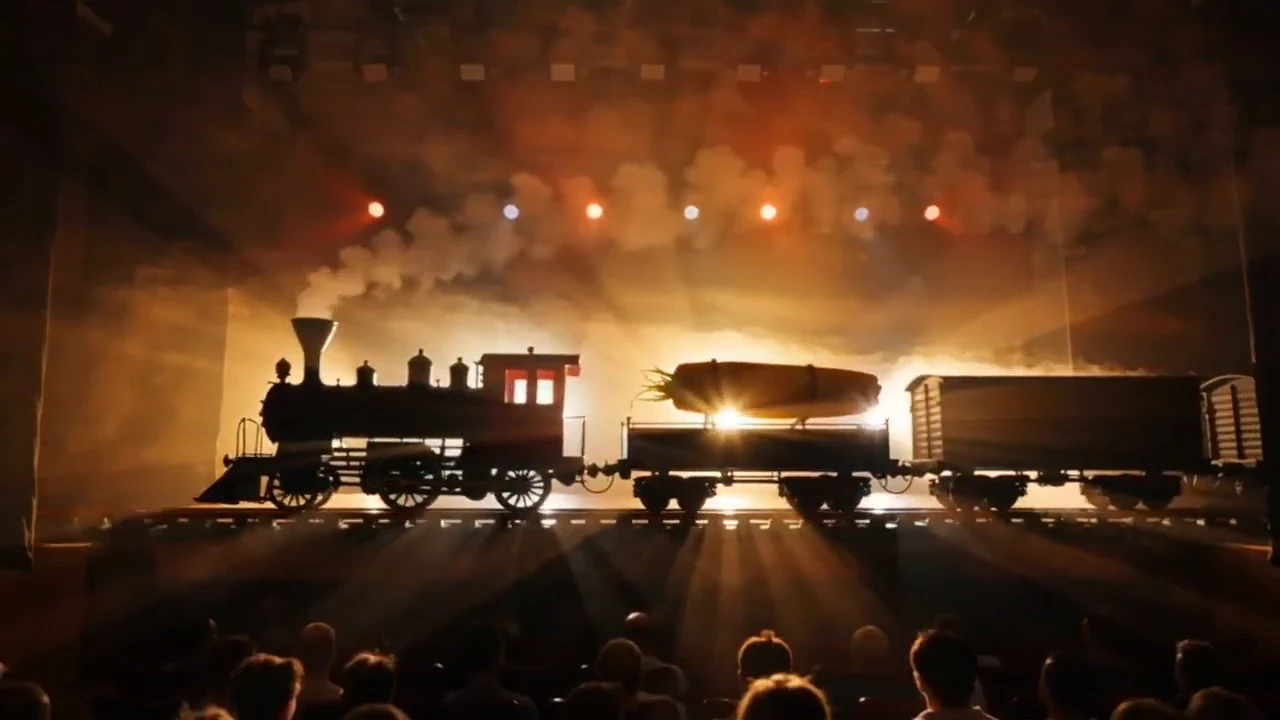 Cinematic worlds01 / TEXT TO VIDEO
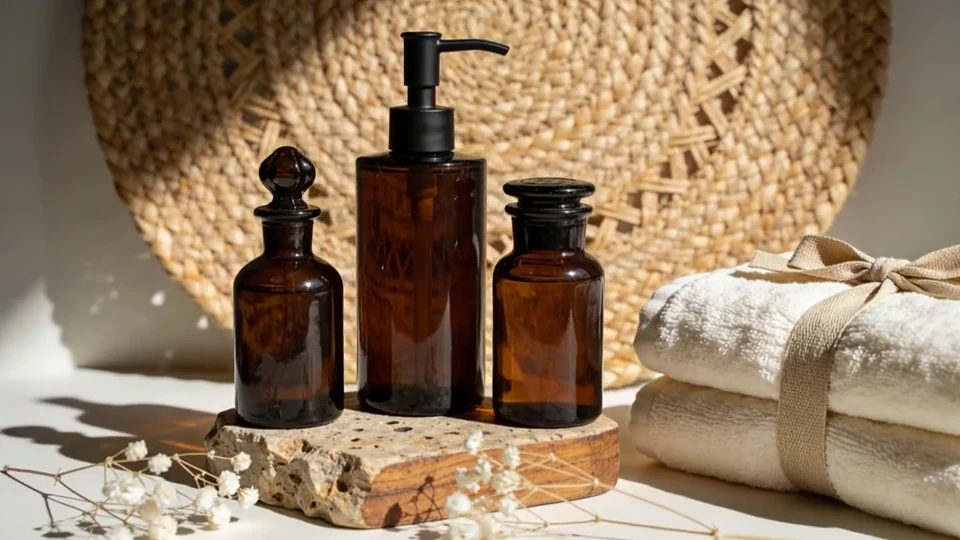 Product stories02 / IMAGE TO VIDEO
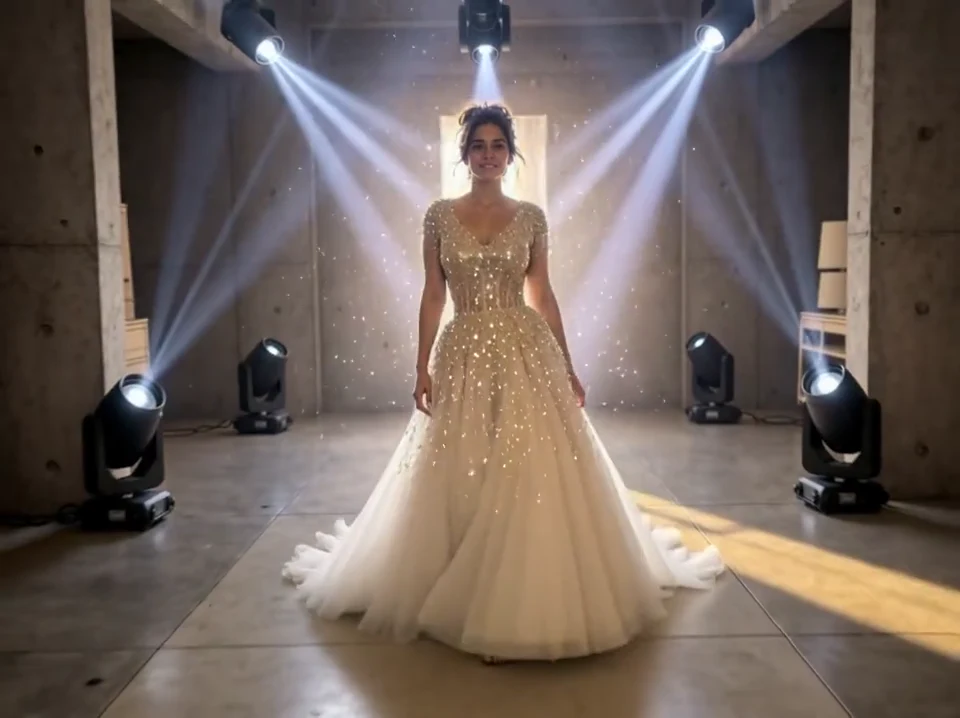 New perspectives03 / IMAGE TO VIDEO
Silent showcase: a steam train, golden light and drifting smoke in a theatrical scene.
Published AKOOL examples.Explore product scenes, cinematic worlds and visual transformations published by AKOOL. Open a clip, study the movement and borrow a creative starting point for your own project.
0:10SILENT PREVIEWUse light and gentle movement to explore a product reveal. Review the final clip against your approved packaging and colors.
0:20SILENT PREVIEWGive the scene a subject, an action and a camera direction. Build a visual concept before planning the next shot.
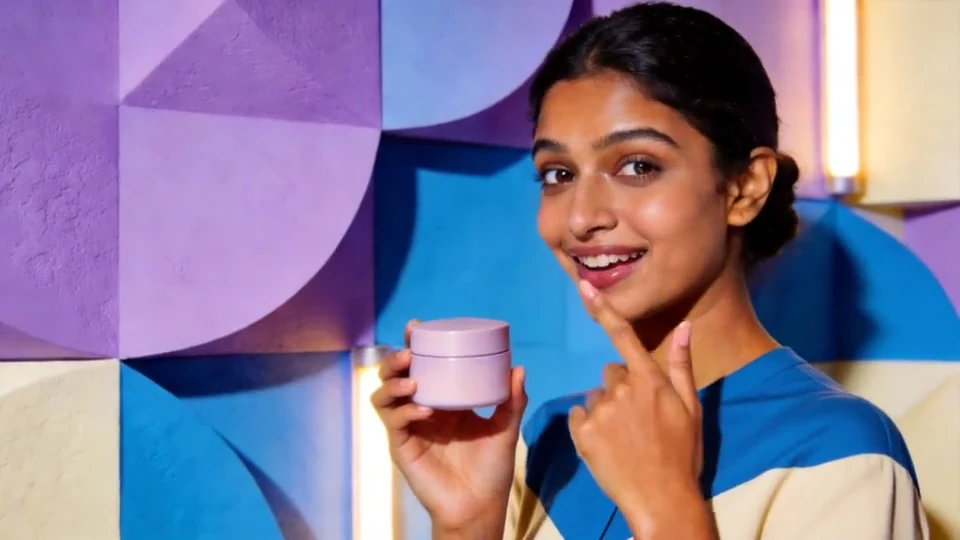 0:10SILENT PREVIEW
Explore a short, character-led product scene. Check the face, hands and packaging before using the result.
0:10SILENT PREVIEWTry a change of setting, wardrobe or atmosphere. Keep the intended subject and visual direction clear in your brief.
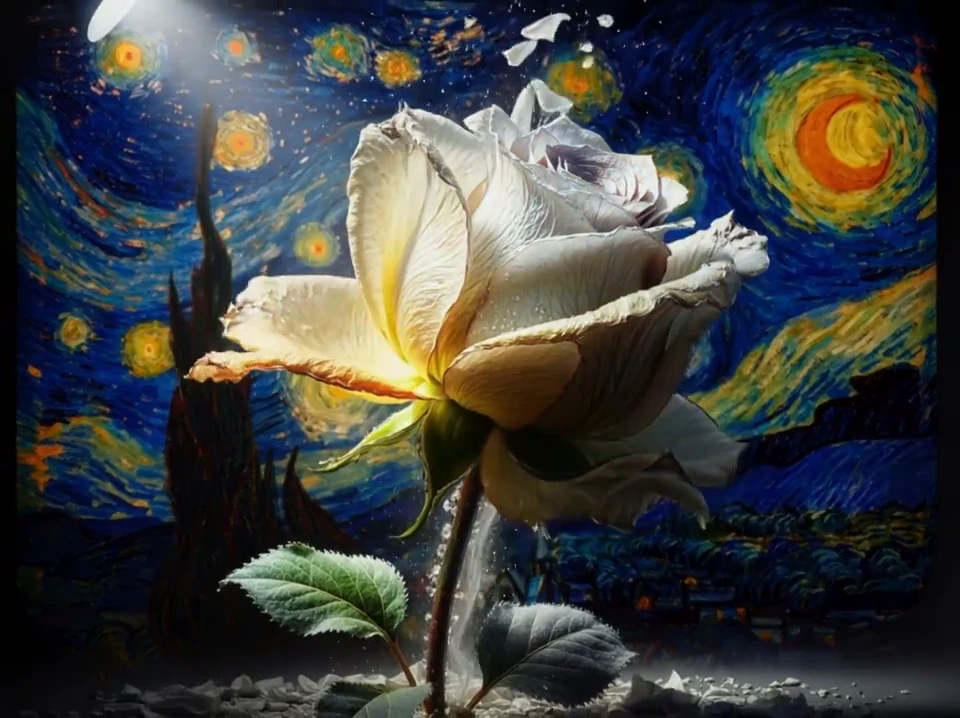 0:10SILENT PREVIEW
Start with an illustration and describe how it changes over time. Review the movement alongside the look of the original image.
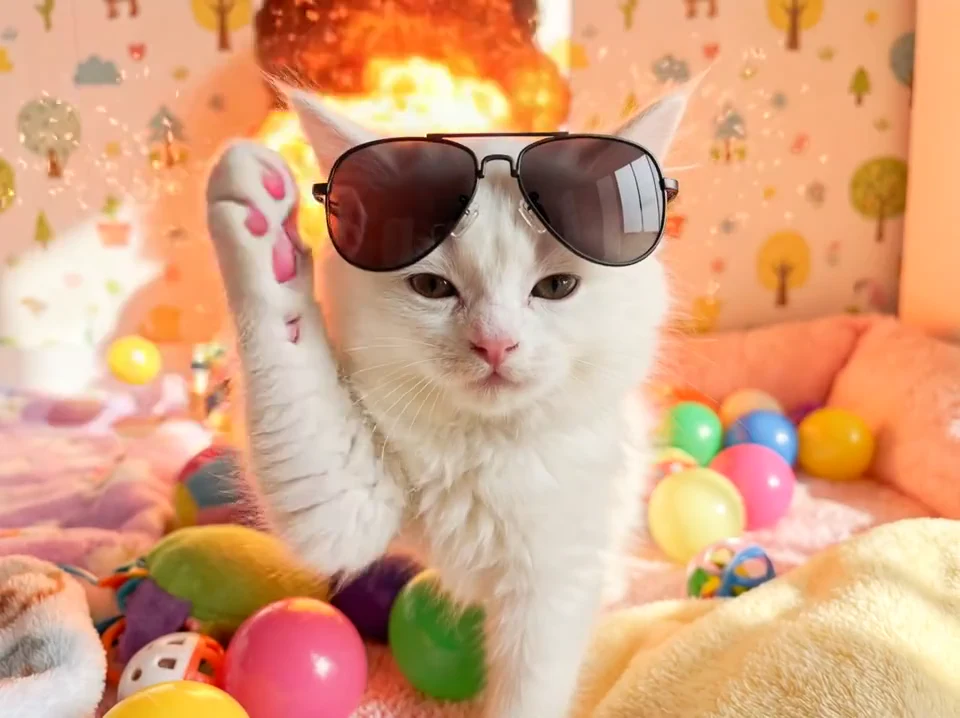 0:10SILENT PREVIEW
Explore a playful visual hook with a simple action. Give the viewer an obvious subject and a scene that is easy to follow.
These are published AKOOL showcases. Suggested prompts are new examples for exploring a similar direction; they are not a record of the settings used for each clip.
Image-to-video adds movement to a photo, illustration or render. Upload a clear image, describe a focused action and choose the available settings for your selected model.
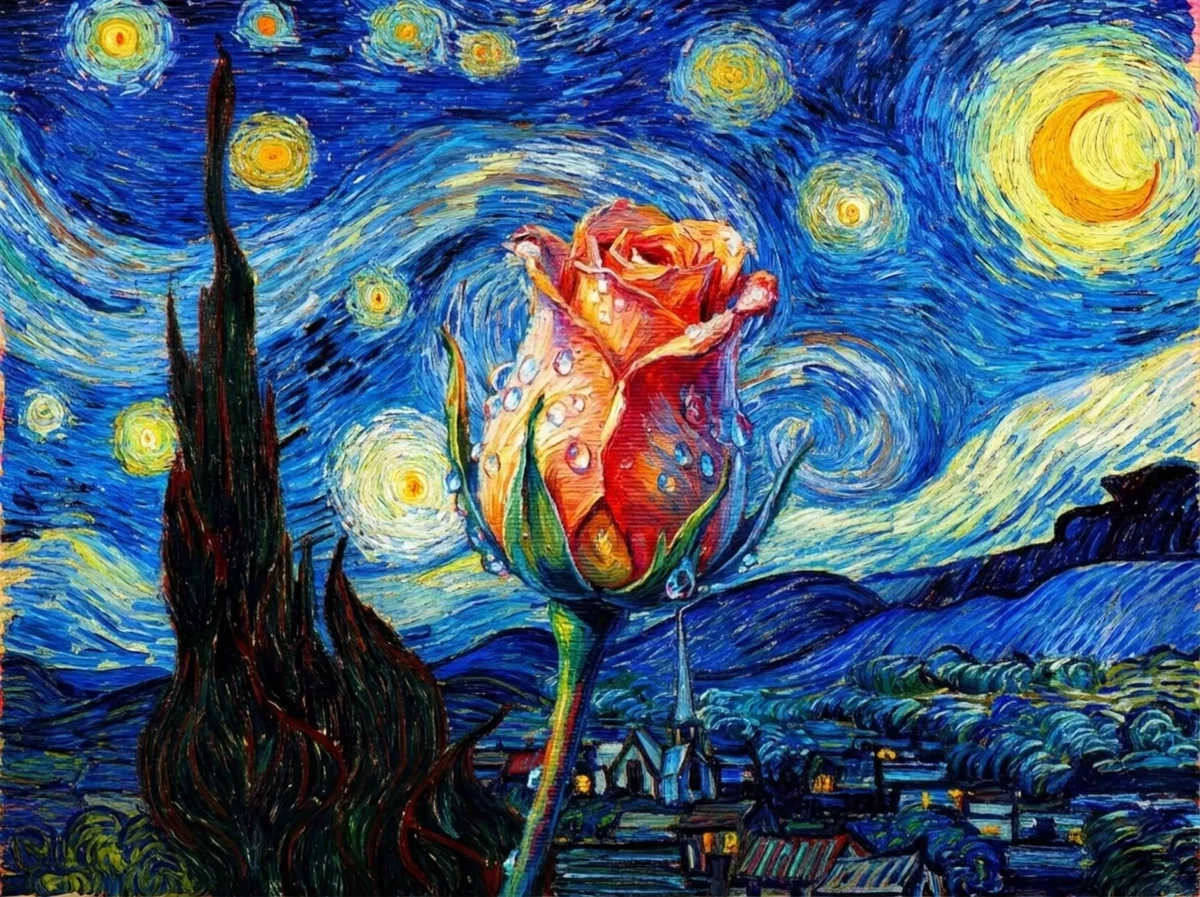 WATCH THE TRANSFORMATION
“A painted flower slowly becomes lifelike. Use a gentle camera push-in and soft natural light. Keep the surrounding painted composition visible.”
An original example prompt. Results will depend on the uploaded image and model.Choose text-to-video to explore a new scene. Choose image-to-video when a still is your starting point. Use a reference-capable model when several assets need to guide a new clip.
Describe a scene in words. Start with the subject and action, then add the setting, lighting and camera movement that make the shot clear.
Upload a photo, illustration or render and describe the motion. Use a clear subject and keep the first action simple so you can judge what changes.
Guide a new clip with supported image, video or audio references. Give each asset a role, such as subject, style or motion. Available inputs depend on the model.
Compare what each available model accepts and how it handles your idea. Start with the inputs you have, then check the motion, audio and output options you need.
Have an approved product image? Compare reference-capable Veo and Seedance options with the same image and a simple motion prompt. Review packaging and colors in every result.
Explore reference-guided scenes with Google's Veo family. Check the selected version's image, motion and audio options before generating.
SCENES · REFERENCES · MOTIONExplore VeoExplore camera-led scenes and multi-shot ideas. Kling versions offer different reference and audio features, so compare the controls available in AKOOL.
CAMERA · SUBJECTS · SEQUENCESExplore KlingExplore reference-led video creation. Seedance 2.0 supports several reference types; the version and workflow determine the options you can use.
REFERENCES · VISUAL DIRECTIONExplore SeedanceExplore image-led motion and short scene ideas with the Wan family. Confirm the version, supported inputs and audio controls shown in your account.
IMAGE MOTION · SCENE IDEASExplore WanOpen AKOOL, choose a supported workflow, add your prompt or references, and select the available settings. Generate a clip, review it and refine the parts that need work.
Open the video workspaceDescribe one main action. Add the subject, setting and camera direction. Upload a clear image or supported references when the look of a person or product matters.
Review the input types, clip length, aspect ratio, resolution and audio options available for your selection. Check the credit cost shown before you generate.
Look at movement, faces, hands and product details from start to finish. Change one part of the brief at a time. Download the useful result or move to the AKOOL tool your next step needs.
Generation is one part of a project. Explore AKOOL's related tools for visuals, narration, translation and presenter-led content.
A useful prompt says who or what is in the scene, what happens and how we see it. Start with these examples and change the details to fit your own material.
Use my approved skincare bottle image. A slow camera push-in as soft sunlight moves across the glass. Keep the bottle centered and the label facing the camera. One continuous shot.
Copy this promptA quiet city street just after rain. Reflections on the pavement, soft evening light and a gentle sideways camera move. One continuous shot with a calm mood. No text.
Copy this promptReview model access and credit costs before starting a batch. For client work, ads or other business use, confirm that the licence attached to your account covers the project.
Compare current plansPlan the action and review the details that matter.
Read the guideLearn how references guide subjects, style and motion.
Read the guideReview the plan, the inputs and what appears in the output.
Read the guideClear answers about inputs, models, sound, cost and using the result.
Visit the help centerAn AI video generator creates moving visuals from a text prompt, an image or other supported reference material. In AKOOL, you choose a workflow and model, add your direction, then generate and review a clip. The inputs, controls and output options depend on your selection.
Open AKOOL's text-to-video workflow and describe the shot. Include the subject, action, setting and camera movement. Choose an available model and its settings, check the credit cost, then generate. Review the clip and adjust the prompt before creating another version.
Yes. AKOOL's image-to-video workflow adds motion to a still image. Upload a clear photo, artwork or render and describe what should move. For product work, compare the full result with the approved image, especially the shape, colors, packaging and label.
Image-to-video starts from a still you want to animate. Reference-to-video uses supported assets to guide a newly generated clip, such as a character, product, style or movement. The reference types and upload limits depend on the selected model.
Choose a model that accepts your inputs and offers the controls your shot needs. AKOOL lists families including Veo, Kling, Seedance and Wan. Compare two available options with the same brief, then judge the useful output, the credit cost and the changes needed.
Some model versions generate audio with the video. That is different from adding narration afterward. Check the audio controls for your selected model. AKOOL also provides separate voice tools if your project needs a written script, voiceover or another audio workflow.
Clip length depends on the selected model, workflow and available settings. Check the duration shown in AKOOL before planning a shot. A single generated clip is different from a finished video built from several clips, so plan a longer story as separate scenes when needed.
AKOOL supports video workflows with different aspect ratios and resolution options. Availability depends on the model and plan. Check whether the selected option creates the video at that resolution or upscales it afterward, and choose a format that fits your publishing channel.
AKOOL offers free access alongside paid plans. The included model access, credits and watermark conditions depend on your account. Check the current pricing page and the options shown in the workspace before generating or downloading a video.
There is no single credit cost for every video. The model, duration, quality and other settings can change the cost. Review the amount shown for your selection before generating. For a batch, include the extra attempts you may need to get a usable clip.
Use a plan and licence that cover your intended project, and check AKOOL's current terms and any applicable model terms. You also need permission for people, images, music and other assets you provide. A paid subscription alone does not establish every right needed for an ad or client project.
Use clear, approved references and a focused motion prompt. Keep the important source assets stable while testing one change at a time. Review the full clip for identity drift, altered packaging and unwanted movement. References guide the output; they do not guarantee an exact match.
Write a prompt or bring an image. Give your next video somewhere to begin.
Create a video with AKOOL借助 AI 驱动的精度,轻松将原始体育镜头转换为引人入胜的精彩片段,从而节省时间并增强故事的创造性。

AI 视频编辑可以快速创建精彩的体育影片,捕捉社交媒体的关键时刻,让粉丝兴奋不已,吸引赞助商。
快速分析比赛画面,使教练和分析师能够改善策略和球员表现。
为体育赛事直播生成引人入胜的即时重播,提高观众参与度和广播质量。
为营销机构创建个性化的品牌体育内容,提高品牌知名度和受众联系。

通过 AI 驱动的视频编辑增强您的体育广播。我们的工具可优化电视网络的画面,提供清晰、引人入胜的精彩片段,让观众着迷,让广告商满意。毫不费力地提供专业品质的内容,并在竞争激烈的媒体格局中保持领先地位。
通过 AI 体育视频编辑改变教练策略。分析游戏画面以确定玩家的优势和劣势,简化训练课程并优化团队表现。非常适合在足球、篮球和其他快节奏运动中追求卓越战术的教练。
使用 AI 工具为体育记者提供支持,这些工具可以快速提取和编辑比赛中的关键时刻。创建引人入胜的文章和视频报告,吸引观众。非常适合希望提供及时而有影响力的体育报道的在线体育平台和报纸。
轻松制作游戏回顾视频,重点介绍关键时刻和惊险玩法。人工智能可以处理繁重的工作,使您可以更快地发布引人入胜的内容。非常适合寻求吸引更多观众和关注者的体育网站和社交媒体频道。
为运动员创建个性化的精彩片段,展示他们的最佳表现,以获得招募或赞助机会。人工智能确保每个卷轴都经过精心打磨且专业,从而节省时间和精力。非常适合希望给人留下深刻印象的运动员和经纪人。
通过自动组织和分类游戏画面来简化团队的视频分析。人工智能简化了审查流程,有助于战略规划和改善团队动态。对于需要高效剖析比赛的教练和分析师来说至关重要。
-30%
0.05美元/积分
(按年计费,每年252美元)
$ 0.05 美元 / 点数
(按月计费,每月 $30)
$ 0.05 美元 / 点数
(按月计费,每月 $119)
$ 0.042 美元 / 点数
(按年计费,每年 $500)
$ 0.05 美元 / 点数
(按年计费,每年 $252)
$ 0.035 美元 / 点数
(按年计费,每年 $252)
$ 0.033 美元 / 点数
(按年计费,每年 $948)
$ 0.05 美元 / 点数
(按年计费,每年 $4200)
What is an AI Sports Video Editor?
An AI Sports Video Editor is a software tool that uses artificial intelligence to automatically edit sports videos. It analyzes footage to highlight key moments, enhance video quality, and streamline the editing process, saving time and effort for creators.
How does AI enhance sports video editing?
AI enhances sports video editing by using machine learning algorithms to recognize patterns, detect important events, and apply automated edits. This results in more accurate and efficient video production, allowing editors to focus on creativity and storytelling.
Can AI Sports Video Editor identify key moments in games?
Yes, AI Sports Video Editor can identify key moments in games, such as goals, touchdowns, or significant plays, by analyzing player movements, crowd reactions, and game context. This helps in creating highlight reels quickly and accurately.
Is the AI Sports Video Editor suitable for all types of sports?
Our AI Sports Video Editor is designed to be versatile and can be used for a wide range of sports, including football, basketball, soccer, and more. The AI algorithms are trained to recognize specific actions and events across various sports disciplines.
What video formats does the AI Sports Video Editor support?
The AI Sports Video Editor supports a variety of video formats, including MP4, AVI, MOV, and more. This ensures compatibility with most video recording devices and editing platforms, making it easy to integrate into your existing workflow.
How does AI Sports Video Editor improve video quality?
AI Sports Video Editor improves video quality by using advanced algorithms to enhance resolution, reduce noise, and stabilize shaky footage. This results in clearer, more professional-looking videos that capture the excitement of sports events.
Can I customize the edits made by the AI Sports Video Editor?
Yes, you can customize the edits made by the AI Sports Video Editor. The tool offers manual editing options, allowing you to tweak and refine the AI-generated edits to better suit your creative vision and specific project requirements.
Is there a free trial available for the AI Sports Video Editor?
Yes, we offer a free trial of our AI Sports Video Editor. This allows you to explore the features and capabilities of the software before committing to a subscription, ensuring it meets your editing needs and expectations.