Explore this direction
↗
PRODUCT CAMPAIGN
Product and campaign concepts
01
Create images from a text prompt or a reference photo. Explore image models, try a new visual style, and refine your ideas for product concepts, portraits, social posts and more.
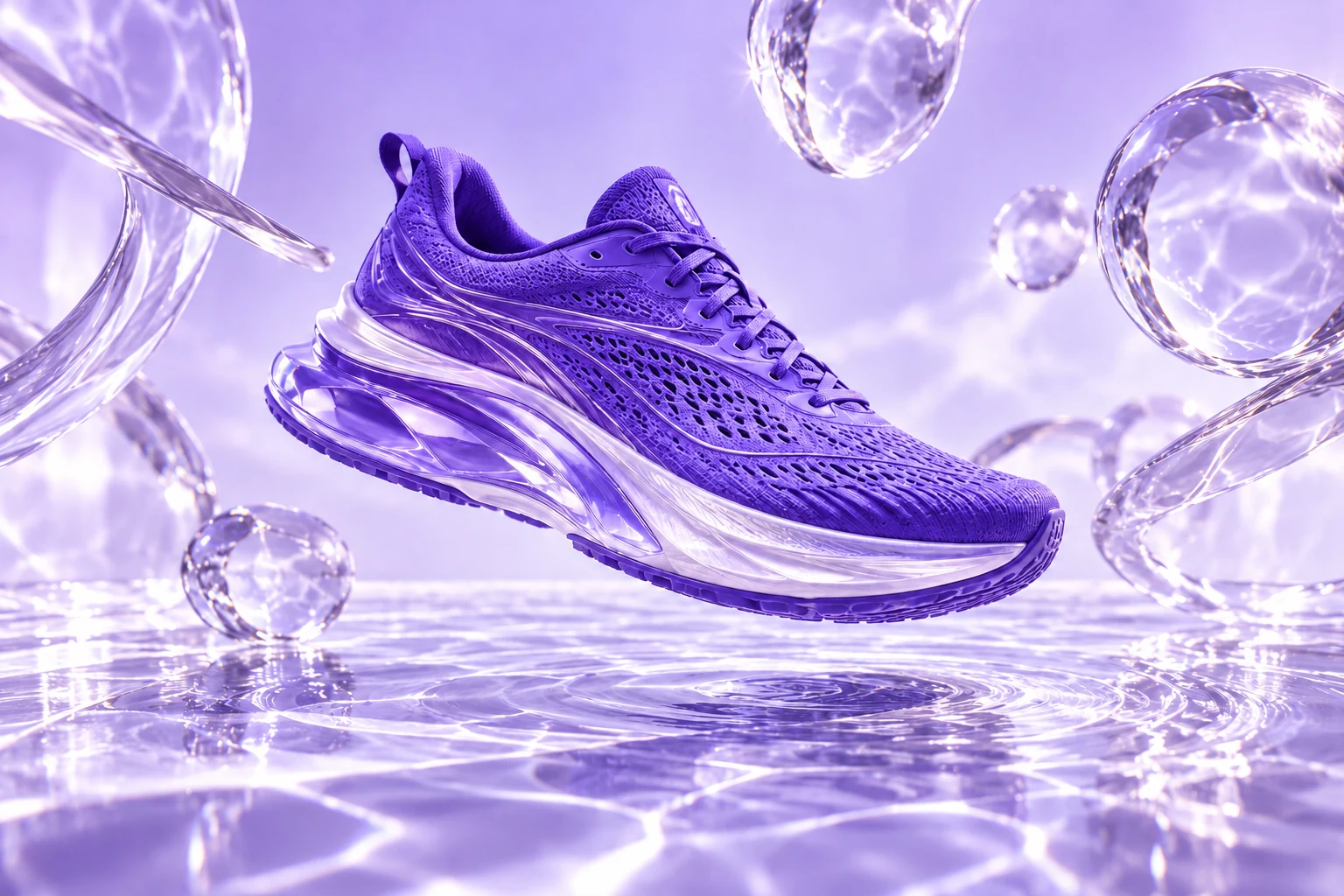
A violet sneaker. Liquid light.
A campaign beyond the studio.
Explore product scenes, portraits, illustrations and concept art. Use a suggested prompt as your starting brief, then adapt the image to your audience and format.
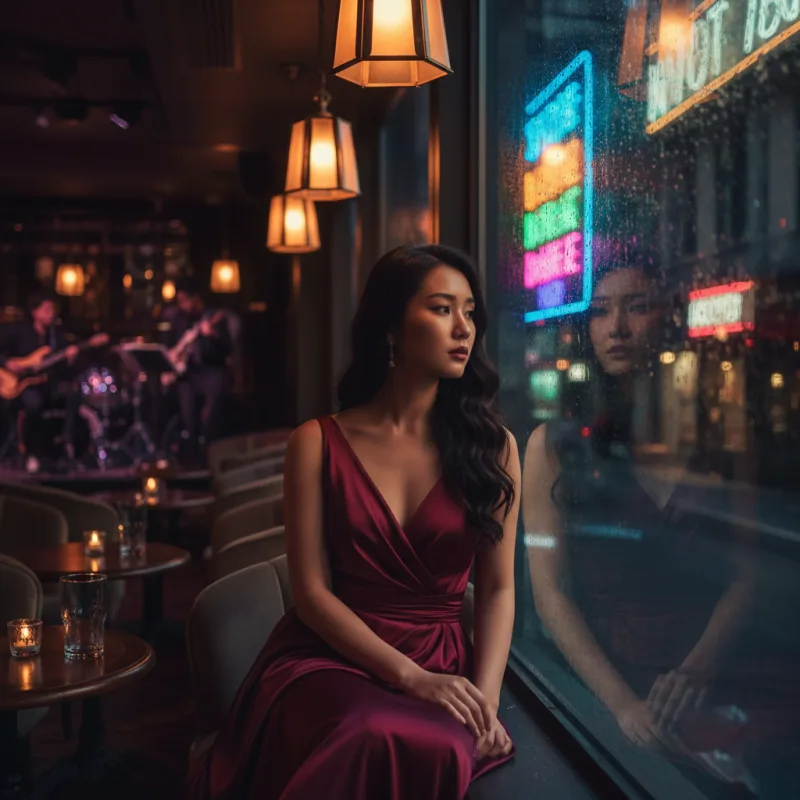
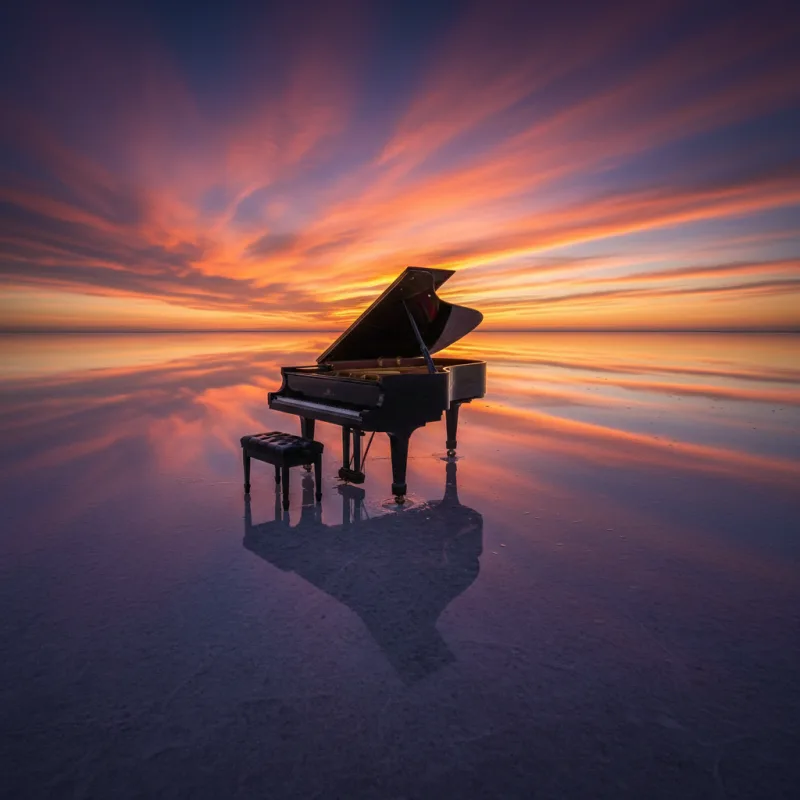
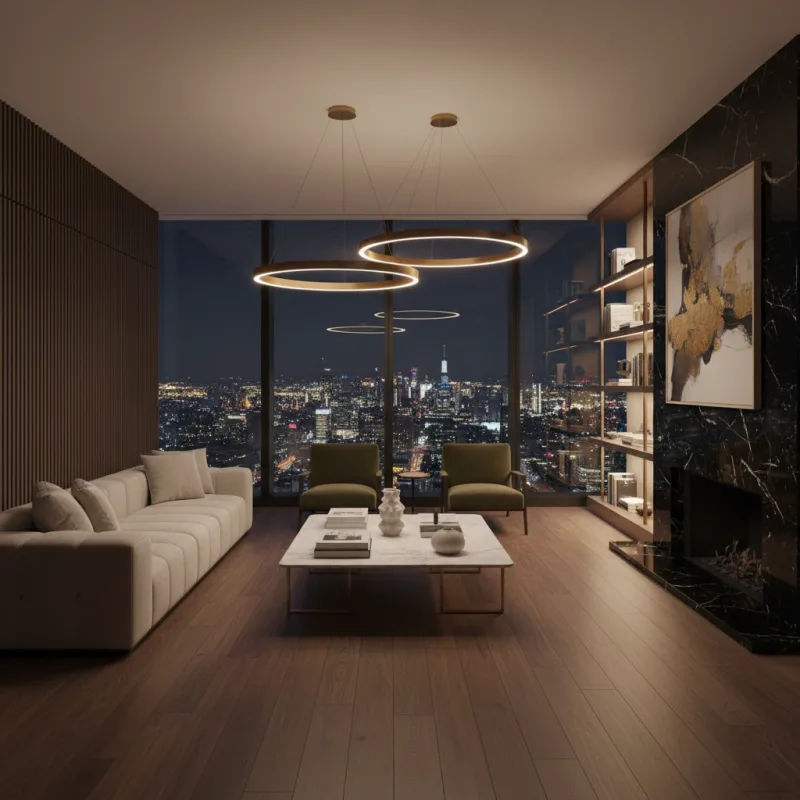
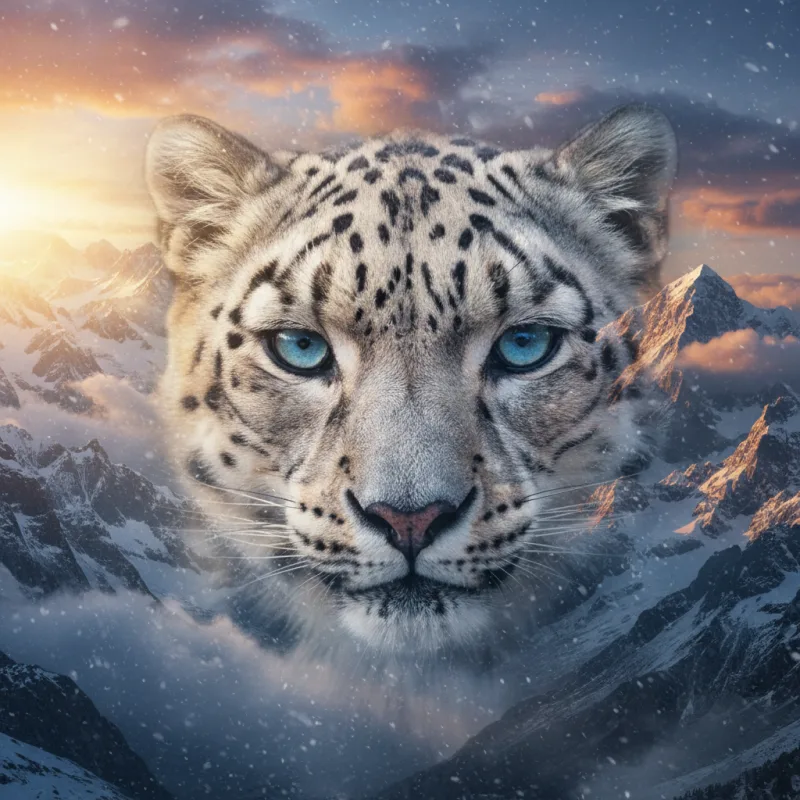
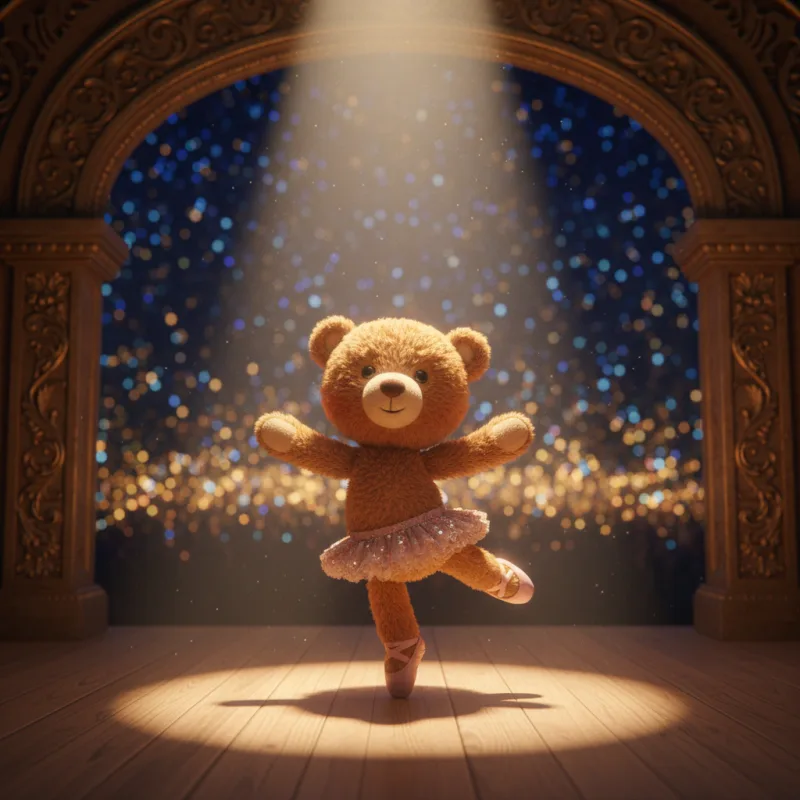
Choose a model for the task in front of you. Explore realistic characters with AKOOL Image, text-rich concepts with Nano Banana Pro, cinematic scenes with FLUX, or detailed briefs with GPT Image.
Explore portraits, illustrated characters and realistic scenes. Use a clear visual brief to develop a consistent direction across your image set, then check the face, styling and scene details in each result.
Explore AKOOL ImageModel versions, settings and credits vary. Check the image workspace and your plan for current access.
Choose a starting point, add your creative brief and generate. Keep the useful details in your prompt, then make focused changes to improve the result.
Name the subject, scene, style and lighting. Use a reference photo when its appearance should guide the result.
Open AKOOL to createStart from a reference, improve an image’s resolution or explore a different visual style. Choose the tools that suit the next step in your project.
Upload a reference and describe the changes you want to explore. Try a different setting, style or lighting, then compare the result with your original photo.
Explore image to image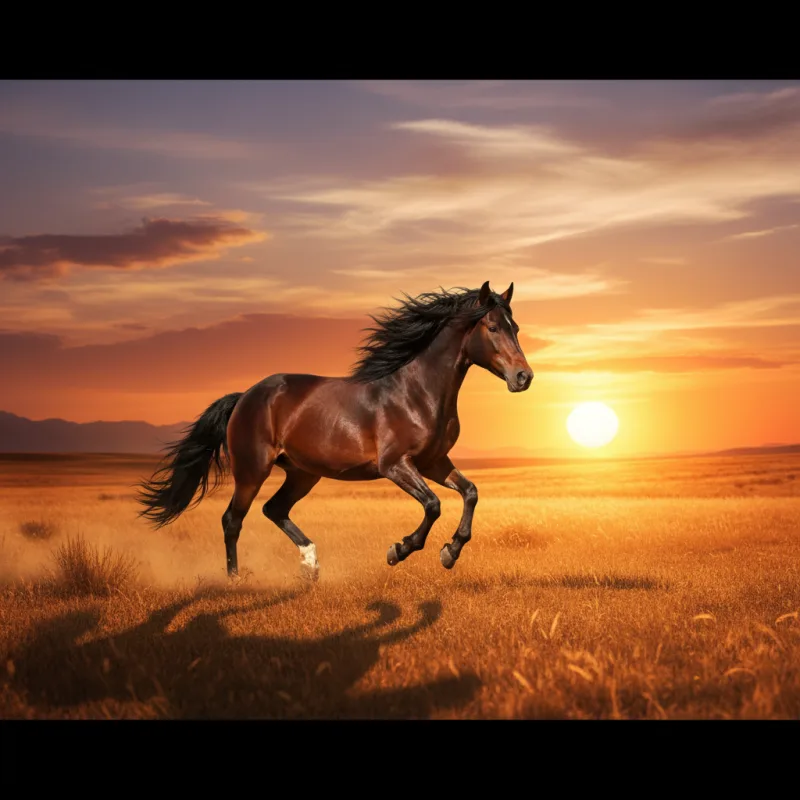
Improve an existing image with AKOOL’s upscaler. Review the available output options and compare the result at full size before preparing it for a page, post or presentation.
Explore image upscalingTurn a concept into a photographic scene, an illustration or an imagined world. Change one part of your brief at a time so you can see what improves the result.
Try a new directionStart an image-to-video project with a still you have created or uploaded. Add movement, an action or a camera direction, then choose the settings available for your selected video model.
Bring an image into videoExplore the AI video generatorA useful prompt names the subject, setting, lighting, style and composition. Try a brief below, then change one detail at a time instead of rewriting everything.
A ceramic coffee cup on a pale stone plinth, soft morning light, subtle shadow, minimalist studio, close-up product photography.
Copy promptAn editorial portrait by a rain-streaked window, soft reflected neon, natural skin texture, cinematic mood, shallow depth of field.
Copy promptA floating glass pavilion above a lavender sea, curved architecture, distant mountains, diffused daylight, surreal cinematic composition.
Copy promptPractical answers about prompts, photos, models, credits and the next step in your project.
Visit the help centerAn AI image generator creates an image from a written description or a reference photo. In AKOOL, you can choose an image model, describe the subject and visual style, and generate a result. Review the image, then refine your instructions to explore a different direction.
Open the image generator and choose Text to Image or Image to Image. Select an available model, add your prompt or reference, and review the settings before you generate. Afterward, compare the result with your brief and adjust the details that need another pass.
Yes. Use Image to Image to start with an uploaded reference photo. Describe the changes you want, such as a different setting, lighting or visual style. How closely the result follows your photo depends on the chosen model, prompt and settings.
AKOOL lists image models including AKOOL Image, Nano Banana Pro, Seedream, FLUX, GPT Image and Recraft. They offer different approaches to image creation. Check the live image workspace for the current versions and settings, and the pricing page for model access on your plan.
Name the subject, setting, lighting, style and composition. Add important details such as materials, colors, camera angle or space for a headline. A prompt like "a white ceramic mug on pale stone, soft window light, close-up product photo" gives a clearer direction than "a nice mug."
Yes. AKOOL supports prompt-based and reference-based image creation for product scenes and marketing concepts. Use a product photo when its appearance matters, and describe the setting you want. Check the shape, label, colors and other product details before using the result in a campaign.
AKOOL Image is designed for coherent characters and visual sequences. Use a consistent character brief and supported reference options, then compare each image for changes in the face, clothing and styling. A consistent direction is a creative goal, so review every image in the set.
AKOOL lists models that support text-rich image creation, including Nano Banana Pro and GPT Image. Include the exact wording and describe where it should appear. Check spelling, spacing and readability in the result, especially for product labels, posters and small text.
AKOOL provides image generation and a separate image upscaler. Use the upscaler to improve an existing image, or review the resolution options for your selected image model. Available output settings vary. Check the final dimensions and image quality before preparing an asset for print or a large display.
AKOOL offers free and paid plans and uses credits for generation. The models you can access, included credits and export limits depend on the plan and selected options. Check the current pricing page and review the credit cost shown in the workspace before you generate.
Choose a plan with the licence your project requires. AKOOL’s pricing page distinguishes personal, business and enterprise licences, so a paid subscription alone does not mean every commercial use is included. Review the current plan terms and use reference photos, logos and other materials you have permission to use.
Yes. Open AKOOL’s image-to-video tool and use your image as the starting frame. Add a prompt describing the subject’s movement and the camera direction, then choose an available video model and settings. Review the generated clip to see how the motion follows your brief.
Write a prompt or start with a photo. Create your next visual in AKOOL.
Create with AKOOL通过文字生成AI视频、让图片动起来,或用支持的参考素材引导场景。在AKOOL中探索Veo、Kling、Seedance和Wan,选择适合创作需求的模型与设置。
复制提示词后,打开AKOOL生成视频。模型权限、设置和积分消耗因具体选择而异。
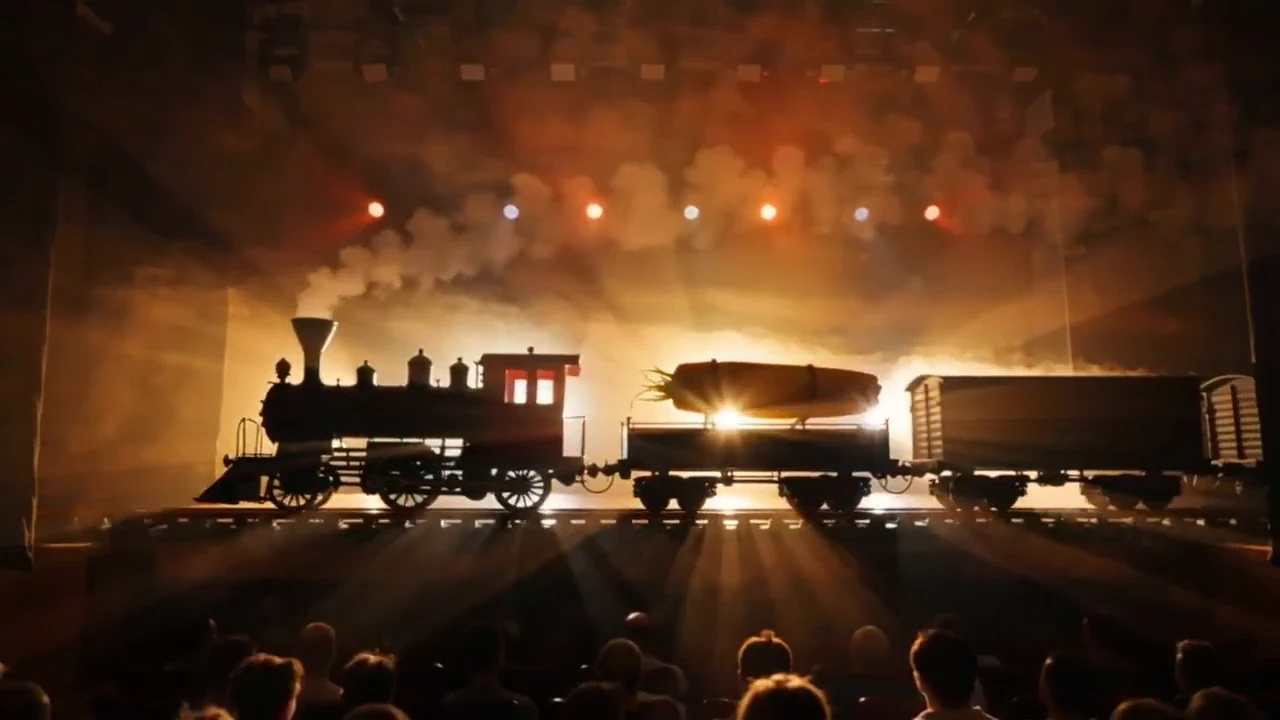
观看视频示例无声示例:剧院场景中的蒸汽火车、金色光线和飘动的烟雾。
Published AKOOL examples.探索AKOOL发布的产品场景、电影世界和视觉变换。打开视频,观察运动方式,为自己的项目找到创作起点。
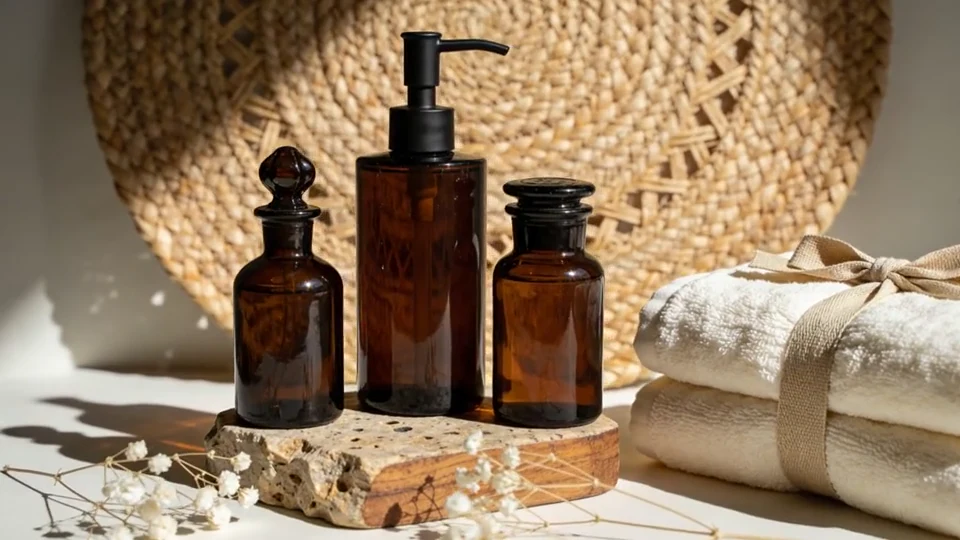 0:10无声预览
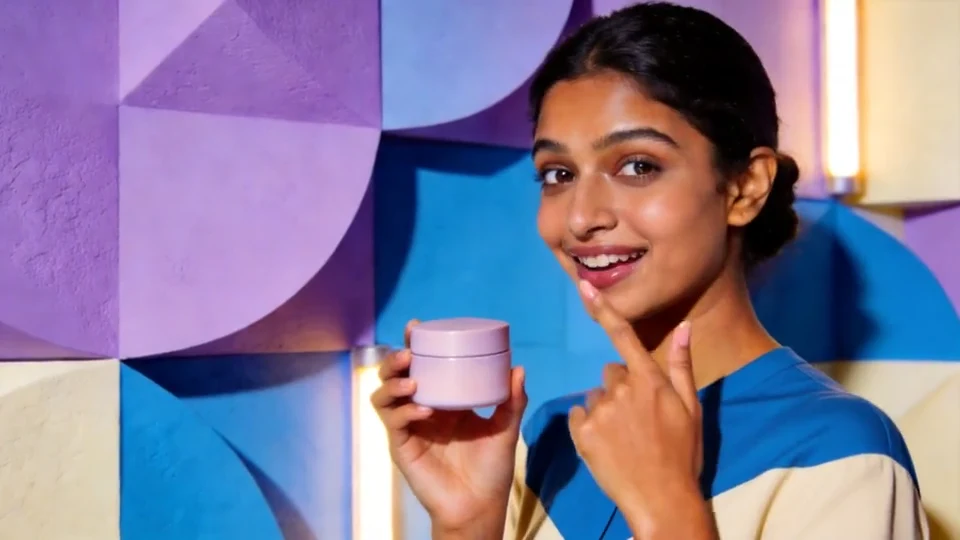
 0:20无声预览
 0:10无声预览
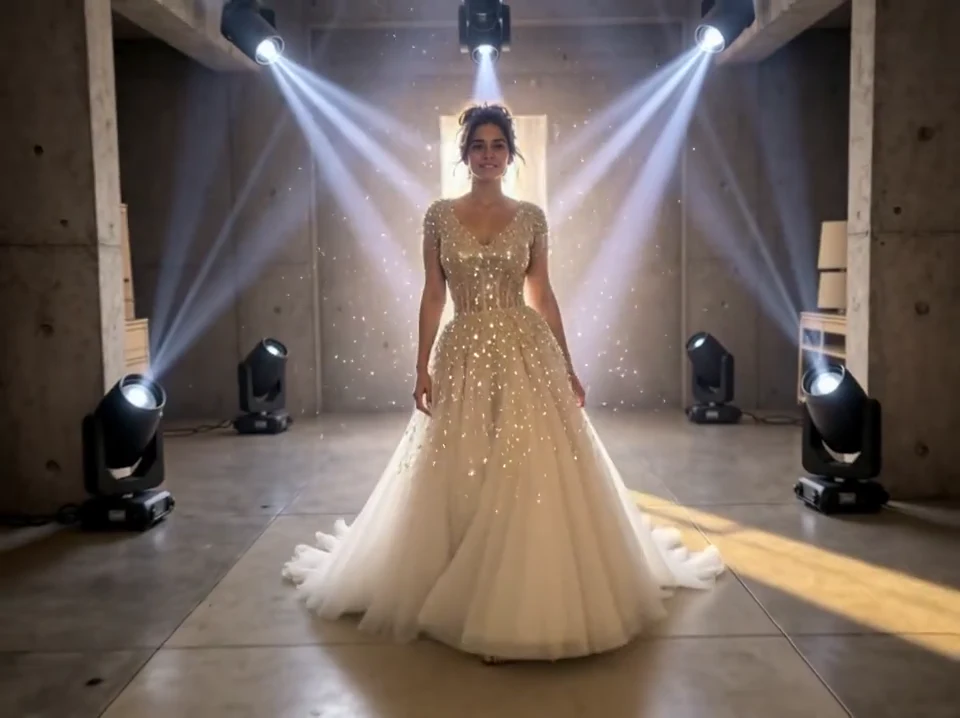 0:10无声预览
尝试改变场景、服装或氛围。在创作说明中明确主体和视觉方向。
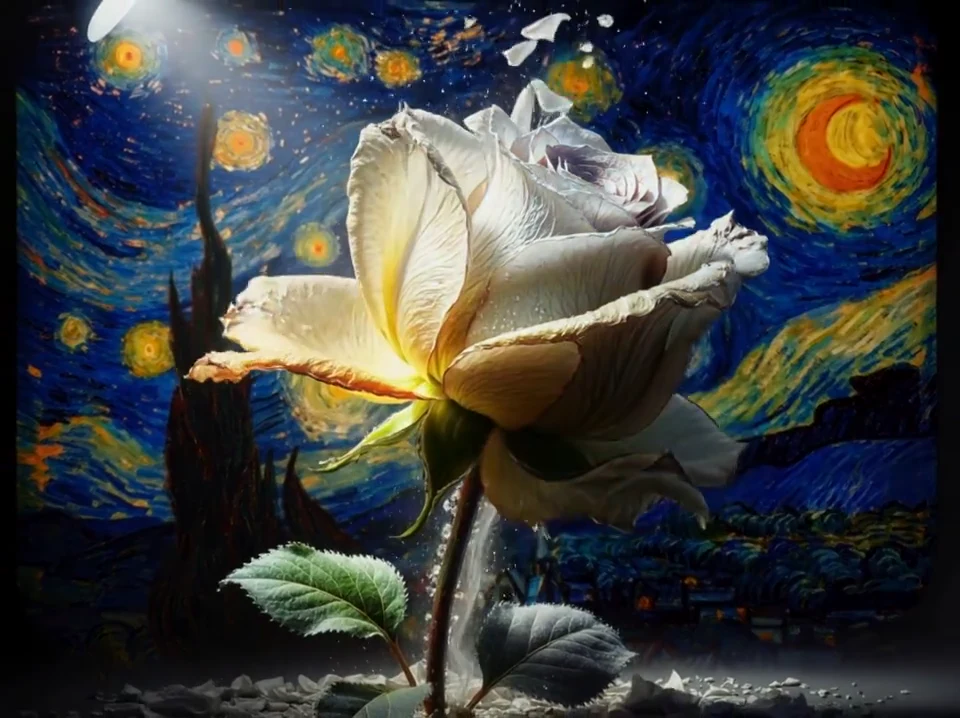 0:10无声预览
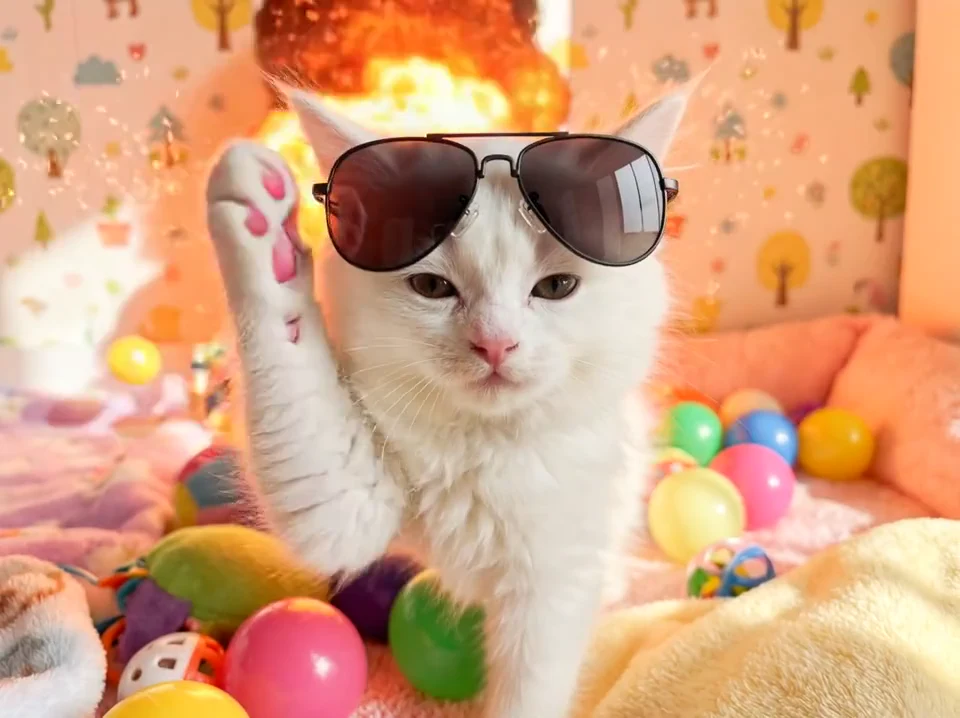 0:10无声预览
通过简单动作探索有趣的视觉创意。让观众一眼看清主体,轻松理解场景。
这些是AKOOL已发布的展示作品。建议提示词是用于探索相似方向的新示例,并非每段视频实际使用设置的记录。
图片转视频可为照片、插画或渲染图添加运动。上传清晰图片,描述具体动作,再选择所用模型支持的设置。
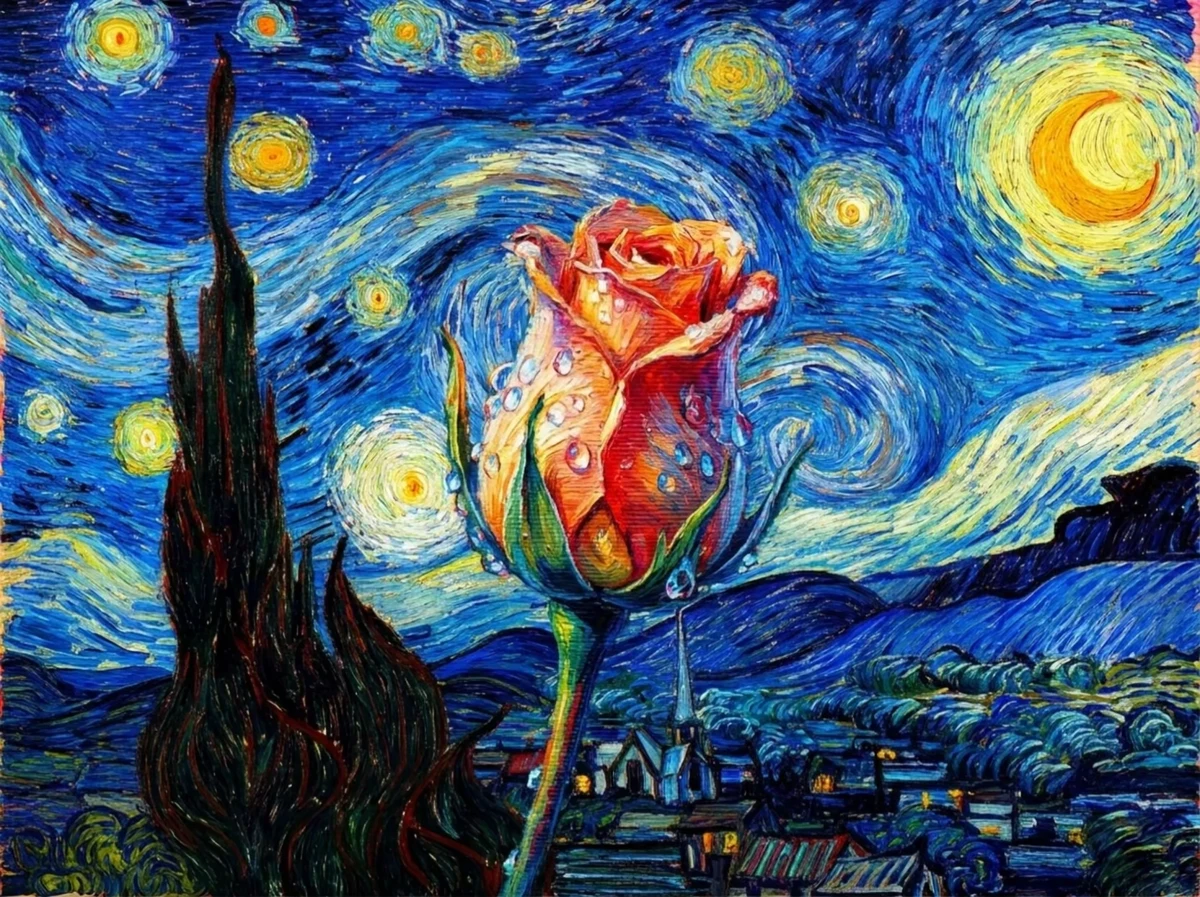 观看变换效果
“画中的花朵慢慢变得逼真。镜头轻轻推进,使用柔和自然光,并保留周围的绘画构图。”
An original example prompt. Results will depend on the uploaded image and model.想探索新场景,可选择文字转视频。以静态图片为起点,可选择图片转视频。需要多个素材共同引导新视频时,请选择支持参考素材的模型。
比较各模型支持的输入,以及它们如何理解你的想法。从现有素材出发,再检查所需的运动、音频和输出选项。
已有确认可用的产品图片?用同一图片和简单运动提示词,对比支持参考素材的Veo与Seedance选项。检查每个结果的包装和颜色。
用Google的Veo系列探索参考素材引导的场景。生成前请检查所选版本的图片、运动和音频选项。
SCENES · REFERENCES · MOTION探索Veo探索强调镜头运动的场景和多镜头创意。Kling不同版本的参考素材与音频功能不同,请比较AKOOL中可用的控制选项。
CAMERA · SUBJECTS · SEQUENCES探索Kling探索参考素材引导的视频创作。Seedance 2.0支持多种参考类型;具体可用选项取决于版本和工作流程。
REFERENCES · VISUAL DIRECTION探索Seedance用Wan系列探索图片驱动的运动和短场景创意。请确认账户中显示的版本、支持的输入和音频控制。
IMAGE MOTION · SCENE IDEAS探索Wan打开AKOOL,选择支持的工作流程,添加提示词或参考素材,并设置可用选项。生成片段后检查结果,再调整需要改进的部分。
打开视频工作区描述一个主要动作,补充主体、环境和镜头方向。如果人物或产品外观很重要,请上传清晰图片或支持的参考素材。
检查可用输入类型、片段时长、宽高比、分辨率和音频设置。生成前确认显示的积分消耗。
从头到尾检查运动、面部、手部和产品细节。每次只修改一项说明。下载可用结果,或转到下一步需要的AKOOL工具。
生成只是项目的一部分。探索AKOOL用于视觉创作、旁白、翻译和虚拟主持人内容的相关工具。
有效的提示词会说明画面里有谁或什么、发生什么,以及如何呈现。以这些示例为起点,根据自己的素材调整细节。
批量生成前,请检查模型权限与积分消耗。用于客户项目、广告或其他商业用途时,请确认账户许可覆盖该项目。
比较当前套餐AI视频生成器根据文字提示、图片或其他支持的参考素材创建动态画面。在AKOOL中,你可以选择工作流程与模型、添加创作指示,再生成并检查视频。可用输入、控制和输出选项取决于具体选择。
打开AKOOL的文字转视频功能,描述主体、动作、环境和镜头运动。选择可用模型与设置,确认积分消耗后生成。检查视频,并在创建下一版前调整提示词。
可以。AKOOL的图片转视频功能可为静态图片添加运动。上传清晰的照片、画作或渲染图,并描述需要移动的内容。产品项目应将完整结果与确认的图片对照,尤其检查形状、颜色、包装和标签。
图片转视频从一张需要动起来的静态图片出发。参考素材转视频使用支持的素材引导新视频,例如指定角色、产品、风格或运动。参考类型和上传限制取决于所选模型。
选择能接受现有输入、并提供所需控制功能的模型。AKOOL列出的系列包括Veo、Kling、Seedance和Wan。用相同创作要求比较两个可用选项,再评估可用结果、积分消耗和需要修改的地方。
某些模型版本可以在生成视频时同时生成音频,这与之后添加旁白不同。请查看所选模型的音频控制。AKOOL也提供独立语音工具,用于脚本配音、旁白或其他音频流程。
片段长度取决于所选模型、工作流程和可用设置。规划镜头前,请查看AKOOL显示的时长。单次生成的片段不同于由多个片段组成的完整视频;较长故事可按需拆分为多个场景。
AKOOL支持不同宽高比和分辨率的工作流程,具体取决于模型和套餐。请确认所选选项是在该分辨率直接生成,还是生成后进行放大,并选择适合发布渠道的格式。
AKOOL提供免费访问及付费套餐。可用模型、积分和水印条件取决于账户。生成或下载视频前,请查看当前价格页面及工作区中显示的选项。
所有视频并不使用同一积分价格。模型、时长、质量和其他设置都会影响消耗。生成前请确认所选设置显示的费用。批量制作时,还应预留为获得可用片段而增加的尝试次数。
请使用覆盖项目用途的套餐与许可,并查看AKOOL当前条款及适用模型的条款。你还需要取得所提供的人物、图片、音乐等素材的相关授权。付费订阅本身并不代表已获得广告或客户项目所需的全部权利。
使用清晰、已确认的参考素材及具体的运动提示词。保持关键源素材不变,每次只测试一项改动。检查完整片段中的身份变化、包装变形和意外动作。参考素材能引导结果,但不保证完全一致。
写下提示词,或准备一张图片。为下一段视频找到起点。
用AKOOL创作视频借助 AI 驱动的自定义和效率,轻松创建引人入胜的 HR 视频,简化工作流程并提升您的创意项目。
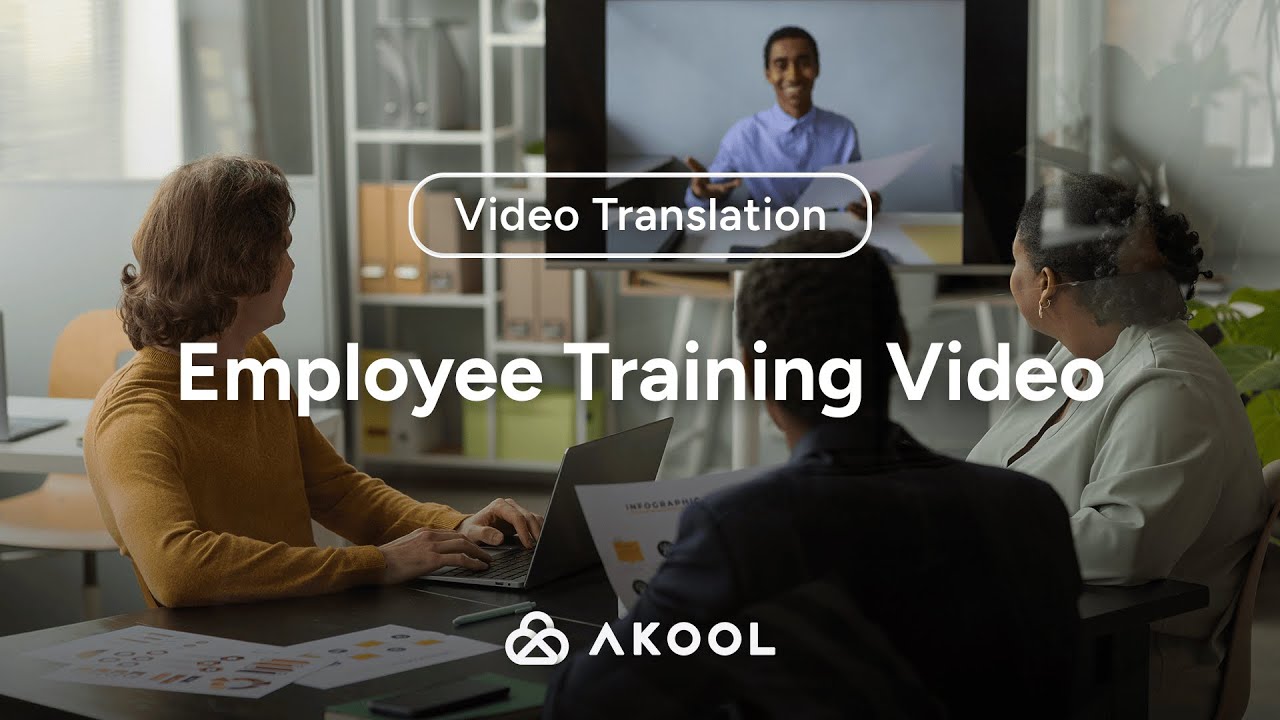

轻松制作精彩的人力资源视频,非常适合招聘、培训和讲述品牌故事的机构和创作者。快速吸引和扩大您的受众群体!
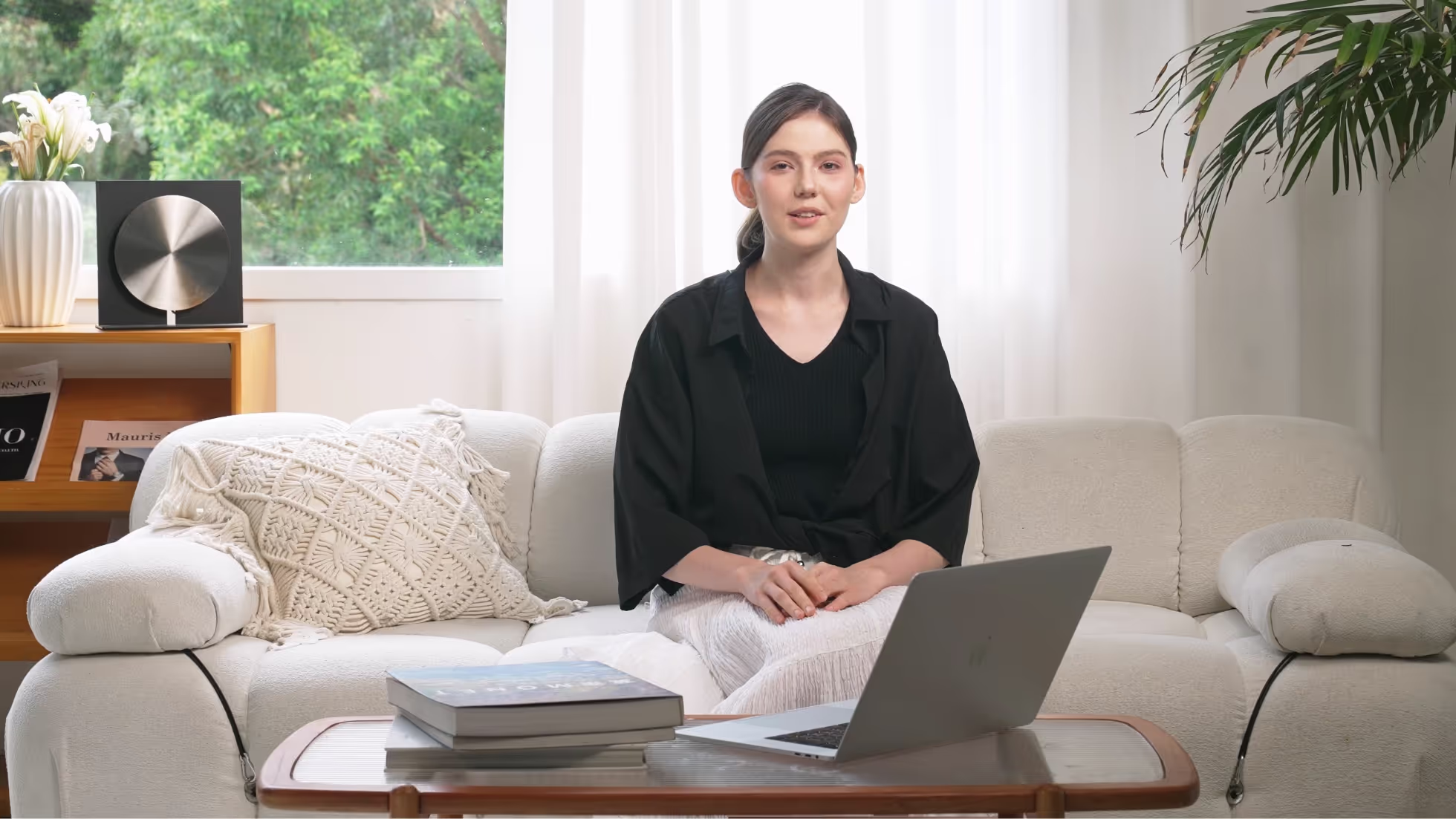
节省制作用于招聘和培训的人力资源视频的时间,使机构能够专注于战略。
利用 AI 工具创新视觉叙事,非常适合品牌和营销领域的创作者。
减少机构的视频制作费用,优化人力资源和促销活动的预算分配。

我们的 AI HR 视频制作器非常适合招聘行业,使公司能够创建引人入胜的招聘信息和公司文化视频。通过根据您的需求量身定制的专业、高质量视频,展示您的工作环境和价值观,吸引顶尖人才。
利用个性化视频内容优化企业部门的培训计划。我们的工具简化了教学视频的创建,确保您的团队收到一致、引人入胜的交互式培训材料,这些材料可以轻松更新和分发。
教育机构通过为学生和教职员工制作内容丰富的视频,受益于我们的人工智能工具。利用支持课程要求、远程学习和员工发展的定制内容增强学习体验,确保有效的沟通和知识保留。
使用我们的 AI HR 视频制作器制作全面的入职视频。通过以视觉吸引人的格式提供基本信息,减少重复演示的需求并确保一致的入职体验,从而简化新员工的入职流程。
通过制作动态内部沟通视频来提高员工参与度。通过定期更新、公告和表彰功能,让您的团队了解情况和积极性,营造积极的工作环境并改善整体组织文化。
利用我们的 AI 工具制作引人入胜的品牌故事视频。与外部受众分享贵公司的使命、价值观和成功案例,强化品牌标识,与客户和潜在客户建立更牢固的联系。
-30%
0.05美元/积分
(按年计费,每年252美元)
$ 0.05 美元 / 点数
(按月计费,每月 $30)
$ 0.05 美元 / 点数
(按月计费,每月 $119)
$ 0.042 美元 / 点数
(按年计费,每年 $500)
$ 0.05 美元 / 点数
(按年计费,每年 $252)
$ 0.035 美元 / 点数
(按年计费,每年 $252)
$ 0.033 美元 / 点数
(按年计费,每年 $948)
$ 0.05 美元 / 点数
(按年计费,每年 $4200)
What is AI HR Video Maker?
AI HR Video Maker is a cutting-edge SaaS tool designed to help human resources departments create engaging and informative HR videos using artificial intelligence. It simplifies the video production process, making it accessible to HR professionals without technical expertise.
How does AI HR Video Maker benefit HR departments?
AI HR Video Maker streamlines the video creation process, allowing HR teams to produce high-quality videos quickly and efficiently. This tool enhances employee engagement, improves onboarding experiences, and facilitates effective communication within organizations.
Can AI HR Video Maker be used for employee onboarding videos?
Yes, AI HR Video Maker is perfect for creating employee onboarding videos. It enables HR teams to craft personalized and informative onboarding content that helps new hires understand company culture, policies, and procedures.
Is AI HR Video Maker user-friendly for non-technical staff?
Absolutely! AI HR Video Maker is designed with a user-friendly interface that allows non-technical HR staff to create professional videos without any prior video editing experience. The intuitive platform guides users through each step of the video creation process.
What types of HR videos can be created with AI HR Video Maker?
AI HR Video Maker can be used to create a variety of HR videos, including training videos, policy updates, employee testimonials, recruitment videos, and more. The tool offers customizable templates to suit different HR needs.
How does AI HR Video Maker ensure video content is engaging?
AI HR Video Maker uses advanced AI algorithms to suggest engaging content, visuals, and audio elements. It also offers features like animations and interactive elements to capture and maintain the audience's attention.
What file formats are supported by AI HR Video Maker?
AI HR Video Maker supports a wide range of video file formats, including MP4, AVI, and MOV, ensuring compatibility with various platforms and devices. This flexibility allows HR teams to share videos seamlessly across different channels.
Does AI HR Video Maker offer any customization options?
Yes, AI HR Video Maker provides extensive customization options, allowing users to tailor videos to their specific needs. Users can adjust elements such as text, images, colors, and branding to align with their organization's identity and messaging.