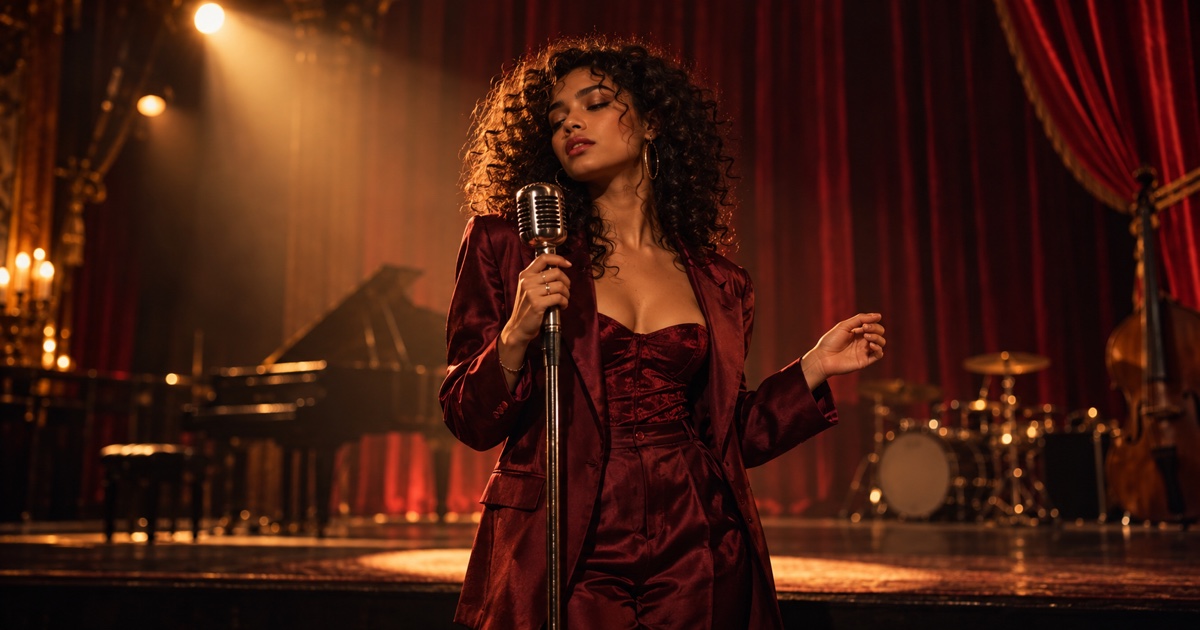

A strong music release needs more than cover art and a release announcement. Listeners may first discover your track in a Reel, YouTube Short, teaser, or another short-form video. An AI music video generator can help you create these visuals without organizing a full video shoot. Keep the song at the center. Then use AI to build focused scenes around the moments listeners are most likely to remember.
What Can an AI Music Video Generator Do With an Existing Song?
People use the term AImusic video generator in a few different ways. Some expect a tool to analyze a complete song and automatically create a finished music video. Others want a faster way to make visual clips for a chorus, beat drop, teaser, or release campaign.
For most independent artists, the second option is more practical. You already know the song, the artist identity, and the feeling you want to create. AI can help turn those choices into visual material.
Audio-Driven Music Video Generation vs. Directed AI Video Creation
Some music-first tools are designed to work from a full audio file. They may try to detect a beat, mood, or song structure, then produce an automated sequence.
A creator-directed workflow gives you more say in the result. You choose the section of the song to feature, decide which visual moment lands on the chorus, and set the overall style. That level of control matters when your cover art, wardrobe, live footage, and social posts all need to feel like part of the same release.
Where AKOOL Fits Into the Music Video Workflow
AKOOL is best used as the visual-production part of the workflow. With AKOOL’s AI video generator, you can create video from a text prompt, an image, or existing footage, then refine the shot’s motion, camera direction, and length.
Use it to generate individual scenes around the track, then place those clips in your final edit. This gives you room to test ideas, replace a weak shot, or make several versions for different platforms without rebuilding the entire video.
When a Music-First Generator May Be a Better Fit
A specialized music-first platform may suit you if your goal is full-song analysis, automatic beat mapping, lyric timing, or a long-form visual sequence created with minimal direction.
AKOOL is a better fit when you want to direct the visual side of the release. It works well for mood pieces, animated cover art, artist portraits, performance-style clips, and other music release videos built around a song.
Prepare an Existing Song for a Visual Generation Workflow
You do not need to visualize every second of a track to launch it well. Pick one moment with enough emotional pull to make someone stop scrolling, listen, and remember the song.
Choose One Release Segment First
Look for a section that can stand on its own: the first lyric, the hook, a beat drop, a pre-chorus lift, or the final line. A short excerpt often works best for a teaser because it gives viewers one clear idea quickly.
For example, if your chorus has the biggest vocal moment, build your visual around that. If the production has a dramatic instrumental switch, make that switch the centerpiece of the clip.
Build a Manual Audio Cue Sheet
Listen to the selected section and write down the major changes. Mark the vocal entrance, drum hit, transition, chorus, pause, or final note.
Your cue sheet can be simple:
This is where the music and visuals begin to work together. The cue sheet tells you when the song changes. The shot list tells you what viewers should see at that point.
Turn Song Mood Into a Visual Brief
Write a short creative brief before generating clips. Include the location, lighting, color palette, artist styling, camera feeling, and emotional tone.
A moody R&B song might call for late-night streets, warm reflections, slow camera movement, and deep red lighting. A bright dance track might work better with bold colors, open space, quick movement, and a playful visual twist. Specific details help your prompts feel intentional instead of generic.
Turn Song Sections Into a Short Visual Shot List
A good shot list keeps the project manageable. Each generated clip should have one job, one key action, and one visual idea that connects to the song.
You do not need five completely unrelated concepts. Repeating the same setting, color palette, or camera style can make a short release clip feel polished and recognizable.
Generate Music Visual Clips With Text, Images, and Footage
Different shots call for different inputs. Using the right source material helps you get closer to the visual you pictured before you hit generate.
Choose the Right Input for Each Shot
Text-to-video works well for imagined locations, visual metaphors, abstract transitions, and scenes you could not easily film. Image-to-video is useful when you want to animate album art, a press photo, an illustration, or a styled portrait. Video-to-video can help refresh approved footage from a performance, rehearsal, or previous shoot.
The best AI video generation tools let you mix these approaches across one campaign. AKOOL’s current model lineup includes text, image, footage, and reference-based workflows, so you can select a model based on the shot you need instead of forcing every idea through the same process. Its AI video model comparison is useful when you are deciding which model to test for motion, stylized storytelling, or native scene audio.
Test Text, Image, and Video Inputs Before You Commit
Test Setup: We ran the test on October 16th, 2026, using Wan 3.0 Prime for text-to-video, image-to-video, video-to-video. Each workflow produced 1 10-second clips in 9:16 using the same future-train creative direction; only the input type changed.
Before building a full campaign, generate a short test clip from each input type and review the results side by side. For a future-train music visual, we compared text-to-video, image-to-video, and video-to-video using the same creative direction. We assessed train consistency, camera motion, rail and city geometry, fit with the track's electronic mood, and suitability for a vertical release teaser.
For this release, image-to-video is the strongest starting point, and video-to-video is a practical finishing pass. Text-to-video remains useful for exploring visual directions, but review subject consistency, object relationships, repeated patterns, and background details before publishing.
Create One Visual Event Per Clip
Keep each generated clip focused. One clip might show an artist stepping into frame. Another might show a room filling with light. A third could reveal the track title at the end.
Trying to fit a whole story into a few seconds often creates a busy result that is hard to edit. Simple clips are easier to review, replace, and arrange around your selected part of the song.
Keep the Visual Identity Consistent
Choose a few visual elements that repeat across every asset: the same artist reference, outfit direction, lighting style, color palette, environment, or camera language.
This is especially important if you are making several clips for the same song. Consistency helps fans connect a teaser, a visualizer, and a release-day post back to the same track. Use approved artist images and references, and get permission before using anyone’s face, voice, or likeness.
Use Animation for Stylized Music Visuals
An AI animated video generator workflow can be a great option when realistic live-action footage does not fit the song. You could animate cover art, create an illustrated version of the artist, build a fantasy world, or make a looping motion poster for social media.
Animation can also help when an artist has limited footage available. A cohesive animated style can carry a full campaign, from the first teaser through the release announcement.
Use Background Music and Sound Effects Creatively
When your existing song leads the release, let it remain the main audio focus. Generated background music works especially well for a pre-release announcement, behind-the-scenes video, or an intro that leads into the track.
Sound effects can add texture and help a visual feel more grounded. Rain, crowd noise, wind, footsteps, impact sounds, and room ambience can each support the mood of a scene while keeping the song clear. Some AKOOL-supported models, including Seedance 2.5, can generate native scene-level audio such as background music, sound effects, and ambience. Listen to each generated clip in context, then choose the audio elements that best support the final release.
Assemble the Visual Clips Around an Authorized Track
Once you have a set of clips, put the song back at the center of the process. Align each visual event to the cue sheet, then watch the sequence from the perspective of someone seeing the release for the first time.
Build a Release-Ready Sequence
Open with a recognizable image quickly. Save your largest visual shift for the hook, chorus, or beat drop. End with a clear release message, such as the artist name, track title, cover art, or launch date.
Play the edit several times with the track. Watch for cuts that feel late, titles that appear too quickly, or motion that distracts from the vocal. Small timing changes can make the finished piece feel much more natural.
Polish the Sequence With an AI Video Editor
An AImusic video editor can help you trim clips, refine pacing, add titles, adjust framing, and create platform-specific versions. Keep the final edit simple and easy to understand on a phone screen.
A vertical version can work for Reels, TikTok, and Shorts. A square version may suit a feed post. A wider cut can support YouTube, a landing page, or a press kit. You can reuse the same creative direction while tailoring each export to the place people will see it.
Before publishing, make sure the music, imagery, footage, and artist references in the final video are cleared for the intended release. Then export each version for its platform, with the right framing, duration, captions, and any needed disclosures.
Create Release Videos That Match Your Vision
One song can support several release videos: a hook teaser, animated cover reveal, lyric moment, performance-style clip, and release-day announcement. With AKOOL, you can develop them from one clear visual direction and adapt each version for the platform where you plan to share it. Keep the track at the center, give each clip one clear purpose, and create a release that feels connected from the first teaser to launch day.