Explore this direction
↗
PRODUCT CAMPAIGN
Product and campaign concepts
01
Create images from a text prompt or a reference photo. Explore image models, try a new visual style, and refine your ideas for product concepts, portraits, social posts and more.
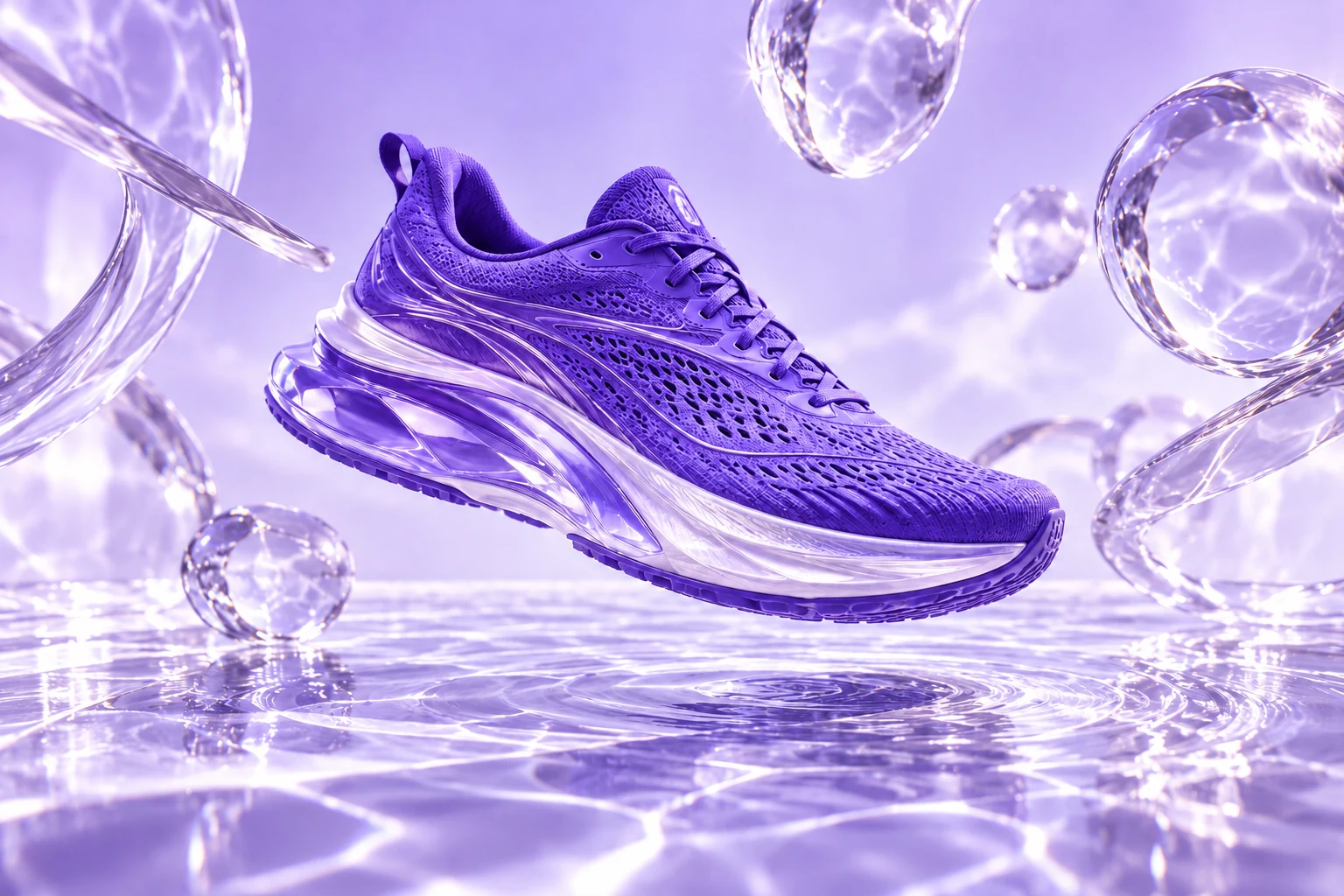
A violet sneaker. Liquid light.
A campaign beyond the studio.
Explore product scenes, portraits, illustrations and concept art. Use a suggested prompt as your starting brief, then adapt the image to your audience and format.
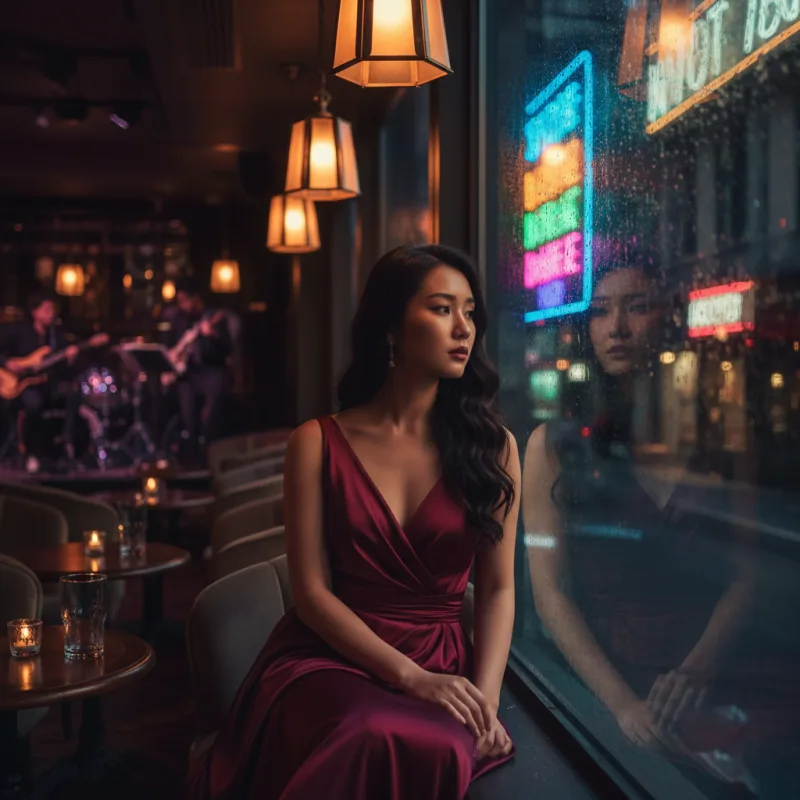
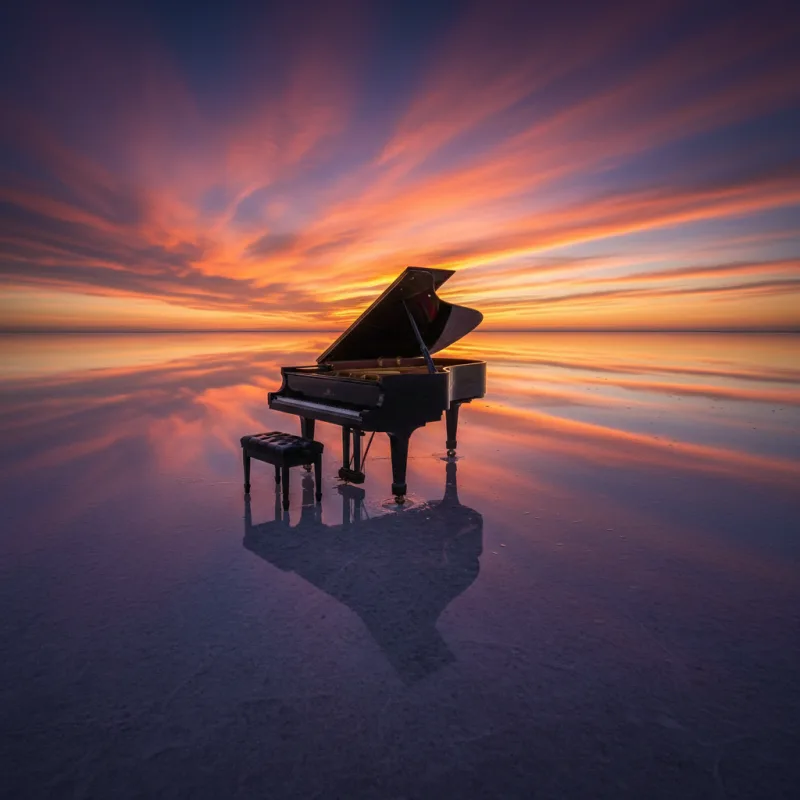
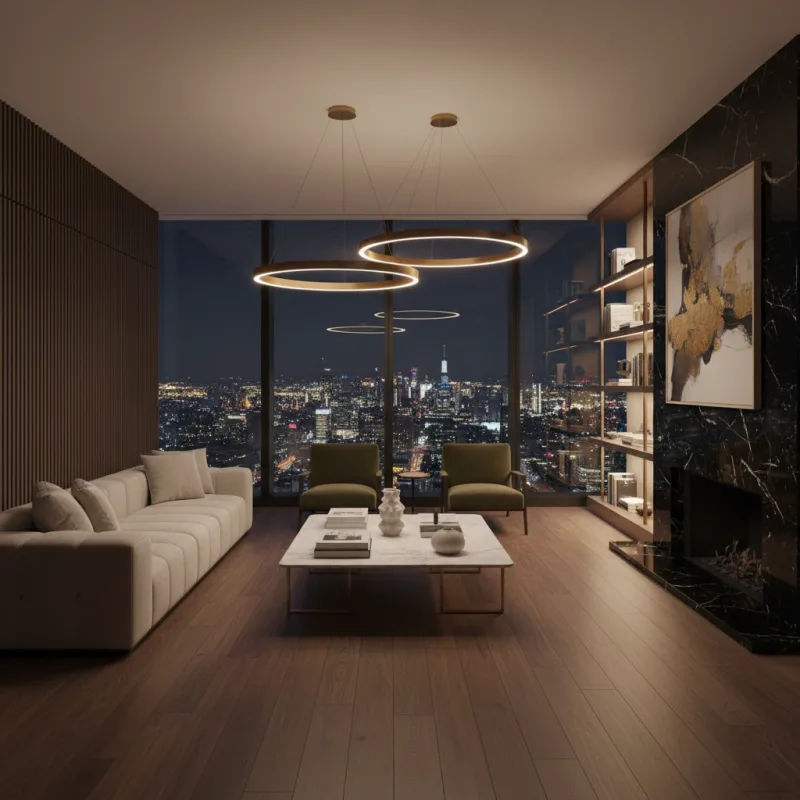

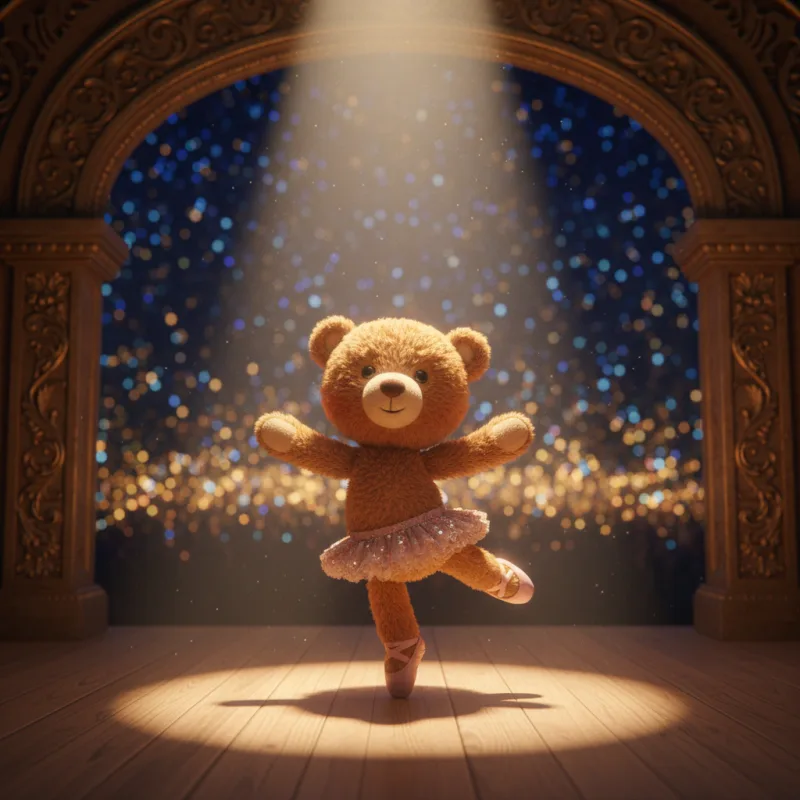
Choose a model for the task in front of you. Explore realistic characters with AKOOL Image, text-rich concepts with Nano Banana Pro, cinematic scenes with FLUX, or detailed briefs with GPT Image.
Explore portraits, illustrated characters and realistic scenes. Use a clear visual brief to develop a consistent direction across your image set, then check the face, styling and scene details in each result.
Explore AKOOL ImageModel versions, settings and credits vary. Check the image workspace and your plan for current access.
Choose a starting point, add your creative brief and generate. Keep the useful details in your prompt, then make focused changes to improve the result.
Name the subject, scene, style and lighting. Use a reference photo when its appearance should guide the result.
Open AKOOL to createStart from a reference, improve an image’s resolution or explore a different visual style. Choose the tools that suit the next step in your project.
Upload a reference and describe the changes you want to explore. Try a different setting, style or lighting, then compare the result with your original photo.
Explore image to image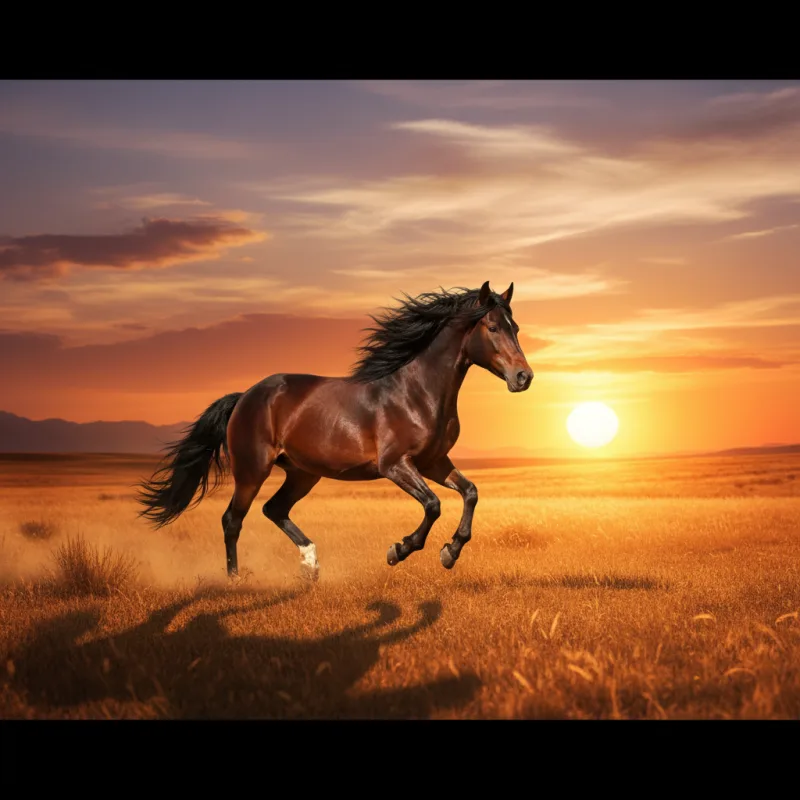
Improve an existing image with AKOOL’s upscaler. Review the available output options and compare the result at full size before preparing it for a page, post or presentation.
Explore image upscalingTurn a concept into a photographic scene, an illustration or an imagined world. Change one part of your brief at a time so you can see what improves the result.
Try a new directionStart an image-to-video project with a still you have created or uploaded. Add movement, an action or a camera direction, then choose the settings available for your selected video model.
Bring an image into videoExplore the AI video generatorA useful prompt names the subject, setting, lighting, style and composition. Try a brief below, then change one detail at a time instead of rewriting everything.
A ceramic coffee cup on a pale stone plinth, soft morning light, subtle shadow, minimalist studio, close-up product photography.
Copy promptAn editorial portrait by a rain-streaked window, soft reflected neon, natural skin texture, cinematic mood, shallow depth of field.
Copy promptA floating glass pavilion above a lavender sea, curved architecture, distant mountains, diffused daylight, surreal cinematic composition.
Copy promptPractical answers about prompts, photos, models, credits and the next step in your project.
Visit the help centerAn AI image generator creates an image from a written description or a reference photo. In AKOOL, you can choose an image model, describe the subject and visual style, and generate a result. Review the image, then refine your instructions to explore a different direction.
Open the image generator and choose Text to Image or Image to Image. Select an available model, add your prompt or reference, and review the settings before you generate. Afterward, compare the result with your brief and adjust the details that need another pass.
Yes. Use Image to Image to start with an uploaded reference photo. Describe the changes you want, such as a different setting, lighting or visual style. How closely the result follows your photo depends on the chosen model, prompt and settings.
AKOOL lists image models including AKOOL Image, Nano Banana Pro, Seedream, FLUX, GPT Image and Recraft. They offer different approaches to image creation. Check the live image workspace for the current versions and settings, and the pricing page for model access on your plan.
Name the subject, setting, lighting, style and composition. Add important details such as materials, colors, camera angle or space for a headline. A prompt like "a white ceramic mug on pale stone, soft window light, close-up product photo" gives a clearer direction than "a nice mug."
Yes. AKOOL supports prompt-based and reference-based image creation for product scenes and marketing concepts. Use a product photo when its appearance matters, and describe the setting you want. Check the shape, label, colors and other product details before using the result in a campaign.
AKOOL Image is designed for coherent characters and visual sequences. Use a consistent character brief and supported reference options, then compare each image for changes in the face, clothing and styling. A consistent direction is a creative goal, so review every image in the set.
AKOOL lists models that support text-rich image creation, including Nano Banana Pro and GPT Image. Include the exact wording and describe where it should appear. Check spelling, spacing and readability in the result, especially for product labels, posters and small text.
AKOOL provides image generation and a separate image upscaler. Use the upscaler to improve an existing image, or review the resolution options for your selected image model. Available output settings vary. Check the final dimensions and image quality before preparing an asset for print or a large display.
AKOOL offers free and paid plans and uses credits for generation. The models you can access, included credits and export limits depend on the plan and selected options. Check the current pricing page and review the credit cost shown in the workspace before you generate.
Choose a plan with the licence your project requires. AKOOL’s pricing page distinguishes personal, business and enterprise licences, so a paid subscription alone does not mean every commercial use is included. Review the current plan terms and use reference photos, logos and other materials you have permission to use.
Yes. Open AKOOL’s image-to-video tool and use your image as the starting frame. Add a prompt describing the subject’s movement and the camera direction, then choose an available video model and settings. Review the generated clip to see how the motion follows your brief.
Write a prompt or start with a photo. Create your next visual in AKOOL.
Create with AKOOL텍스트로 AI 동영상을 만들고, 이미지에 움직임을 더하거나 지원되는 참조 자료로 장면을 구성하세요. AKOOL에서 Veo, Kling, Seedance, Wan을 살펴보고 프로젝트에 맞는 모델과 설정을 선택하세요.
프롬프트를 복사한 뒤 AKOOL을 열어 생성하세요. 모델 이용 권한, 설정, 크레딧 비용은 다를 수 있습니다.
동영상 예시 보기무음 예시: 극장 장면 속 증기 기관차, 황금빛 조명과 흩날리는 연기.
Published AKOOL examples.AKOOL이 공개한 제품 장면, 영화 같은 세계와 시각적 변화를 살펴보세요. 클립을 열어 움직임을 관찰하고 프로젝트의 창작 출발점을 찾아보세요.
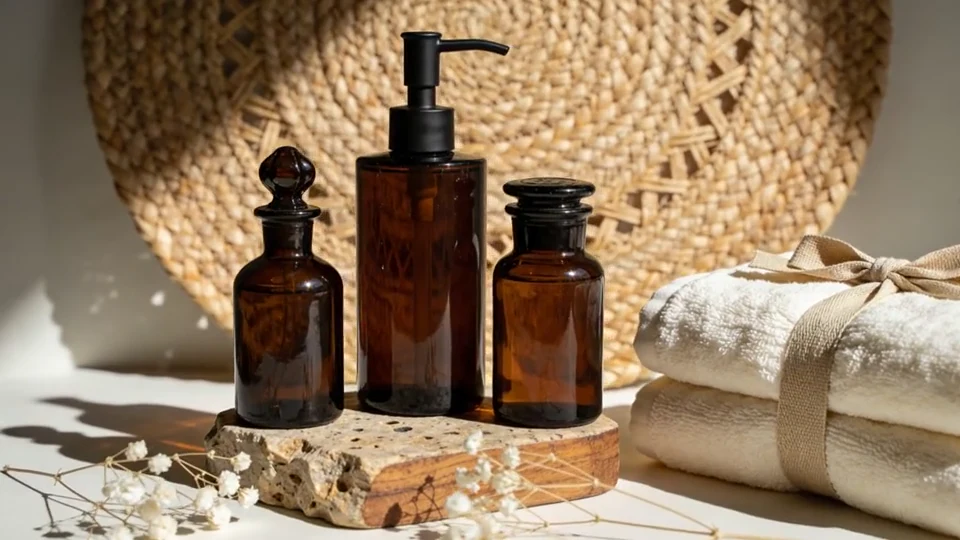 0:10무음 미리 보기
빛과 부드러운 움직임으로 제품을 드러내는 방식을 탐색하세요. 완성된 클립의 포장과 색상을 승인된 자료와 비교하세요.
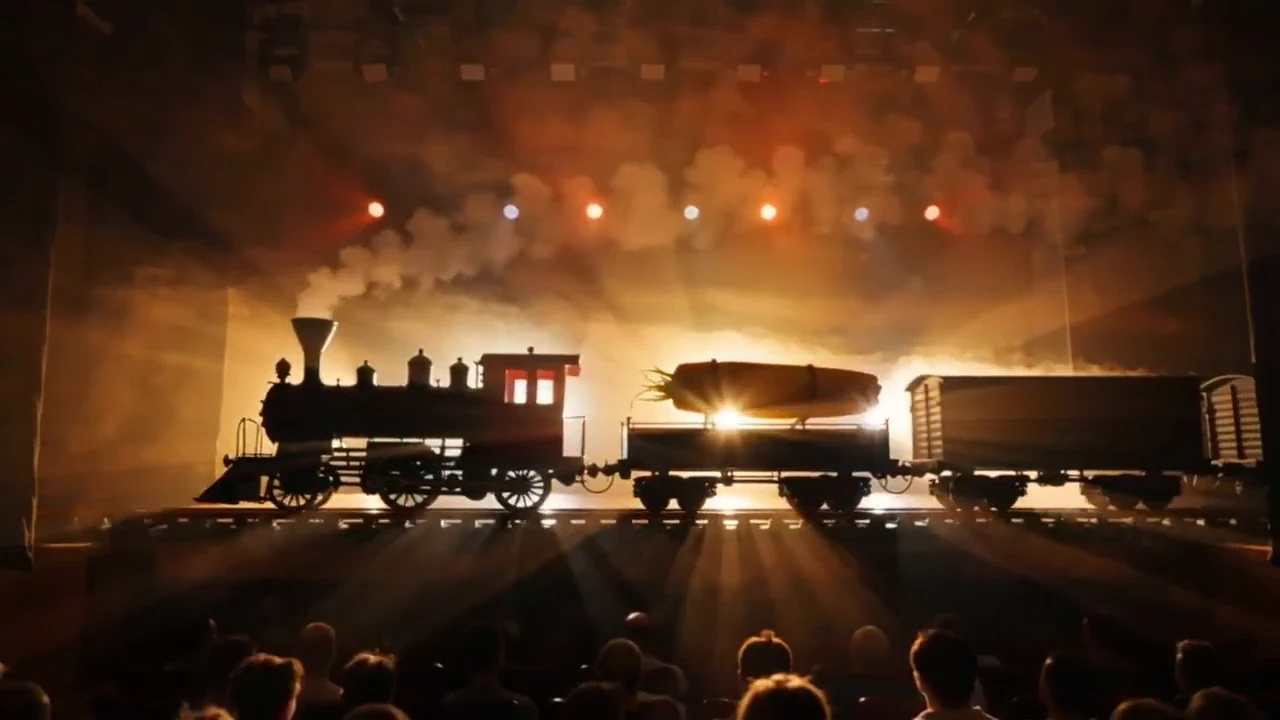 0:20무음 미리 보기
장면의 피사체, 동작, 카메라 방향을 정하세요. 다음 장면을 계획하기 전에 시각적 콘셉트를 구체화하세요.
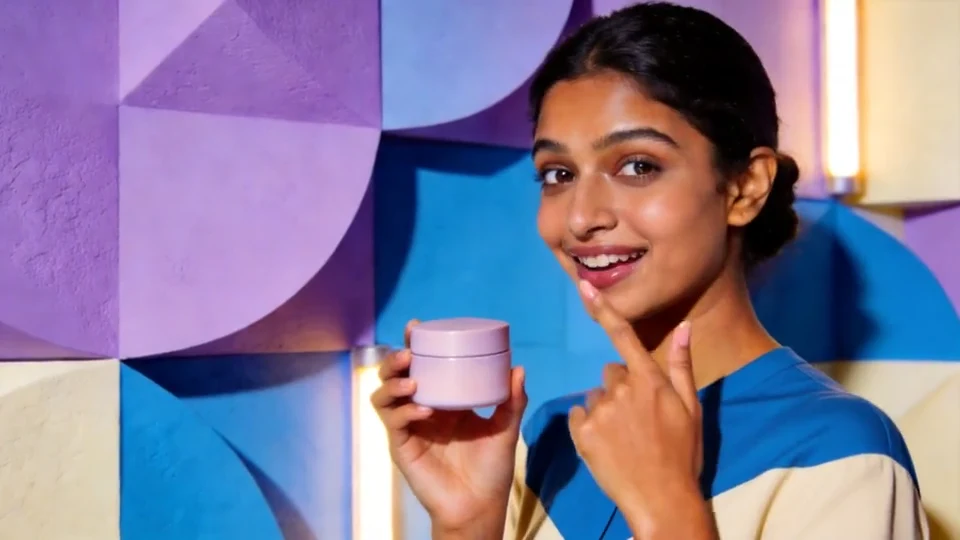 0:10무음 미리 보기
인물을 중심으로 한 짧은 제품 장면을 탐색하세요. 결과를 사용하기 전에 얼굴, 손, 포장을 확인하세요.
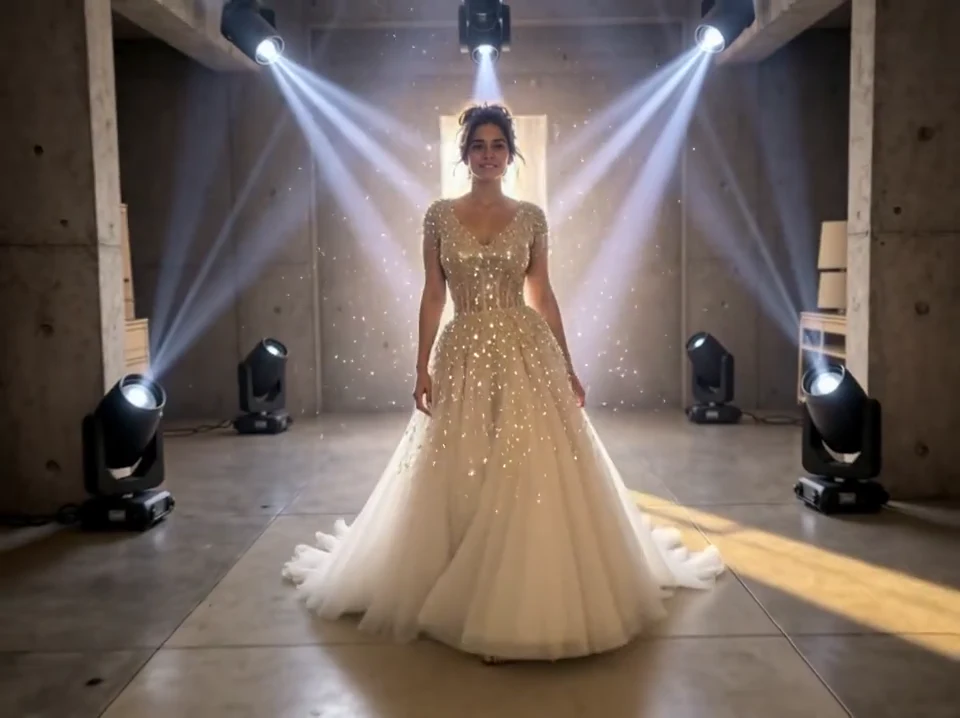 0:10무음 미리 보기
배경, 의상 또는 분위기를 바꿔 보세요. 의도한 피사체와 시각적 방향을 제작 지시에 명확히 담으세요.
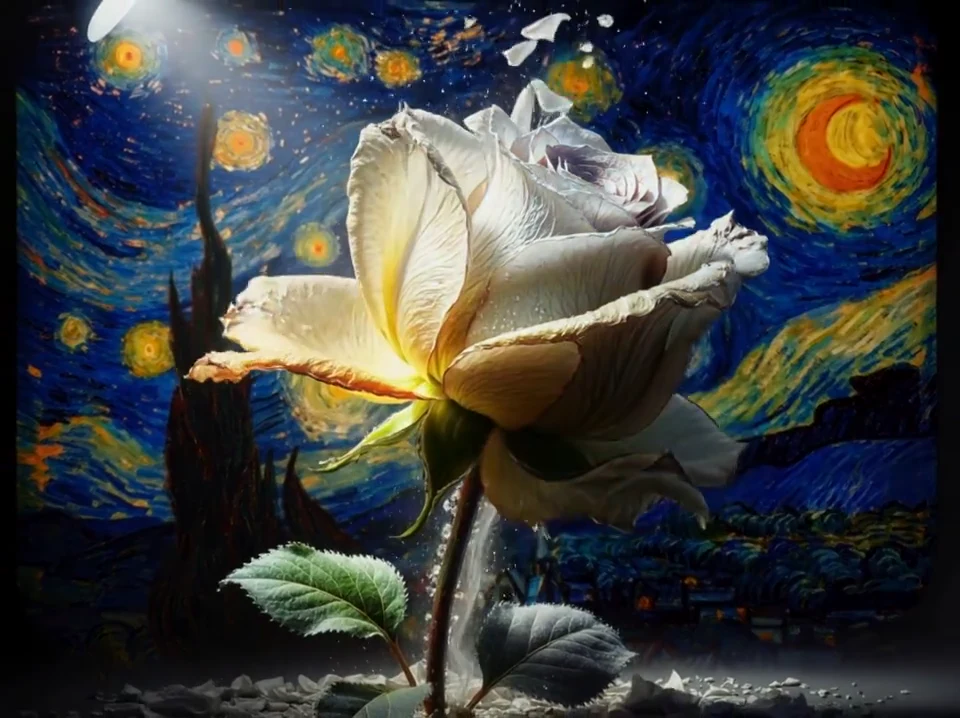 0:10무음 미리 보기
일러스트에서 시작해 시간에 따른 변화를 설명하세요. 움직임과 원본 이미지의 모습을 함께 검토하세요.
 0:10무음 미리 보기
간단한 동작으로 재미있는 시각적 아이디어를 탐색하세요. 시청자가 피사체를 쉽게 알아보고 장면을 따라갈 수 있게 하세요.
AKOOL이 공개한 작품 예시입니다. 제안된 프롬프트는 비슷한 방향을 탐색하기 위한 새로운 예시이며, 각 클립에 실제 사용된 설정 기록이 아닙니다.
이미지 기반 동영상 생성은 사진, 일러스트 또는 렌더링에 움직임을 더합니다. 선명한 이미지를 업로드하고 구체적인 동작을 설명한 뒤 모델에서 제공하는 설정을 선택하세요.
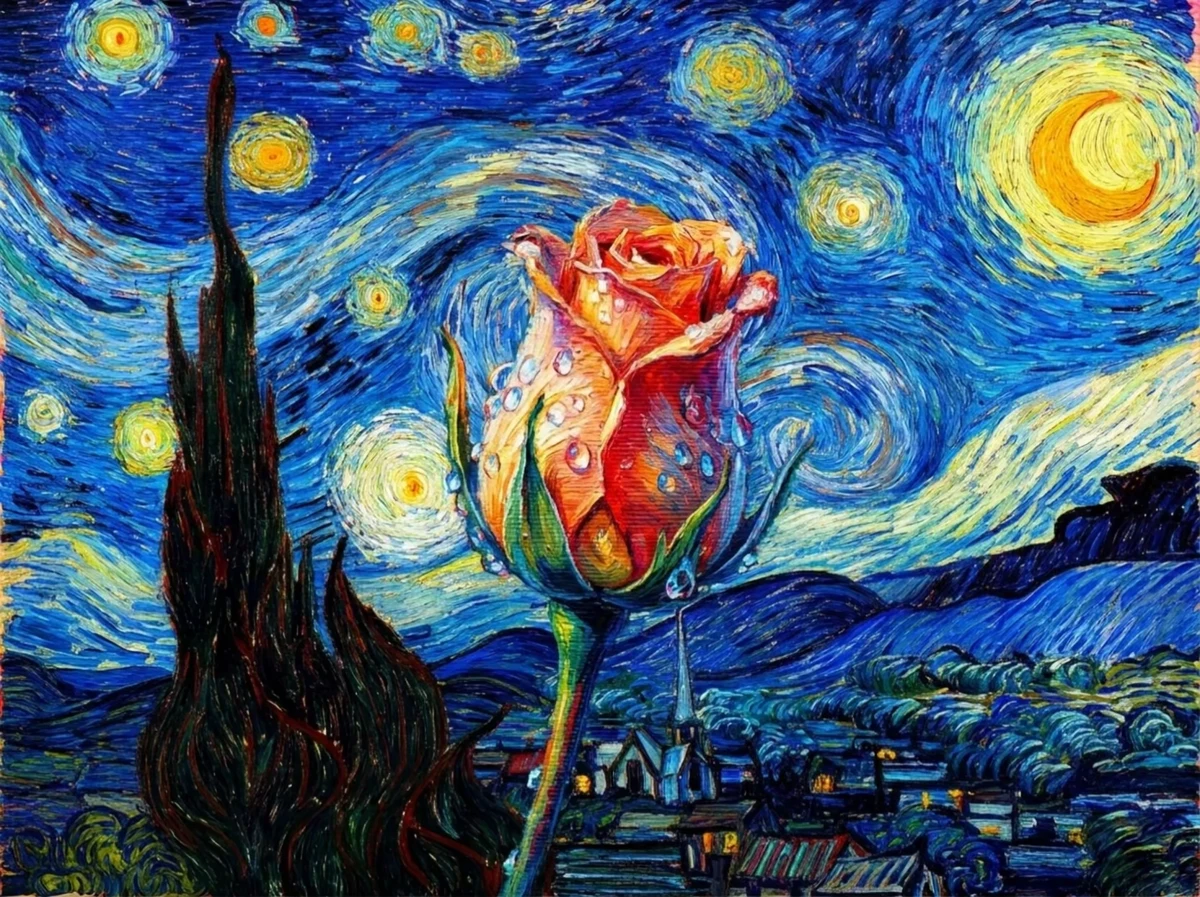 변화 보기
“그림 속 꽃이 천천히 생생한 모습으로 변한다. 카메라는 부드럽게 다가가고 자연광은 은은하다. 주변의 그림 구도는 유지한다.”
An original example prompt. Results will depend on the uploaded image and model.새 장면을 탐색하려면 텍스트 기반 생성을, 정지 이미지에서 시작하려면 이미지 기반 생성을 선택하세요. 여러 자료로 새 클립을 구성하려면 참조 자료를 지원하는 모델을 사용하세요.
장면을 말로 설명하세요. 피사체와 동작부터 시작해 배경, 조명, 카메라 움직임을 추가하면 의도가 명확해집니다.
사진, 일러스트 또는 렌더링을 업로드하고 움직임을 설명하세요. 피사체를 명확히 하고 첫 동작을 단순하게 설정하면 변화를 평가하기 쉽습니다.
지원되는 이미지, 동영상 또는 오디오 참조 자료로 새 클립을 구성하세요. 각 자료에 피사체, 스타일, 움직임 등의 역할을 지정하세요. 지원 입력은 모델에 따라 다릅니다.
각 모델이 지원하는 입력과 아이디어를 표현하는 방식을 비교하세요. 보유한 자료부터 시작해 필요한 움직임, 오디오, 출력 옵션을 확인하세요.
승인된 제품 이미지가 있나요? 동일한 이미지와 간단한 움직임 프롬프트로 참조 자료를 지원하는 Veo와 Seedance를 비교하세요. 모든 결과의 포장과 색상을 확인하세요.
Google의 Veo 모델군으로 참조 자료 기반 장면을 탐색하세요. 생성 전에 선택한 버전의 이미지, 움직임, 오디오 옵션을 확인하세요.
SCENES · REFERENCES · MOTIONVeo 살펴보기카메라 움직임이 중심인 장면과 여러 장면으로 된 아이디어를 탐색하세요. Kling 버전마다 참조 및 오디오 기능이 다르므로 AKOOL에서 제공되는 조절 기능을 비교하세요.
CAMERA · SUBJECTS · SEQUENCESKling 살펴보기참조 자료를 활용한 동영상 제작을 탐색하세요. Seedance 2.0은 여러 참조 유형을 지원하며, 사용 가능한 옵션은 버전과 작업 방식에 따라 달라집니다.
REFERENCES · VISUAL DIRECTIONSeedance 살펴보기Wan 모델군으로 이미지 기반 움직임과 짧은 장면 아이디어를 탐색하세요. 계정에 표시되는 버전, 지원 입력, 오디오 기능을 확인하세요.
IMAGE MOTION · SCENE IDEASWan 살펴보기AKOOL을 열고 지원되는 작업 방식을 선택한 다음 프롬프트나 참조 자료를 추가하고 설정하세요. 클립을 생성하고 검토한 뒤 필요한 부분을 수정하세요.
동영상 작업 공간 열기하나의 주요 동작을 설명하고 피사체, 배경, 카메라 방향을 추가하세요. 사람이나 제품의 외형이 중요하다면 선명한 이미지 또는 지원되는 참조 자료를 업로드하세요.
사용 가능한 입력 유형, 클립 길이, 화면 비율, 해상도, 오디오 옵션을 확인하세요. 생성 전에 표시되는 크레딧 비용을 검토하세요.
처음부터 끝까지 움직임, 얼굴, 손, 제품 세부 사항을 확인하세요. 제작 지시는 한 번에 하나씩 바꾸세요. 유용한 결과를 다운로드하거나 다음 단계에 필요한 AKOOL 도구로 이동하세요.
생성은 프로젝트의 한 부분입니다. 비주얼, 내레이션, 번역, 진행자 콘텐츠를 위한 AKOOL의 관련 도구를 살펴보세요.
좋은 프롬프트는 누가 또는 무엇이 등장하는지, 어떤 일이 일어나는지, 어떻게 보여 줄지를 설명합니다. 이 예시에서 시작해 자신의 자료에 맞게 세부 사항을 바꾸세요.
여러 클립을 생성하기 전에 모델 이용 권한과 크레딧 비용을 확인하세요. 고객 프로젝트, 광고 등 업무용이라면 계정 라이선스가 해당 프로젝트를 포함하는지 확인하세요.
현재 요금제 비교AI 동영상 생성기는 텍스트 프롬프트, 이미지 또는 지원되는 참조 자료로 움직이는 영상을 만듭니다. AKOOL에서는 작업 방식과 모델을 선택하고 제작 지시를 추가한 뒤 클립을 생성하고 검토합니다. 입력, 조절 기능, 출력 옵션은 선택에 따라 달라집니다.
AKOOL의 텍스트 기반 동영상 기능을 열고 피사체, 동작, 배경, 카메라 움직임을 설명하세요. 사용 가능한 모델과 설정을 선택하고 크레딧 비용을 확인한 뒤 생성하세요. 다음 버전을 만들기 전에 클립을 검토하고 프롬프트를 조정하세요.
네. AKOOL의 이미지 기반 동영상 기능은 정지 이미지에 움직임을 더합니다. 선명한 사진, 작품 또는 렌더링을 업로드하고 무엇이 움직여야 하는지 설명하세요. 제품 작업에서는 형태, 색상, 포장, 라벨을 중심으로 전체 결과를 승인된 이미지와 비교하세요.
이미지 기반 생성은 움직임을 줄 한 장의 정지 이미지에서 시작합니다. 참조 자료 기반 생성은 지원되는 자료로 새 클립의 캐릭터, 제품, 스타일 또는 움직임을 지정합니다. 참조 유형과 업로드 제한은 선택한 모델에 따라 다릅니다.
입력 자료를 지원하고 장면에 필요한 조절 기능을 제공하는 모델을 선택하세요. AKOOL에는 Veo, Kling, Seedance, Wan 등의 모델군이 있습니다. 동일한 제작 지시로 두 옵션을 비교하고 유용한 결과, 크레딧 비용, 필요한 수정 사항을 평가하세요.
일부 모델 버전은 동영상과 함께 오디오를 생성합니다. 나중에 내레이션을 추가하는 것과는 다릅니다. 선택한 모델의 오디오 기능을 확인하세요. AKOOL은 대본, 보이스오버 등 다른 오디오 작업을 위한 별도 음성 도구도 제공합니다.
클립 길이는 선택한 모델, 작업 방식과 설정에 따라 달라집니다. 장면을 계획하기 전에 AKOOL에 표시되는 길이를 확인하세요. 한 번 생성한 클립은 여러 클립을 합친 완성 영상과 다릅니다. 긴 이야기는 필요에 따라 여러 장면으로 나누세요.
AKOOL은 다양한 화면 비율과 해상도 옵션을 지원합니다. 제공 여부는 모델과 요금제에 따라 다릅니다. 해당 해상도로 직접 생성하는지, 이후 업스케일링하는지 확인하고 게시 채널에 맞는 형식을 선택하세요.
AKOOL은 무료 이용과 유료 요금제를 제공합니다. 포함된 모델, 크레딧, 워터마크 조건은 계정에 따라 다릅니다. 생성하거나 다운로드하기 전에 현재 요금 안내와 작업 공간의 옵션을 확인하세요.
모든 동영상의 크레딧 비용이 같지는 않습니다. 모델, 길이, 품질 등 설정에 따라 달라집니다. 생성 전에 표시되는 금액을 확인하세요. 여러 클립을 만들 때는 쓸 만한 결과를 얻기 위한 추가 시도도 고려하세요.
프로젝트를 포함하는 요금제와 라이선스를 사용하고 AKOOL 및 해당 모델의 최신 약관을 확인하세요. 제공하는 인물, 이미지, 음악 등 자료에 대한 권한도 필요합니다. 유료 구독만으로 광고나 고객 프로젝트에 필요한 모든 권리가 확보되는 것은 아닙니다.
선명하고 승인된 참조 자료와 구체적인 움직임 프롬프트를 사용하세요. 중요한 원본 자료는 유지하고 한 번에 하나씩 바꿔 보세요. 전체 클립에서 인물 변화, 포장 변형, 원치 않는 움직임을 확인하세요. 참조 자료는 결과를 유도하지만 정확한 일치를 보장하지는 않습니다.
프롬프트를 쓰거나 이미지를 준비하세요. 다음 동영상의 출발점을 만들어 보세요.
AKOOL로 동영상 만들기AI로 동영상 편집을 간소화하고, 창의성을 높이고, 시간을 절약하고, 크리에이티브 에이전시를 위해 전문적인 YouTube 콘텐츠를 손쉽게 제공하세요.
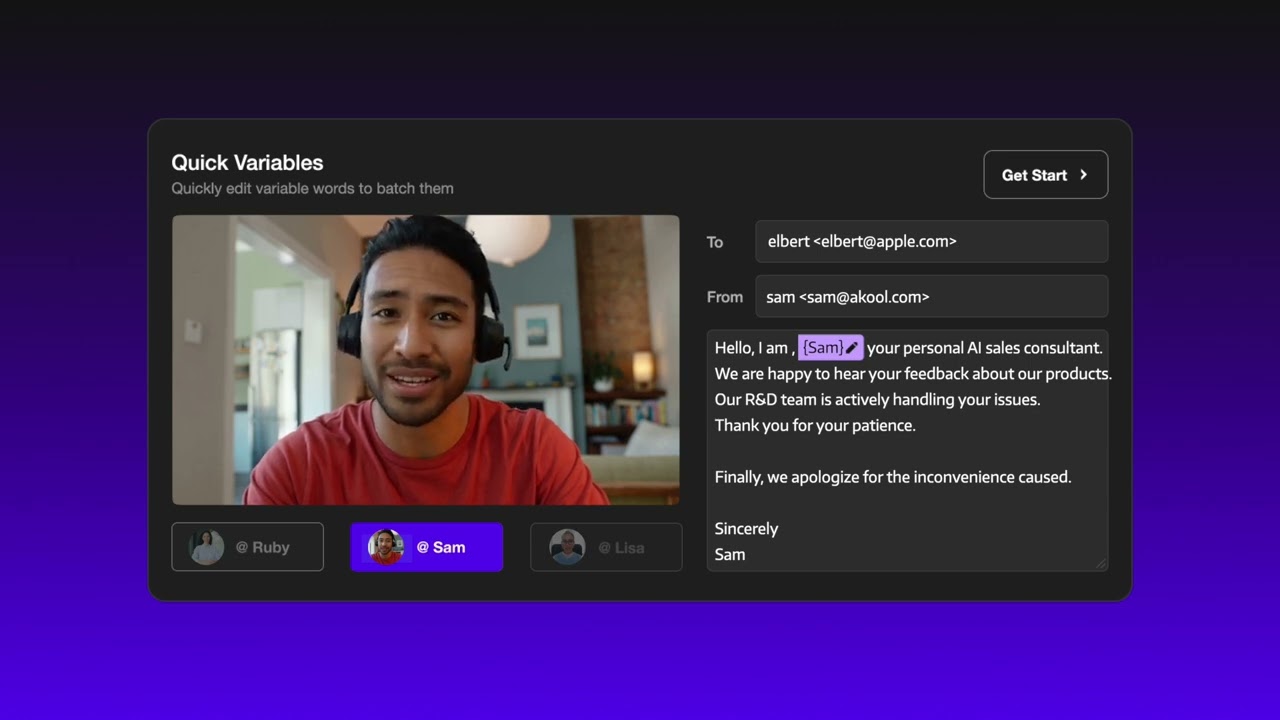

브이로그, 튜토리얼 또는 광고를 위한 멋진 동영상을 손쉽게 제작하여 이전과는 전혀 다른 방식으로 시청자를 사로잡고 시청자층을 확장하세요!
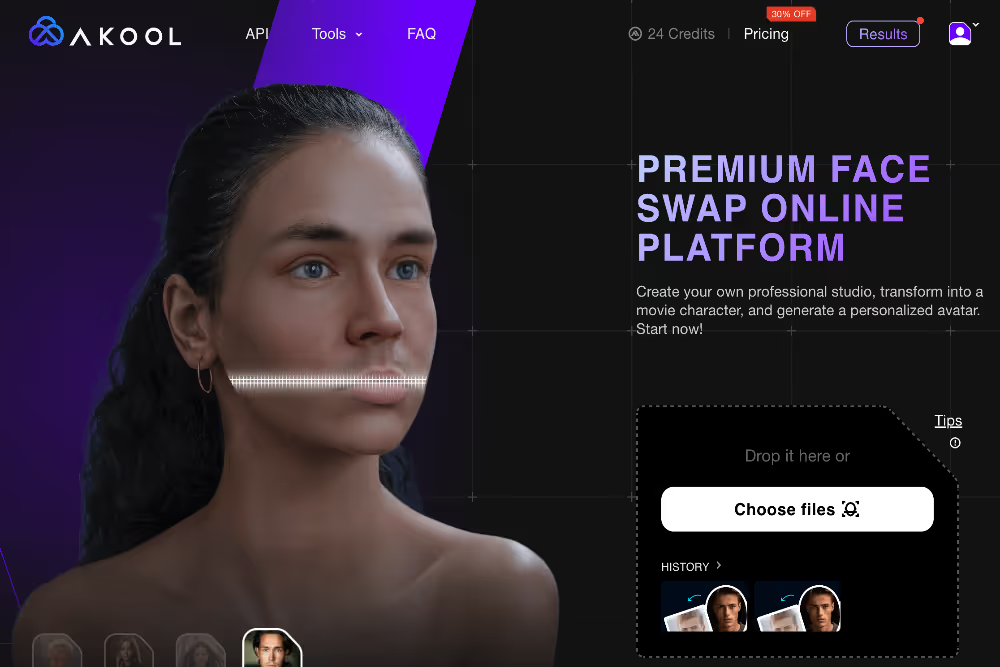
몇 시간 분량의 영상을 간결한 클립으로 자동 편집하므로 바쁜 에이전시 및 콘텐츠 제작자에게 적합합니다.
AI 기반 도구는 밝기, 대비 및 오디오를 최적화하므로 영화 제작자와 마케팅 팀에 적합합니다.

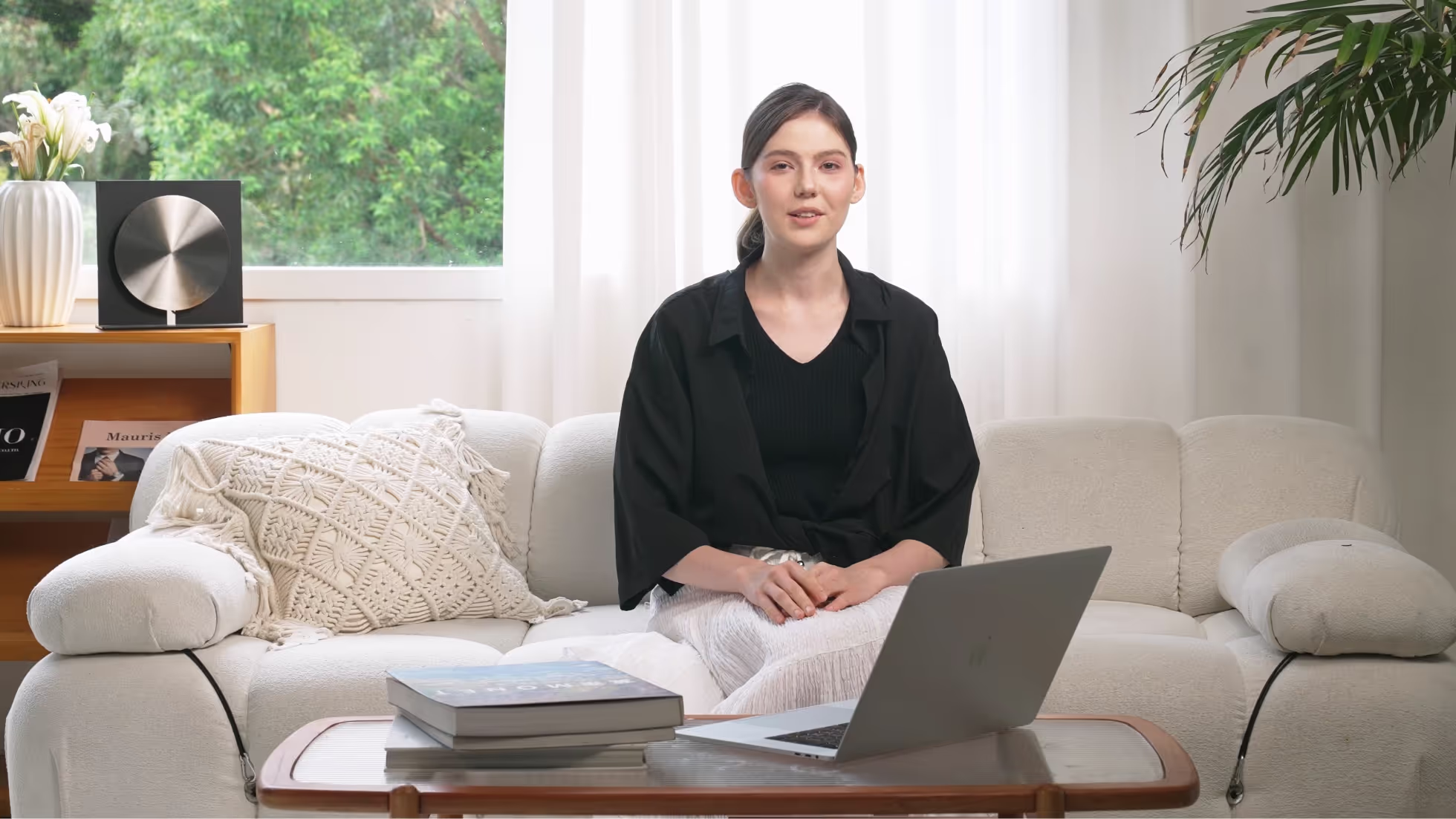
AI 추천으로 콘텐츠를 맞춤화하여 개인화된 브이로그와 타겟팅 광고 캠페인에 적합합니다.

Create content programmatically with our easy to use API
강의 녹화물과 교육 콘텐츠를 매력적인 비디오로 전환하세요.당사의 AI 도구는 비디오 품질을 향상시키고 역동적인 요소를 추가하여 학생들의 참여를 유도합니다. 이는 교육 자료를 향상시키려는 교육자 및 e-러닝 플랫폼에 적합합니다.
매력적인 프로모션 동영상을 제작하여 마케팅 전략을 강화하세요.AI 편집기는 브랜드 미학에 맞게 콘텐츠를 맞춤화합니다. 이는 시각적으로 매력적인 광고를 통해 잠재 고객을 사로잡고 참여를 유도하려는 마케터와 비즈니스에 적합합니다.
고품질 비디오 투어로 부동산 목록을 보여주세요.AI 편집기는 비디오 영상을 최적화하고 주요 기능을 강조하며 몰입도 높은 경험을 만들어 매력적인 시각적 프레젠테이션으로 구매자를 유치하려는 부동산 중개인에게 도움이 됩니다.
소셜 미디어 플랫폼에 맞게 비디오를 빠르게 편집하고 최적화합니다.AI 도구를 사용하면 콘텐츠의 관심을 끌고 공유할 수 있으므로 인플루언서와 소셜 미디어 관리자가 참여도를 높이고 온라인 인지도를 높일 수 있습니다.
브이로그의 동영상 편집 작업을 자동화하여 시간을 절약하세요.소니의 AI 편집기는 컷, 전환, 개선 사항을 처리하여 콘텐츠 제작자가 스토리텔링과 창의성에 집중할 수 있도록 하는 동시에 비디오 콘텐츠의 일관된 품질과 스타일을 보장할 수 있도록 합니다.
튜토리얼 비디오의 선명도와 품질을 쉽게 개선하세요.소니의 AI 도구는 교육 콘텐츠를 개선하고 오디오를 개선하며 자막을 추가하므로 영향력 있는 교육 자료를 제공하려는 교육자와 트레이너에게 귀중한 자산이 됩니다.
-30%
0.05 달러/크레딧
(연간 252달러로 청구)
0.05 달러/크레딧
(매월 30달러로 청구)
0.05 달러/크레딧
(매월 119달러로 청구)
0.042달러/크레딧
(연간 500달러로 청구)
0.05 달러/크레딧
(연간 252달러로 청구)
0.035달러/크레딧
(연간 252달러로 청구)
0.033달러/크레딧
(연간 948달러로 청구)
0.05 달러/크레딧
(연간 4200달러로 청구)
What is an AI YouTube video editor?
An AI YouTube video editor is a software tool that uses artificial intelligence to automate and enhance the video editing process for YouTube creators. It helps streamline tasks like cutting, trimming, adding effects, and optimizing videos for better engagement.
How does an AI video editor improve my YouTube content?
An AI video editor improves your YouTube content by analyzing your footage and suggesting edits that enhance video quality, pacing, and viewer engagement. It can automatically apply filters, transitions, and even suggest music or sound effects that match the tone of your video.
Can an AI video editor help with YouTube SEO?
Yes, an AI video editor can assist with YouTube SEO by automatically generating optimized titles, descriptions, and tags. It can also analyze video content to suggest keywords that improve discoverability and rank higher in search results.
Is an AI YouTube video editor suitable for beginners?
Absolutely! An AI YouTube video editor is designed to be user-friendly, making it ideal for beginners. It simplifies complex editing tasks, allowing new creators to produce professional-quality videos without extensive editing knowledge.
What are the benefits of using an AI video editor for YouTube monetization?
Using an AI video editor can enhance video quality and engagement, leading to increased views and watch time, which are crucial for YouTube monetization. Additionally, it can help optimize content for ad placements and audience retention, boosting revenue potential.
Does the AI video editor support multiple video formats?
Yes, most AI YouTube video editors support a wide range of video formats, ensuring compatibility with various recording devices and platforms. This flexibility allows you to edit and upload videos seamlessly, regardless of the original format.
Can an AI video editor create subtitles and captions for YouTube videos?
Yes, many AI video editors offer automatic subtitle and caption generation. This feature enhances accessibility and can improve viewer engagement by making your content more inclusive for audiences who rely on text to understand video content.
How does an AI video editor help with video editing efficiency?
An AI video editor increases efficiency by automating repetitive tasks, such as cutting, trimming, and applying effects. It also speeds up the editing process by providing smart suggestions and real-time previews, allowing you to focus on creativity and content strategy.