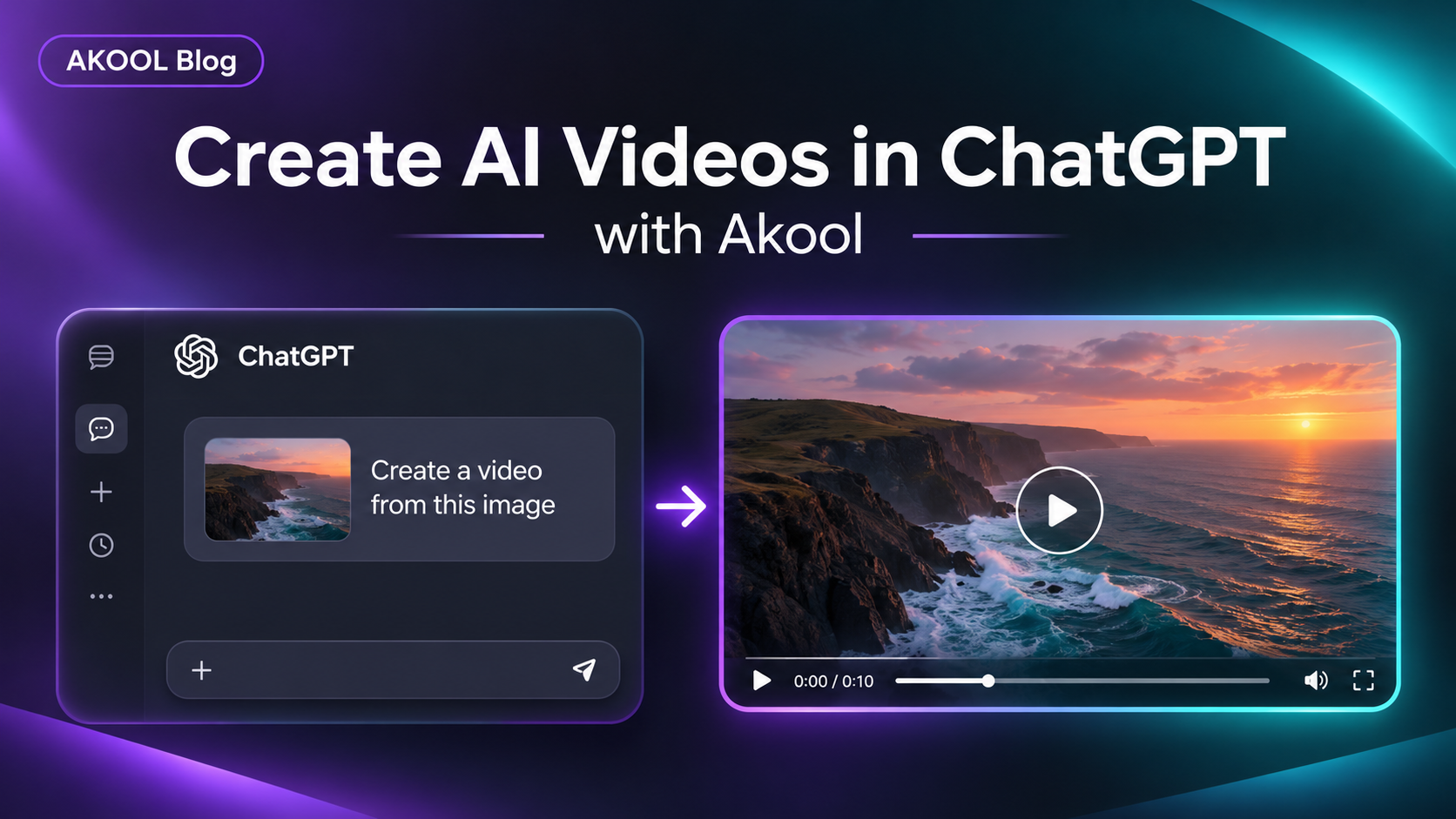

You can create an AI video from a ChatGPT conversation by connecting Akool and asking it to animate a still image. ChatGPT helps you write and refine the shot. The connected Akool app handles video generation.
1. Connect Akool to ChatGPT
- Open Akool Integrations and choose ChatGPT under Connect AI agents.
- Select Connect to ChatGPT and follow the prompts to add Akool and sign in to your Akool account.
- Start a new chat and select Akool from the available apps. If you use a managed workspace, ask your admin whether apps are enabled.
2. Pick one still image and one camera move
For your first clip, use a product photo you have permission to use, or ask Akool to generate a still first. Choose a clear subject with room around it. Start with a slow push-in, a gentle pan, or a small movement in the scene. A single motion makes it easier to see what the prompt changed.
3. Try this product video prompt
Use Akool to turn this product image into a short vertical video. Keep the product’s shape, label, and colors close to the reference. Make a slow camera push-in while a soft highlight moves across the background. Keep the product still. No cuts, new text, or extra objects. Before generating, confirm which image Akool can access and tell me the available duration and aspect ratio options.
If Akool cannot access the attachment, ask ChatGPT which image input the app accepts. If you generated a still with Akool in the chat, ask it to use that result. Choose a supported duration and aspect ratio, then ask it to generate the clip.
4. Review the result and revise one detail
Open the returned clip and check the product label, framing, and motion. If the motion is too strong, keep the same image and ask for a gentler push-in. If a logo or label distorts, try a more static shot and add critical text during editing.
Two more prompts to try
- Social teaser: Use Akool to animate this coffee cup photo. Keep the cup and label still. Add subtle rising steam and a slow sideways camera move. Leave space above the cup for a caption I’ll add later.
- Storyboard test: Use Akool to animate this storyboard still. Keep the character’s face and outfit close to the reference. Let the curtains move gently while the camera stays locked. Make it one continuous shot.
Working in Claude Code? See the Akool video setup guide for Claude Code.
Connect Akool ↗ and try your first shot.