Explore this direction
↗
PRODUCT CAMPAIGN
Product and campaign concepts
01
Create images from a text prompt or a reference photo. Explore image models, try a new visual style, and refine your ideas for product concepts, portraits, social posts and more.
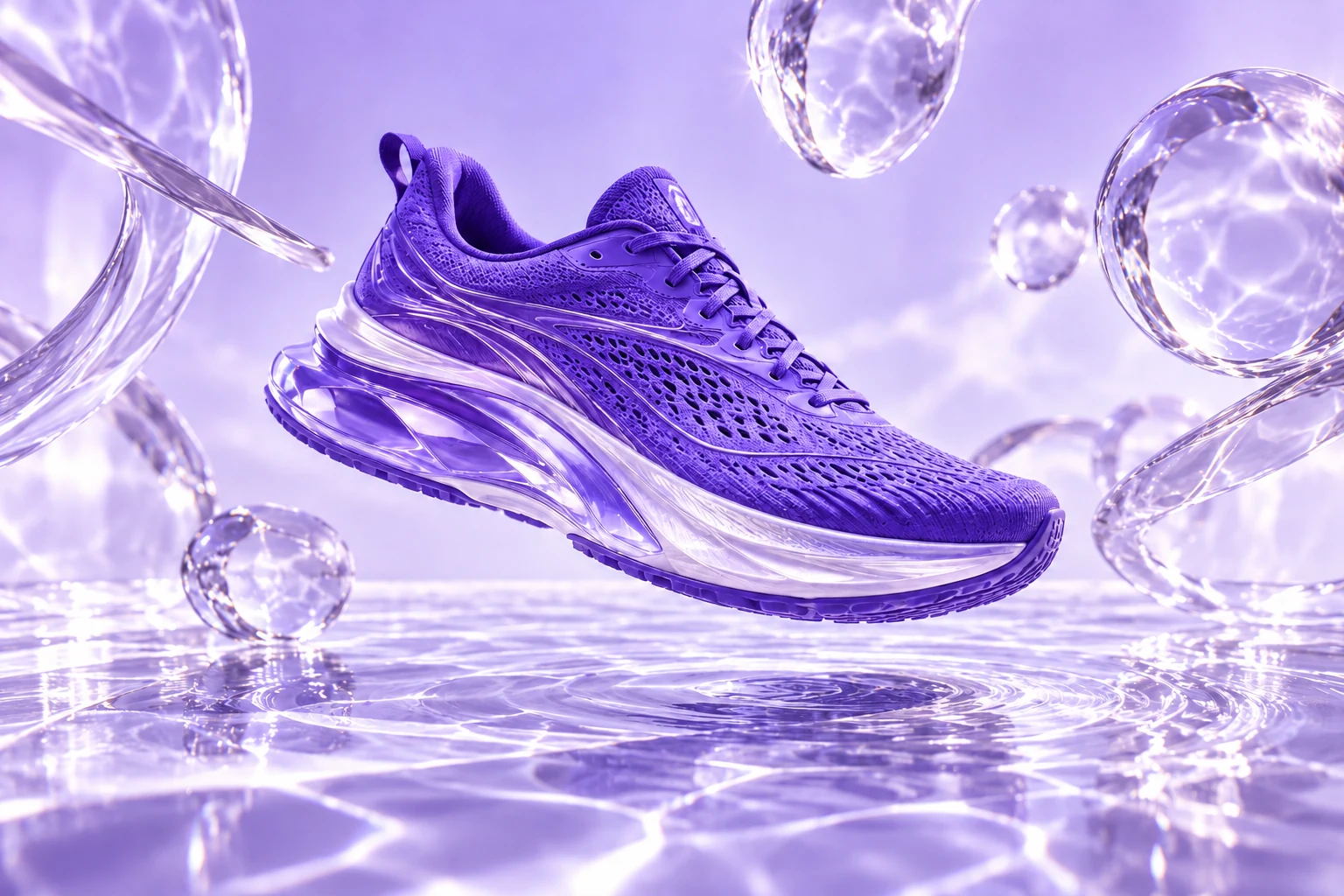
A violet sneaker. Liquid light.
A campaign beyond the studio.
Explore product scenes, portraits, illustrations and concept art. Use a suggested prompt as your starting brief, then adapt the image to your audience and format.
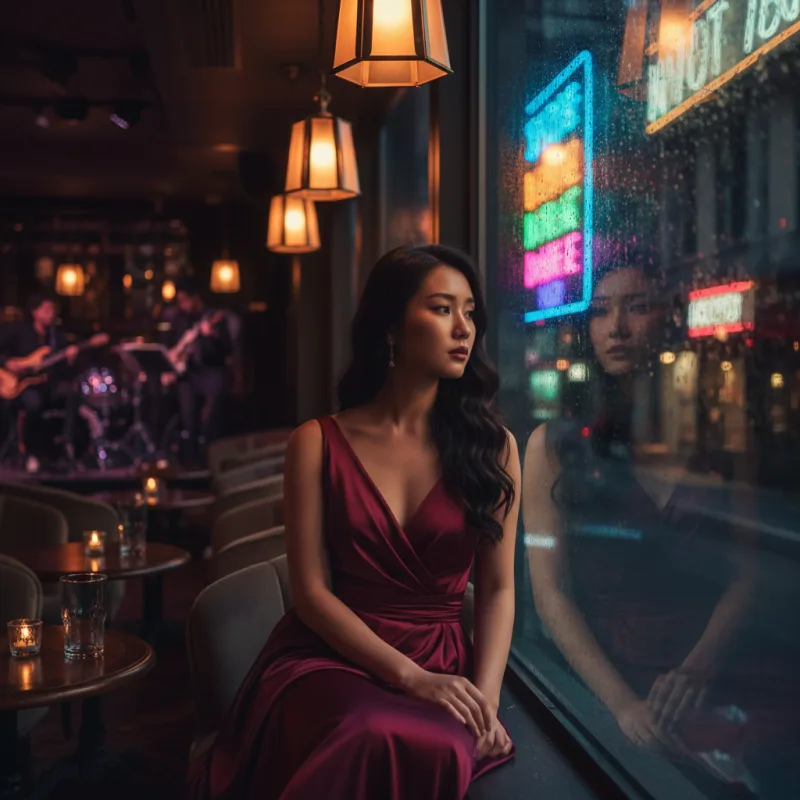
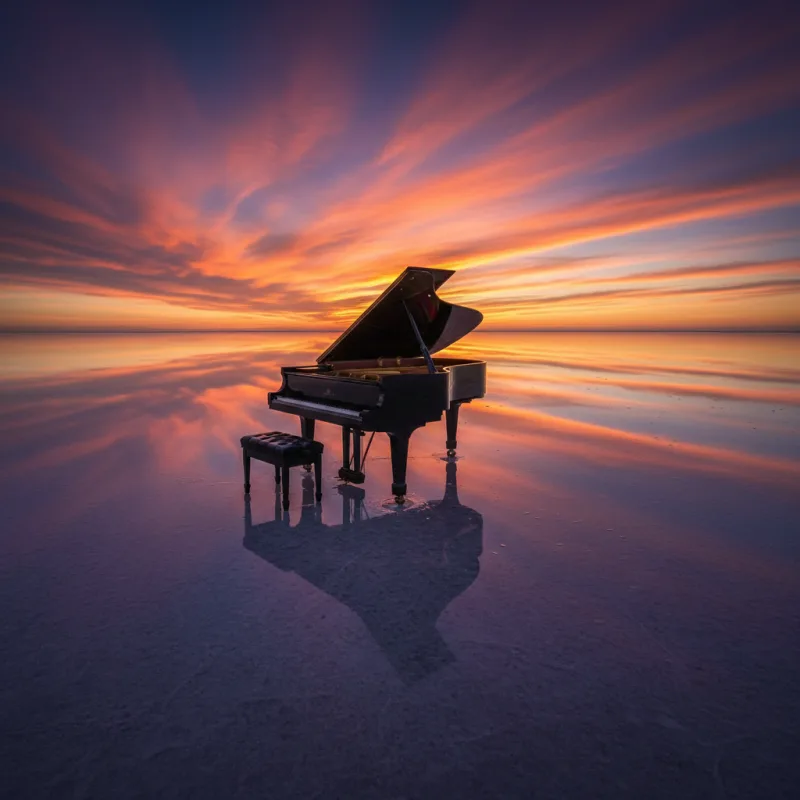
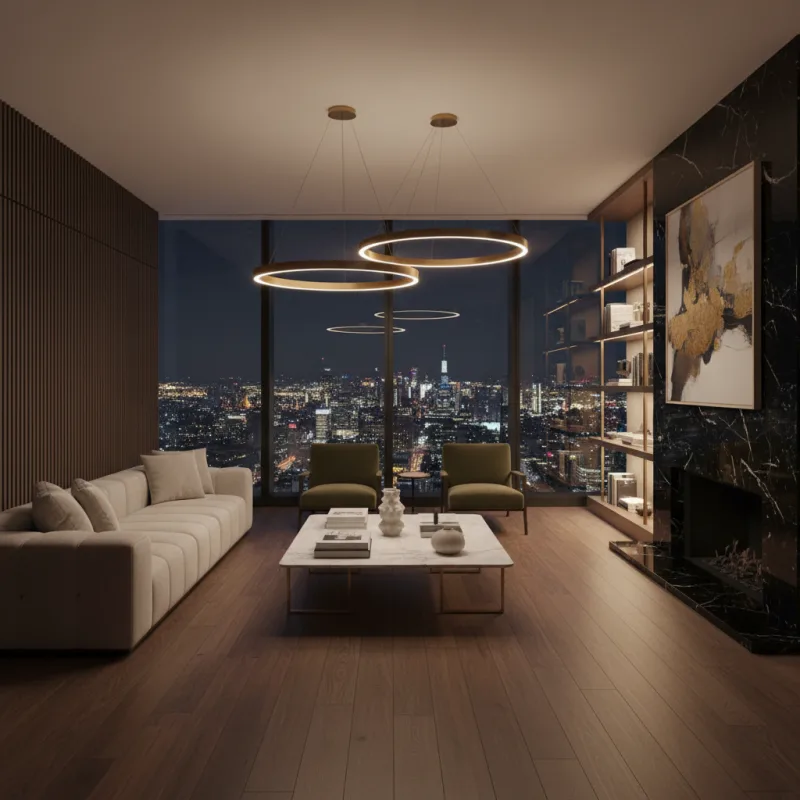
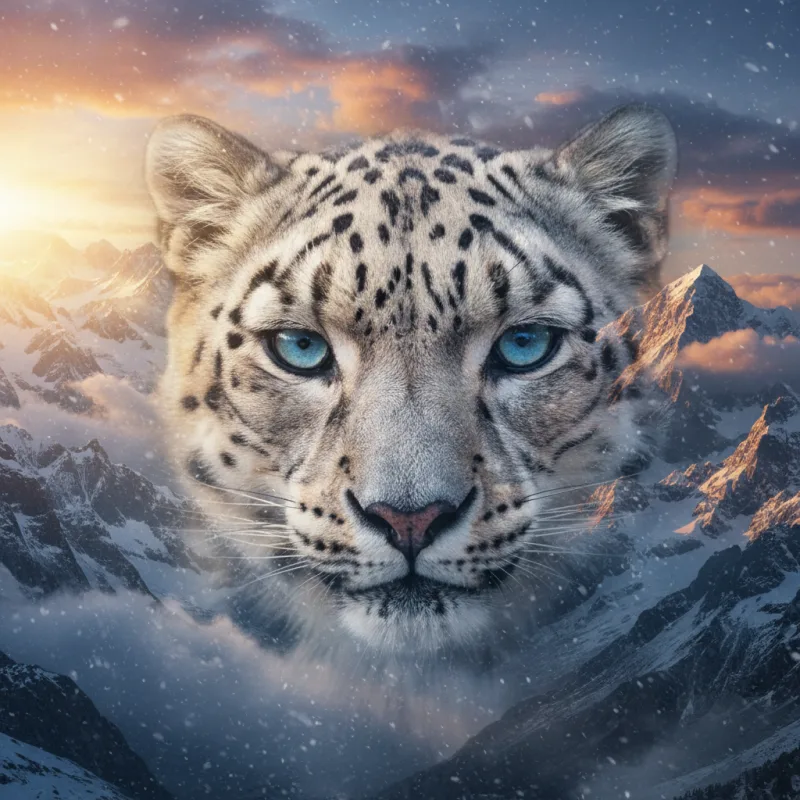
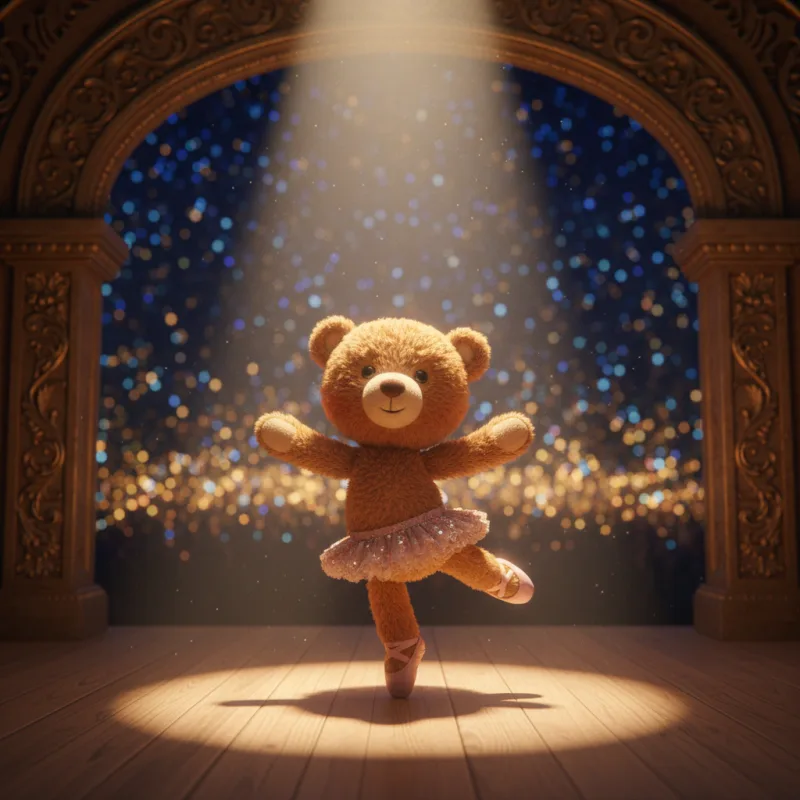
Choose a model for the task in front of you. Explore realistic characters with AKOOL Image, text-rich concepts with Nano Banana Pro, cinematic scenes with FLUX, or detailed briefs with GPT Image.
Explore portraits, illustrated characters and realistic scenes. Use a clear visual brief to develop a consistent direction across your image set, then check the face, styling and scene details in each result.
Explore AKOOL ImageModel versions, settings and credits vary. Check the image workspace and your plan for current access.
Choose a starting point, add your creative brief and generate. Keep the useful details in your prompt, then make focused changes to improve the result.
Name the subject, scene, style and lighting. Use a reference photo when its appearance should guide the result.
Open AKOOL to createStart from a reference, improve an image’s resolution or explore a different visual style. Choose the tools that suit the next step in your project.
Upload a reference and describe the changes you want to explore. Try a different setting, style or lighting, then compare the result with your original photo.
Explore image to image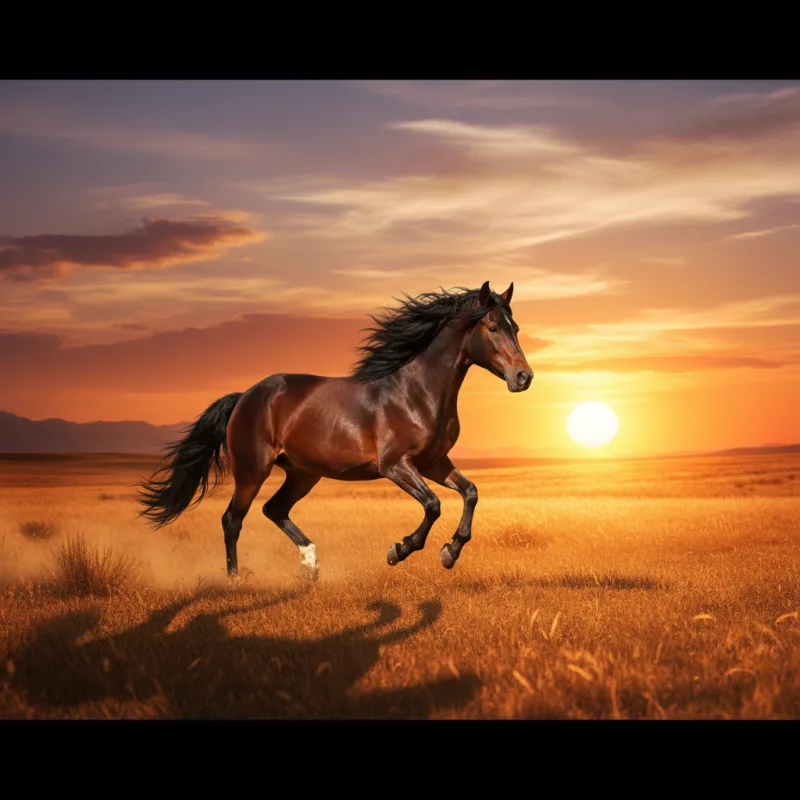
Improve an existing image with AKOOL’s upscaler. Review the available output options and compare the result at full size before preparing it for a page, post or presentation.
Explore image upscalingTurn a concept into a photographic scene, an illustration or an imagined world. Change one part of your brief at a time so you can see what improves the result.
Try a new directionStart an image-to-video project with a still you have created or uploaded. Add movement, an action or a camera direction, then choose the settings available for your selected video model.
Bring an image into videoExplore the AI video generatorA useful prompt names the subject, setting, lighting, style and composition. Try a brief below, then change one detail at a time instead of rewriting everything.
A ceramic coffee cup on a pale stone plinth, soft morning light, subtle shadow, minimalist studio, close-up product photography.
Copy promptAn editorial portrait by a rain-streaked window, soft reflected neon, natural skin texture, cinematic mood, shallow depth of field.
Copy promptA floating glass pavilion above a lavender sea, curved architecture, distant mountains, diffused daylight, surreal cinematic composition.
Copy promptPractical answers about prompts, photos, models, credits and the next step in your project.
Visit the help centerAn AI image generator creates an image from a written description or a reference photo. In AKOOL, you can choose an image model, describe the subject and visual style, and generate a result. Review the image, then refine your instructions to explore a different direction.
Open the image generator and choose Text to Image or Image to Image. Select an available model, add your prompt or reference, and review the settings before you generate. Afterward, compare the result with your brief and adjust the details that need another pass.
Yes. Use Image to Image to start with an uploaded reference photo. Describe the changes you want, such as a different setting, lighting or visual style. How closely the result follows your photo depends on the chosen model, prompt and settings.
AKOOL lists image models including AKOOL Image, Nano Banana Pro, Seedream, FLUX, GPT Image and Recraft. They offer different approaches to image creation. Check the live image workspace for the current versions and settings, and the pricing page for model access on your plan.
Name the subject, setting, lighting, style and composition. Add important details such as materials, colors, camera angle or space for a headline. A prompt like "a white ceramic mug on pale stone, soft window light, close-up product photo" gives a clearer direction than "a nice mug."
Yes. AKOOL supports prompt-based and reference-based image creation for product scenes and marketing concepts. Use a product photo when its appearance matters, and describe the setting you want. Check the shape, label, colors and other product details before using the result in a campaign.
AKOOL Image is designed for coherent characters and visual sequences. Use a consistent character brief and supported reference options, then compare each image for changes in the face, clothing and styling. A consistent direction is a creative goal, so review every image in the set.
AKOOL lists models that support text-rich image creation, including Nano Banana Pro and GPT Image. Include the exact wording and describe where it should appear. Check spelling, spacing and readability in the result, especially for product labels, posters and small text.
AKOOL provides image generation and a separate image upscaler. Use the upscaler to improve an existing image, or review the resolution options for your selected image model. Available output settings vary. Check the final dimensions and image quality before preparing an asset for print or a large display.
AKOOL offers free and paid plans and uses credits for generation. The models you can access, included credits and export limits depend on the plan and selected options. Check the current pricing page and review the credit cost shown in the workspace before you generate.
Choose a plan with the licence your project requires. AKOOL’s pricing page distinguishes personal, business and enterprise licences, so a paid subscription alone does not mean every commercial use is included. Review the current plan terms and use reference photos, logos and other materials you have permission to use.
Yes. Open AKOOL’s image-to-video tool and use your image as the starting frame. Add a prompt describing the subject’s movement and the camera direction, then choose an available video model and settings. Review the generated clip to see how the motion follows your brief.
Write a prompt or start with a photo. Create your next visual in AKOOL.
Create with AKOOLCreate AI video from a text prompt, animate an image, or use supported references to guide a scene. Explore Veo, Kling, Seedance and Wan in AKOOL, then choose the model and settings that fit your brief.
Copy your prompt, then open AKOOL to generate. Model access, settings and credit costs vary.
Watch video examples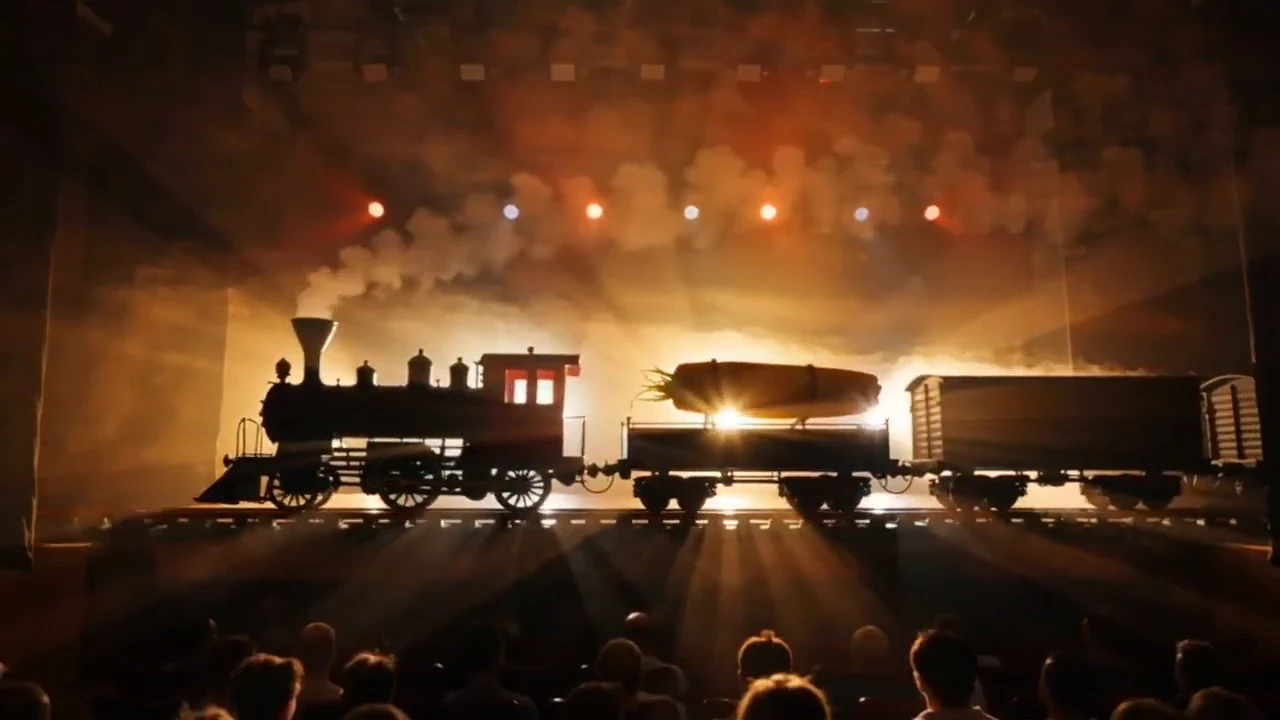 Cinematic worlds01 / TEXT TO VIDEO
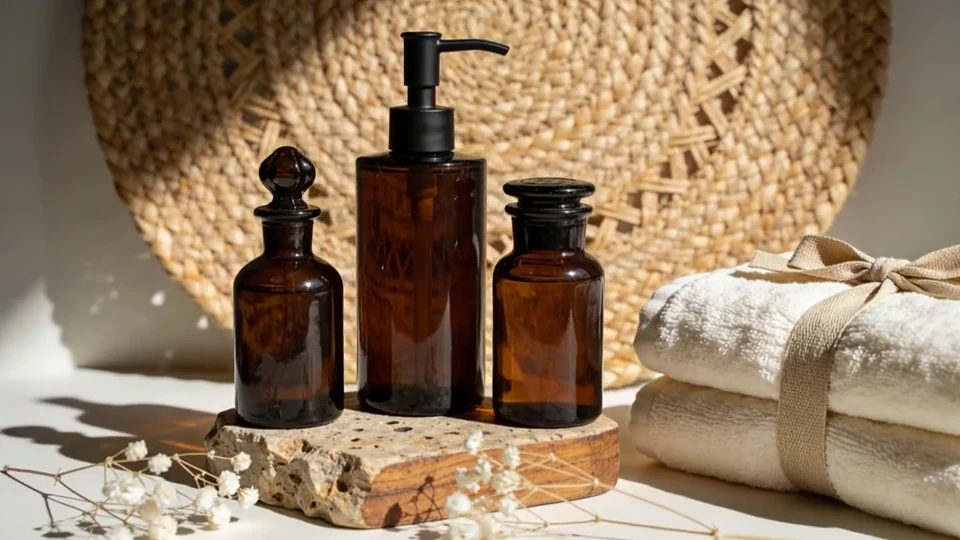 Product stories02 / IMAGE TO VIDEO
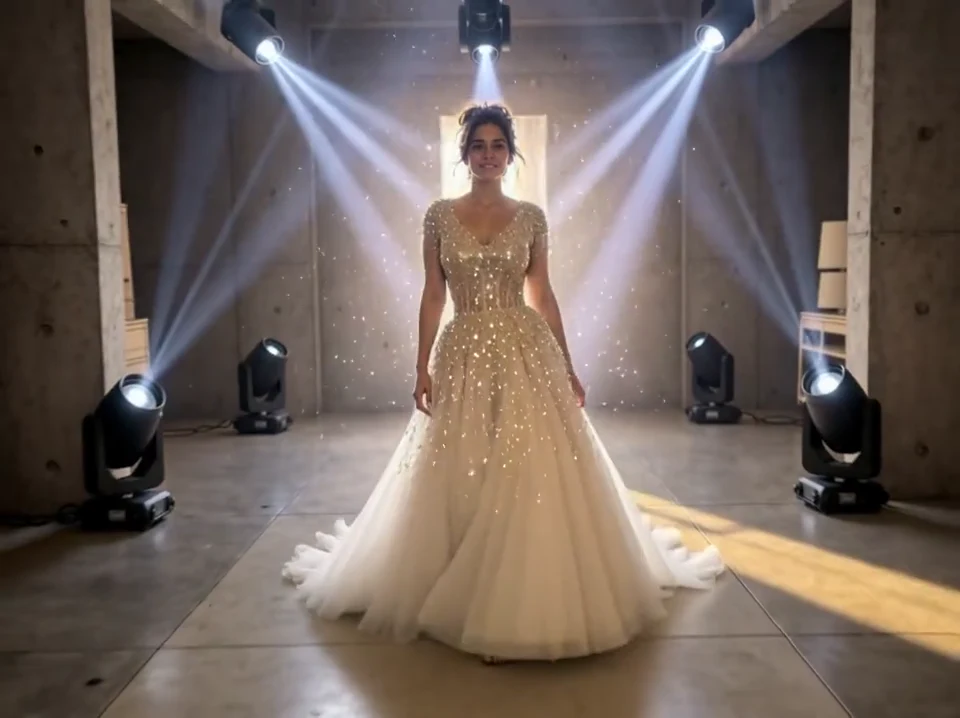 New perspectives03 / IMAGE TO VIDEO
Silent showcase: a steam train, golden light and drifting smoke in a theatrical scene.
Published AKOOL examples.Explore product scenes, cinematic worlds and visual transformations published by AKOOL. Open a clip, study the movement and borrow a creative starting point for your own project.
0:10SILENT PREVIEWUse light and gentle movement to explore a product reveal. Review the final clip against your approved packaging and colors.
0:20SILENT PREVIEWGive the scene a subject, an action and a camera direction. Build a visual concept before planning the next shot.
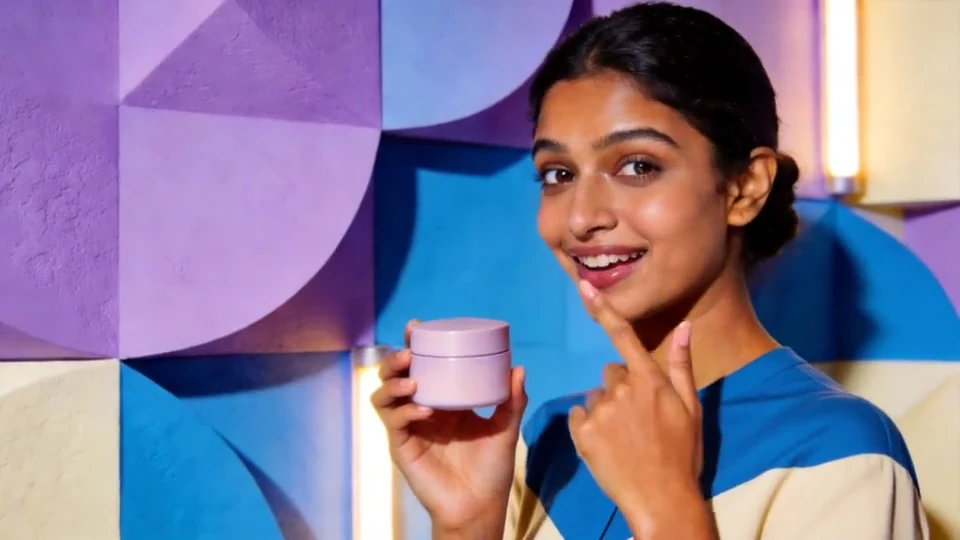 0:10SILENT PREVIEW
Explore a short, character-led product scene. Check the face, hands and packaging before using the result.
0:10SILENT PREVIEWTry a change of setting, wardrobe or atmosphere. Keep the intended subject and visual direction clear in your brief.
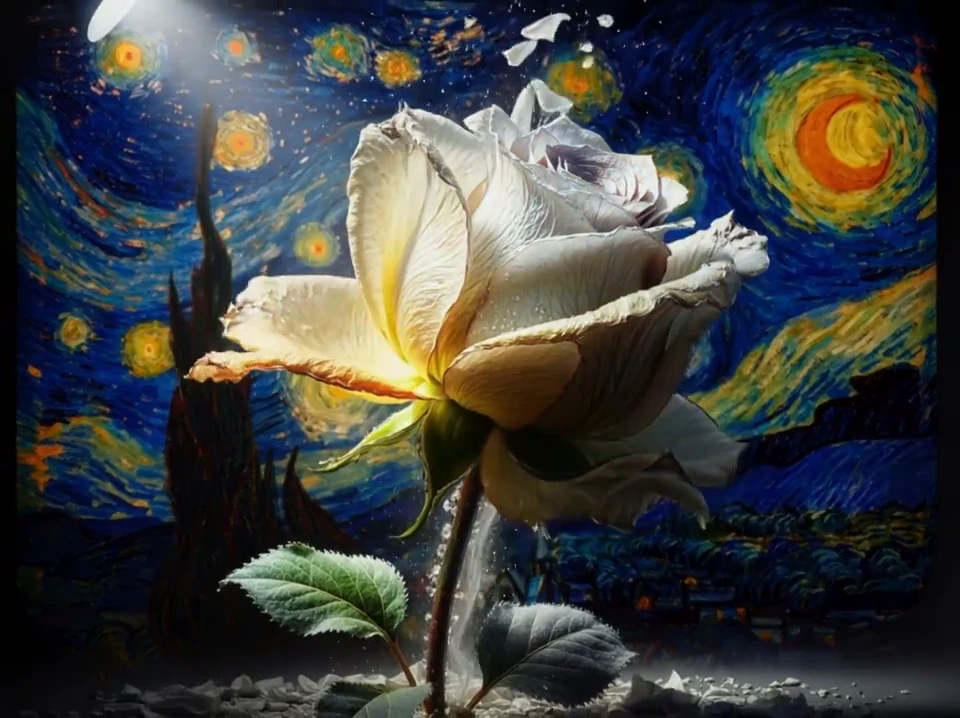 0:10SILENT PREVIEW
Start with an illustration and describe how it changes over time. Review the movement alongside the look of the original image.
 0:10SILENT PREVIEW
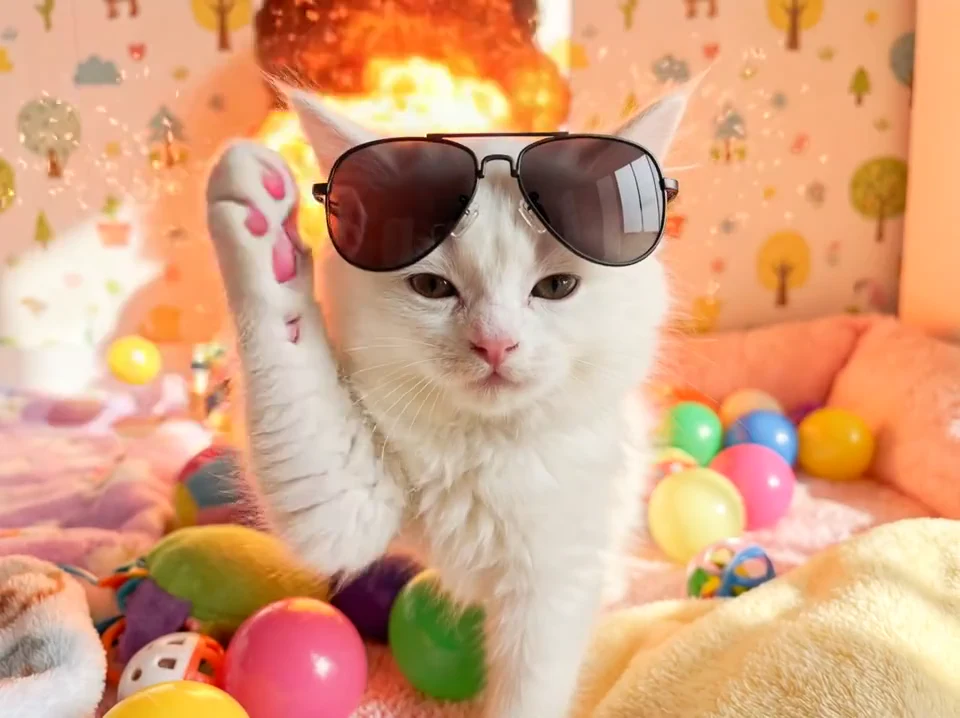
Explore a playful visual hook with a simple action. Give the viewer an obvious subject and a scene that is easy to follow.
These are published AKOOL showcases. Suggested prompts are new examples for exploring a similar direction; they are not a record of the settings used for each clip.
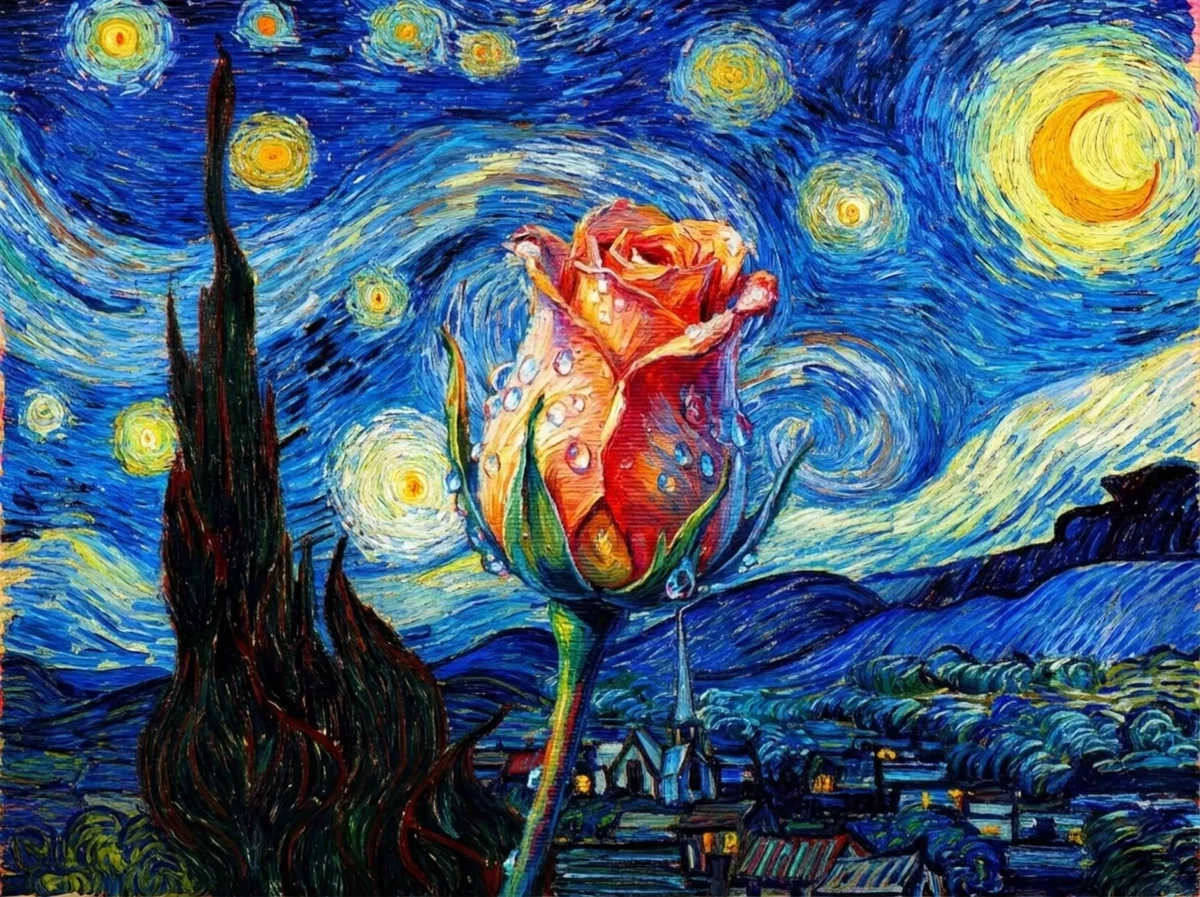
Image-to-video adds movement to a photo, illustration or render. Upload a clear image, describe a focused action and choose the available settings for your selected model.
 WATCH THE TRANSFORMATION
“A painted flower slowly becomes lifelike. Use a gentle camera push-in and soft natural light. Keep the surrounding painted composition visible.”
An original example prompt. Results will depend on the uploaded image and model.Choose text-to-video to explore a new scene. Choose image-to-video when a still is your starting point. Use a reference-capable model when several assets need to guide a new clip.
Describe a scene in words. Start with the subject and action, then add the setting, lighting and camera movement that make the shot clear.
Upload a photo, illustration or render and describe the motion. Use a clear subject and keep the first action simple so you can judge what changes.
Guide a new clip with supported image, video or audio references. Give each asset a role, such as subject, style or motion. Available inputs depend on the model.
Compare what each available model accepts and how it handles your idea. Start with the inputs you have, then check the motion, audio and output options you need.
Have an approved product image? Compare reference-capable Veo and Seedance options with the same image and a simple motion prompt. Review packaging and colors in every result.
Explore reference-guided scenes with Google's Veo family. Check the selected version's image, motion and audio options before generating.
SCENES · REFERENCES · MOTIONExplore VeoExplore camera-led scenes and multi-shot ideas. Kling versions offer different reference and audio features, so compare the controls available in AKOOL.
CAMERA · SUBJECTS · SEQUENCESExplore KlingExplore reference-led video creation. Seedance 2.0 supports several reference types; the version and workflow determine the options you can use.
REFERENCES · VISUAL DIRECTIONExplore SeedanceExplore image-led motion and short scene ideas with the Wan family. Confirm the version, supported inputs and audio controls shown in your account.
IMAGE MOTION · SCENE IDEASExplore WanOpen AKOOL, choose a supported workflow, add your prompt or references, and select the available settings. Generate a clip, review it and refine the parts that need work.
Open the video workspaceDescribe one main action. Add the subject, setting and camera direction. Upload a clear image or supported references when the look of a person or product matters.
Review the input types, clip length, aspect ratio, resolution and audio options available for your selection. Check the credit cost shown before you generate.
Look at movement, faces, hands and product details from start to finish. Change one part of the brief at a time. Download the useful result or move to the AKOOL tool your next step needs.
Generation is one part of a project. Explore AKOOL's related tools for visuals, narration, translation and presenter-led content.
A useful prompt says who or what is in the scene, what happens and how we see it. Start with these examples and change the details to fit your own material.
Use my approved skincare bottle image. A slow camera push-in as soft sunlight moves across the glass. Keep the bottle centered and the label facing the camera. One continuous shot.
Copy this promptA quiet city street just after rain. Reflections on the pavement, soft evening light and a gentle sideways camera move. One continuous shot with a calm mood. No text.
Copy this promptReview model access and credit costs before starting a batch. For client work, ads or other business use, confirm that the licence attached to your account covers the project.
Compare current plansPlan the action and review the details that matter.
Read the guideLearn how references guide subjects, style and motion.
Read the guideReview the plan, the inputs and what appears in the output.
Read the guideClear answers about inputs, models, sound, cost and using the result.
Visit the help centerAn AI video generator creates moving visuals from a text prompt, an image or other supported reference material. In AKOOL, you choose a workflow and model, add your direction, then generate and review a clip. The inputs, controls and output options depend on your selection.
Open AKOOL's text-to-video workflow and describe the shot. Include the subject, action, setting and camera movement. Choose an available model and its settings, check the credit cost, then generate. Review the clip and adjust the prompt before creating another version.
Yes. AKOOL's image-to-video workflow adds motion to a still image. Upload a clear photo, artwork or render and describe what should move. For product work, compare the full result with the approved image, especially the shape, colors, packaging and label.
Image-to-video starts from a still you want to animate. Reference-to-video uses supported assets to guide a newly generated clip, such as a character, product, style or movement. The reference types and upload limits depend on the selected model.
Choose a model that accepts your inputs and offers the controls your shot needs. AKOOL lists families including Veo, Kling, Seedance and Wan. Compare two available options with the same brief, then judge the useful output, the credit cost and the changes needed.
Some model versions generate audio with the video. That is different from adding narration afterward. Check the audio controls for your selected model. AKOOL also provides separate voice tools if your project needs a written script, voiceover or another audio workflow.
Clip length depends on the selected model, workflow and available settings. Check the duration shown in AKOOL before planning a shot. A single generated clip is different from a finished video built from several clips, so plan a longer story as separate scenes when needed.
AKOOL supports video workflows with different aspect ratios and resolution options. Availability depends on the model and plan. Check whether the selected option creates the video at that resolution or upscales it afterward, and choose a format that fits your publishing channel.
AKOOL offers free access alongside paid plans. The included model access, credits and watermark conditions depend on your account. Check the current pricing page and the options shown in the workspace before generating or downloading a video.
There is no single credit cost for every video. The model, duration, quality and other settings can change the cost. Review the amount shown for your selection before generating. For a batch, include the extra attempts you may need to get a usable clip.
Use a plan and licence that cover your intended project, and check AKOOL's current terms and any applicable model terms. You also need permission for people, images, music and other assets you provide. A paid subscription alone does not establish every right needed for an ad or client project.
Use clear, approved references and a focused motion prompt. Keep the important source assets stable while testing one change at a time. Review the full clip for identity drift, altered packaging and unwanted movement. References guide the output; they do not guarantee an exact match.
Write a prompt or bring an image. Give your next video somewhere to begin.
Create a video with AKOOLقم بتحويل مشاريعك الإبداعية باستخدام الصور الرمزية الفريدة التي تم إنشاؤها بواسطة الذكاء الاصطناعي والتي تجذب الجماهير وترفع هوية علامتك التجارية دون عناء.

مستقبل ثوري مع صور رمزية (أفاتار) تفاعلية في الوقت الفعلي

تجذب الصور الرمزية المخصصة الجماهير في الألعاب ووسائل التواصل الاجتماعي والتسويق، مما يجعل علامتك التجارية لا تُنسى وتؤدي إلى تفاعل المستخدم.
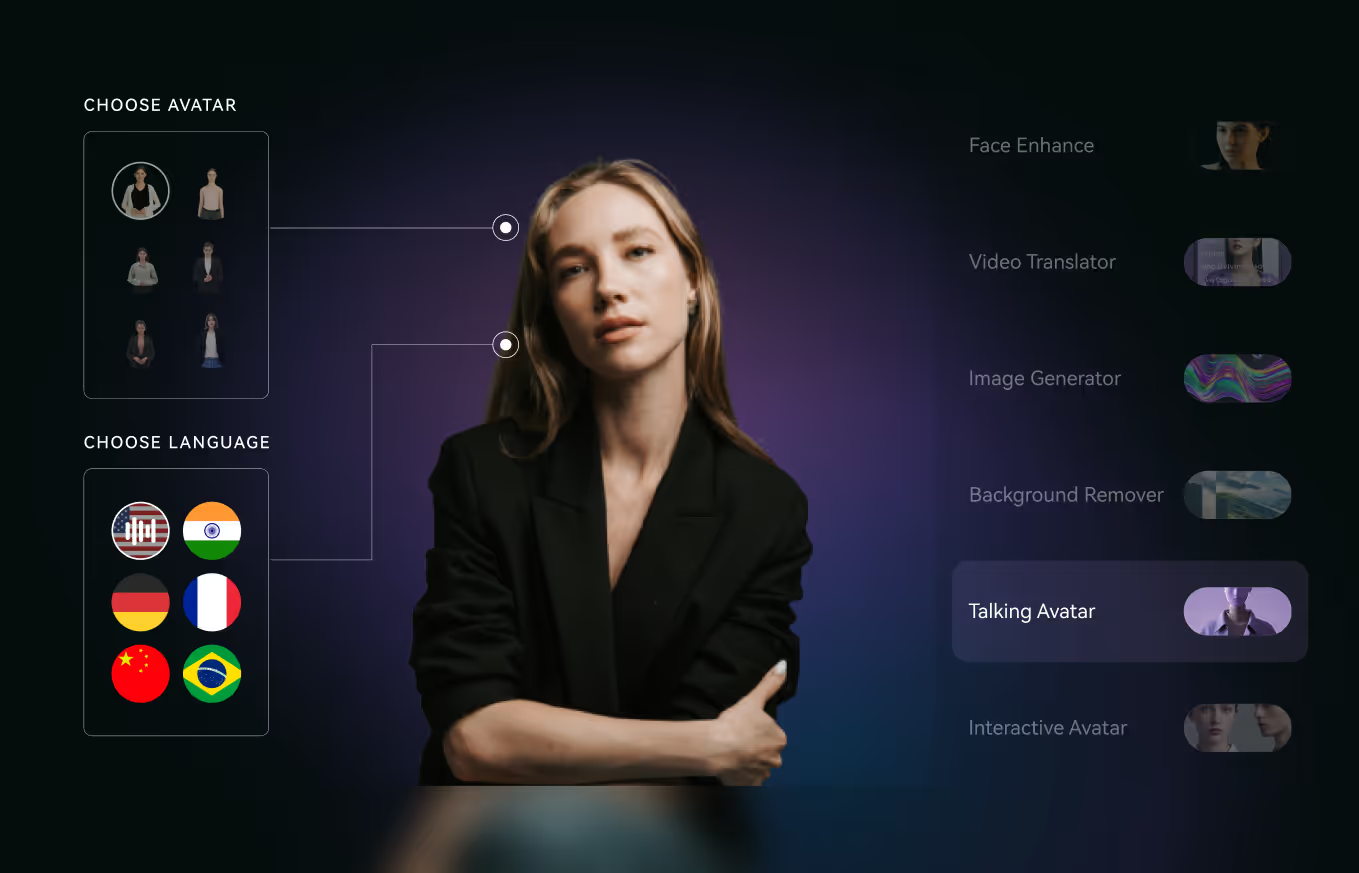
قم بإنشاء صور رمزية مميزة للمؤثرين والعلامات التجارية، مما يضمن لك التألق في المجالات التنافسية.
تعمل الصور الرمزية المخصصة على إضفاء الحيوية على الشخصيات في الرسوم المتحركة والقصص المصورة والترفيه، مما يثري رواياتك.
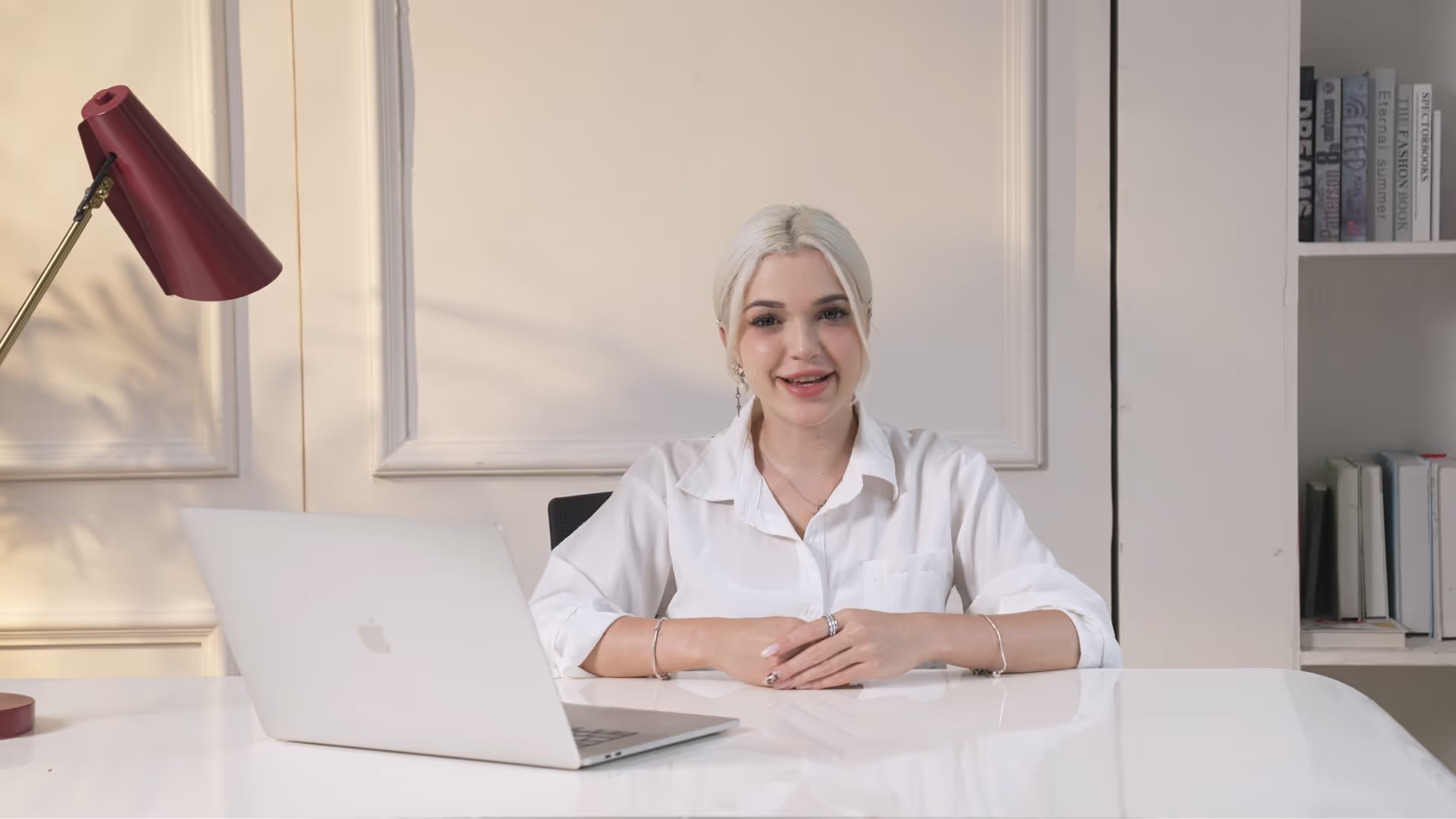

استخدم الصور الرمزية المخصصة في الاجتماعات الافتراضية لتعزيز الهوية والوحدة داخل الوكالات الإبداعية.

أنشئ المحتوى برمجياً باستخدام واجهة برمجة التطبيقات (API) سهلة الاستخدام الخاصة بنا
تساعد خدمة Avatar AI المخصصة لدينا المعلمين على إنشاء شخصيات جذابة وذات صلة بالدورات التدريبية عبر الإنترنت، وتعزيز مشاركة الطلاب وجعل التعلم أكثر متعة. قم بتحويل الفصل الدراسي الافتراضي الخاص بك باستخدام الصور الرمزية التي تتوافق مع خلفيات الطلاب المتنوعة وأنماط التعلم.
يمكن للمهنيين الطبيين استخدام أداتنا لتطوير الصور الرمزية التي تساعد في التواصل مع المرضى وتعليمهم. يمكن للصور الرمزية المخصصة تبسيط المعلومات المعقدة، مما يسهل على المرضى فهم ظروفهم وخيارات العلاج، مما يؤدي إلى تحسين نتائج المرضى.
يمكن لبائعي التجزئة استخدام الصور الرمزية المخصصة كمساعدين افتراضيين للتسوق، مما يوفر تجربة تسوق أكثر تخصيصًا. يمكن لهذه الصور الرمزية توجيه العملاء واقتراح المنتجات والإجابة على الاستفسارات وتعزيز رضا العملاء وزيادة المبيعات.
استخدم الصور الرمزية المخصصة لإضفاء الحيوية على حملاتك التسويقية. يمكن لهذه الصور الرمزية جذب الجماهير المستهدفة من خلال تقديم رسائل مخصصة وإنشاء تجارب علامة تجارية لا تُنسى، مما يؤدي في النهاية إلى ارتفاع معدلات التحويل وولاء العملاء.
يمكن لمطوري الألعاب إنشاء صور شخصية فردية لتعزيز انغماس اللاعب. تسمح الصور الرمزية المخصصة للاعبين برؤية أنفسهم في اللعبة، مما يعزز ارتباطًا أعمق بالقصة ويزيد من جاذبية اللعبة بشكل عام وإمكانية إعادة اللعب.
تتيح خدمتنا لمنظمي الأحداث صياغة صور رمزية متميزة كمضيفين افتراضيين، مما يخلق تجربة فريدة وتفاعلية للحضور. يمكن لهؤلاء المضيفين توجيه المشاركين خلال الأحداث والإجابة على الأسئلة وتقديم محتوى مخصص، مما يجعل الأحداث أكثر جاذبية ولا تُنسى.
-30%
0.05 دولار أمريكي/رصيد
(تتم محاسبته سنويًا بمبلغ 252 دولارًا)
25 صورة أو 1.5 دقيقة من الفيديو
3 صور رمزية فورية مخصصة
يقتصر حجم ملف التحميل على 150 مليونًا و 30 ثانية
0.05 دولار أمريكي/رصيد
(تتم محاسبتها شهريًا بمبلغ 30 دولارًا)
0.05 دولار أمريكي/رصيد
(تتم محاسبتها شهريًا بمبلغ 119 دولارًا)
0.042 دولار أمريكي/رصيد
(تتم محاسبتها سنويًا بمبلغ 500 دولار)
0.05 دولار أمريكي/رصيد
(تتم محاسبته سنويًا بمبلغ 252 دولارًا)
25 صورة أو 1.5 دقيقة من الفيديو
3 صور رمزية فورية مخصصة
يقتصر حجم ملف التحميل على 150 مليونًا و 30 ثانية
0.035 دولار أمريكي/رصيد
(تتم محاسبته سنويًا بمبلغ 252 دولارًا)
0.033 دولار أمريكي/رصيد
(تتم محاسبتها سنويًا بمبلغ 948 دولارًا)
0.05 دولار أمريكي/رصيد
(تتم محاسبتها سنويًا بمبلغ 4200 دولار)
How can I expand personalized video content beyond email marketing?
While email is a powerful distribution channel, video marketing automation allows you to scale personalized content across social media, websites, and even SMS. You can create platform-specific videos for LinkedIn, Instagram, and Facebook while maintaining consistent messaging. Embedding personalized videos on landing pages or product pages also enhances the user experience, increasing engagement and conversions across touchpoints.
What is a personalized avatar AI service?
A personalized avatar AI service uses advanced artificial intelligence algorithms to create unique digital representations of individuals. These avatars can be customized to reflect personal features, preferences, and styles, providing a more engaging and interactive experience in virtual environments.
How does the personalized avatar AI generate avatars?
The AI analyzes input data such as photos, preferences, and style choices to produce a digital avatar that closely resembles the user's desired appearance. The process involves machine learning techniques to ensure the avatar is both realistic and personalized.
Can I use my personalized avatar in different platforms?
Yes, personalized avatars created through our AI service can be integrated into various platforms, including social media, virtual meetings, and gaming environments, enhancing your digital presence across multiple channels.
What are the benefits of using a personalized avatar AI service?
Using a personalized avatar AI service offers numerous benefits such as enhanced user engagement, improved brand representation, and the ability to express individuality in digital spaces. It also provides a unique way to interact in virtual environments.
Is my data safe with the personalized avatar AI service?
We prioritize user privacy and data security. Our personalized avatar AI service employs robust security measures to protect your personal information and ensure that your data is used solely for the purpose of creating your avatar.
Can I update my personalized avatar after it's created?
Absolutely! Our service allows you to make updates and modifications to your personalized avatar as often as you like. This ensures your avatar can evolve with your changing preferences and style.
How long does it take to create a personalized avatar?
The time it takes to create a personalized avatar can vary based on the complexity of customization. However, our AI service is designed to deliver high-quality avatars quickly, often within minutes of providing the necessary input data.