How to Direct AI Videos on AKOOL: Multi-Scene, Chat-Based Workflow Guide
AI video creation is moving beyond one prompt, one clip, and one model. A more useful workflow now looks closer to directing: you define the story, break it into scenes, choose how each shot should look and move, and refine the sequence through conversation.
AKOOL brings that process into a multi-model workspace. Instead of treating Sora 2, Kling 3.0, Veo 3.1, Wan 2.7, and other models as isolated generators, you can use them as different creative engines inside one production workflow.
What Does It Mean to “Direct” an AI Video?
AI video directing means guiding an AI system through the creative decisions behind a complete video—not simply asking it to generate one clip. You define the story, scenes, characters, visual style, camera behavior, audio, and revisions, then use natural-language feedback to shape the result across multiple shots.
This approach is sometimes called vibe directing: you work through the video conversationally, giving direction much as you would give notes to a production team. The shift is from “generate this clip” to “build this sequence, then change what needs changing.”
An AI video director workflow therefore sits above individual generation models. The model creates frames, motion, and sometimes audio, while you control what happens first, what changes between scenes, what must remain consistent, and which model is best suited to each shot.
If you are wondering how does AI video generation work, the simplified answer is that a generative model interprets text, images, video references, or other inputs and predicts a sequence of visual frames that matches those instructions. Directing adds planning, sequencing, continuity, review, and revision.
Why Chat-Based Directing Beats Prompt-by-Prompt Generation
Traditional AI video generation often starts over every time. You write a prompt, generate a clip, revise the wording, generate again, and later stitch the best results together. That works for isolated shots, but it becomes inefficient when a story needs several connected scenes.
Chat-based directing keeps the creative intent in context. Instead of rewriting the full specification, you can give focused instructions such as “keep the same character, but move the next scene to a rainy rooftop” or “make Scene 3 slower and more cinematic.”
It also separates story decisions from rendering decisions and makes revision more local. With AKOOL, model choice adds another layer of control: different scenes can use different generation strengths. The practical idea is one chat interface, every model you need, full creative control.
Step-by-Step: Directing a Multi-Scene Video in AKOOL
1. Writing your scene-by-scene brief
Start in the Akool Canvas AI Agent with the outcome, not the prompt.
Example: “Create a 30-second vertical product film for a new running shoe. Five scenes. Fast opening, premium cinematic middle, energetic finish. Keep the same shoe color and athlete throughout.”
Then break the idea into numbered scenes:
- Scene 1 — Hook: close-up of the shoe hitting wet pavement.
- Scene 2 — Character: athlete runs through an early-morning city.
- Scene 3 — Product detail: slow-motion side shot showing cushioning.
- Scene 4 — Energy shift: wider tracking shot as the pace increases.
- Scene 5 — Finish: hero product shot with space for a CTA.
For each scene, specify subject, action, environment, camera, mood, duration, and continuity requirements. For more detail, use AKOOL’s prompt guidelines for AI video.
2. Choosing the right model per scene (Sora 2 vs Kling vs Veo — AKOOL’s differentiator)
This is where AKOOL differs from workflows that treat one generation engine as the default for an entire video.
Use Sora 2 when a scene needs cinematic motion, physical coherence, and strong world consistency. Kling 3.0 is useful for short narrative shots, multi-shot storytelling, character continuity, and native audio. Veo 3.1 is a strong option for realistic motion, cinematic camera behavior, and tightly described visual direction. Wan 2.7 can be useful when reference-driven control, 1080p output, consistent subjects, or instruction-based editing matter.
The point is not that one model is universally best. Ask: what does this scene need? The opening hook may prioritize striking motion, the middle may prioritize character consistency, and the final product shot may prioritize fidelity.
For another example of generation and editing in one model, see AKOOL’s guide to the unified multimodal AI video model.
3. Maintaining character/style consistency across scenes
Multi-scene work fails when a face, product, wardrobe, palette, or environment drifts between shots.
Define continuity anchors before generating: character or product references, wardrobe, lighting rules, camera language, color palette, and recurring location details. Then repeat only the constraints that must persist: “Same athlete as Scene 2, same black jacket and blue shoes, same overcast morning.”
When a model supports image, video, character, or style references, use them to reduce ambiguity instead of relying on prose alone.
4. Adding audio, voice, and sound sync
A full video is more than visuals. Decide early whether the project needs dialogue, narration, ambient sound, music, sound effects, or native model-generated audio.
For an explainer, you may lock the voiceover first and build scene timing around it. For a social ad, the opening sound cue may reinforce the first visual hook. Models such as Kling 3.0 can generate native audio with video, while AKOOL’s broader video stack supports voice, avatar, and automated production workflows.
If you want to move from hands-on directing toward automation, you can automate your entire video workflow.
5. Review the full sequence, then revise locally
Do not judge scenes only as individual clips. Watch the sequence for continuity, pacing, visual rhythm, audio transitions, and whether every shot advances the message.
Give revision notes at the smallest useful level: “shorten Scene 2,” “keep the camera lower in Scene 4,” or “match Scene 5 lighting to Scene 3.” This is the difference between how to make AI generated videos and how to direct them: generation produces assets; directing manages the relationship between those assets.
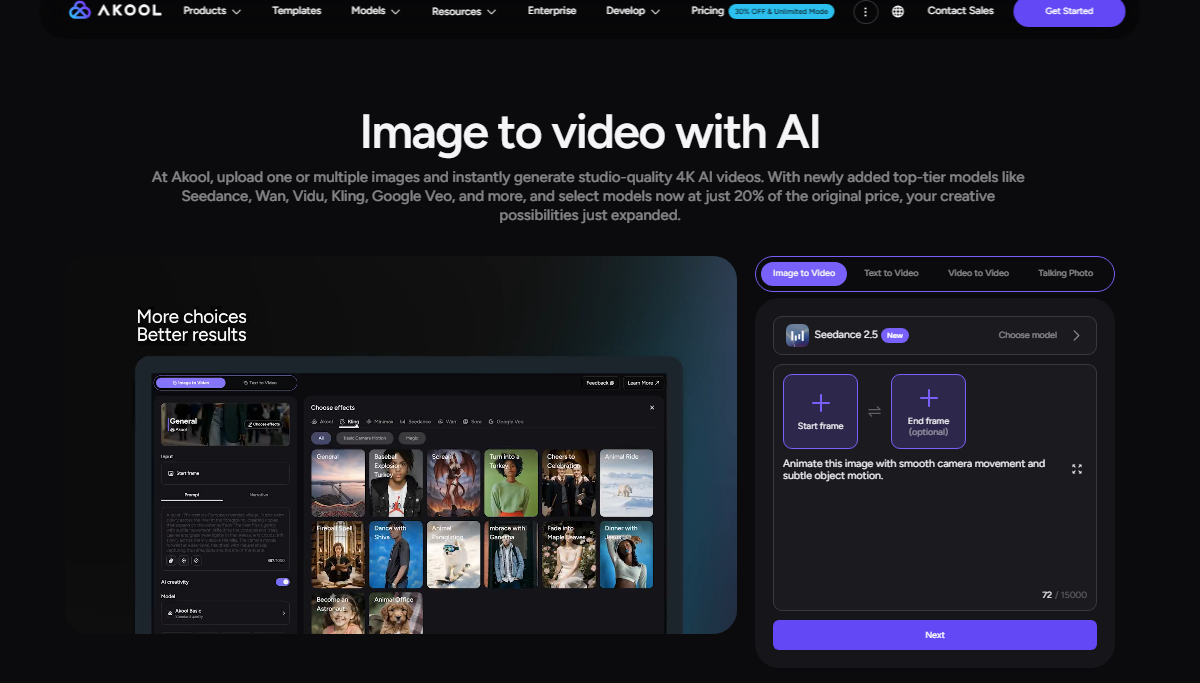
For high-volume production, AKOOL’s real-time AI video generation infrastructure also addresses the rendering and execution layer behind faster workflows.
Real Use Cases: Short Film, Ad, Explainer, Social Content
A short film benefits from scene planning, recurring characters, and controlled changes in camera, location, and pacing. Different models can handle establishing shots, dialogue moments, action, or stylized transitions while following one story bible.
An ad can give every scene a specific job: hook, problem, product reveal, proof, and CTA. The product shot may need different visual priorities from the lifestyle footage.
An explainer often starts with script and voice. Once timing is fixed, direct each scene to visualize one concept clearly instead of asking a single long prompt to explain everything at once.
For social content, reuse the same scene structure and change the hook, model, visual treatment, or CTA to create versions for TikTok, Reels, Shorts, or paid testing.
AKOOL vs Single-Model Directors
“Single-model” here describes director workflows where model choice is hidden, limited, or largely abstracted from the creator. OpenArt Director, for example, also uses multiple underlying models; the difference is that AKOOL gives model selection a more explicit role in creative decision-making.
The tradeoff is control versus abstraction. Some creators want the system to choose most technical details automatically. Others want to decide which model should handle a specific scene. AKOOL is particularly useful for the second group because model choice can become part of the directing language.