
Your best video idea may already be sitting in your camera roll. A product demo, a dance rehearsal, a behind-the-scenes moment: the footage is there. What it needs is a new creative direction.
AKOOL Shorts Studio brings preset styles and video uploads together in one workspace. Choose a template, add your footage, and create a short-form video with a different visual treatment.
This guide walks through the current workflow and offers a few ways to plan a strong first project.
What is AKOOL Shorts Studio?
Shorts Studio is a tab inside AKOOL's Video Generator. It is designed for creating short-form videos from your own footage using preset styles. You start with a video and a visual direction, rather than a blank canvas.
The template library includes options such as Comic Burst, Voxel Craft, Watercolor, Pencil Sketch, Retro Collage, and Claymation. Browse the previews to find a treatment that fits your subject and the feeling you want the clip to have.
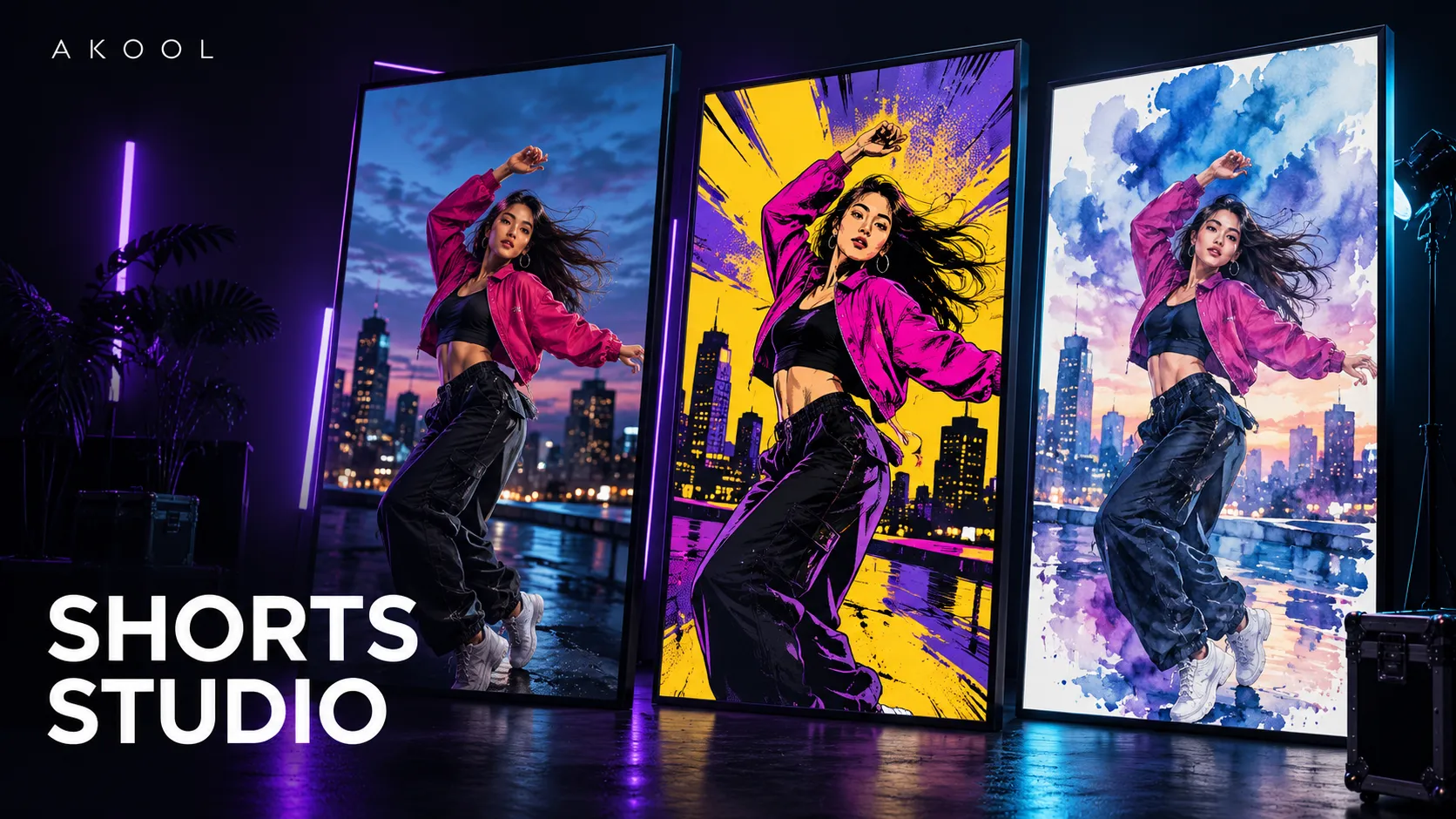
The cover artwork for this article is an AI-generated editorial illustration of creative style exploration, not a screenshot or a verified Shorts Studio output.
How to create a video in Shorts Studio
1. Open the Shorts Studio tab
Go directly to Shorts Studio. You can also open Video Generator and select the Shorts Studio tab. Sign in if prompted to use your account.
2. Choose a template
Use Change Template to explore the available styles. Start with one that suits the footage. A bold comic treatment may suit an energetic movement clip, while a softer illustrative direction may be worth exploring for a quiet lifestyle scene.
These are creative starting points. Review the template preview and judge the generated result against your own brief.
3. Upload your video
Select Upload Video and choose footage you have permission to use. The current upload control accepts a video of up to five minutes.
For your first test, choose a focused clip with a clear subject and one main action. That makes it easier to see how the selected treatment affects the scene and decide what you would change next.
4. Select the output count
Use the Output video number control to choose from the options available in your account. Start with a small test while you are deciding on a style.
5. Check access and generate
Review the selected template, source video, and output count before choosing Generate. Check the plan access and credit requirements displayed in your account. The current editor marks the Generate control with a Pro label.
6. Review the result
Use Result Library to review your completed creations. Watch the full clip, paying attention to the subject, motion, faces, hands, product details, and any text. Keep the version that serves your idea, or refine your source clip and try another direction.
Three creative briefs to try first
A product moment with personality
Start with a short, well-lit clip of a product being used. Explore a bold style for a social teaser, then check that the shape, packaging, and important details remain suitable for your campaign. Keep the product's purpose clear even when the treatment is playful.
A performance with a different visual mood
Use a focused movement clip, such as a dance phrase or a simple sporting action. Compare a comic-inspired direction with a more illustrative one. Look for a treatment that supports the movement and keeps the performer readable throughout the shot.
A fresh take on behind-the-scenes footage
Try a brief moment from a shoot, rehearsal, or creative process. A different visual treatment can give a familiar scene a new feel. Choose one moment that works on its own, with a beginning and a payoff the viewer can understand quickly.
Make the source footage work harder
- Choose one focal point. A clear subject is easier to evaluate than several competing actions.
- Give the scene a simple purpose. Decide what the viewer should notice or remember before choosing a style.
- Test one change at a time. Keep the source clip consistent while comparing templates.
- Review on a phone. Check whether the main action and important details remain clear at a smaller size.
- Finish for your destination. Review the final framing, audio, text, and platform requirements before posting.
Frequently asked questions
Do I need footage to use Shorts Studio?
Yes. The current Shorts Studio workflow starts with a video upload and a selected template. If you want to begin with a written idea instead, explore AKOOL's Text to Video workflow.
How long can the uploaded video be?
The current Shorts Studio upload control specifies a maximum duration of five minutes. Check the editor for the latest supported limits before uploading.
Does it automatically publish to social platforms?
This guide covers creating and reviewing videos in AKOOL. Review your finished video and use your normal publishing workflow for the social channel you choose.
Give your next clip a new direction
Choose one piece of footage, one visual style, and one creative goal. Make a small test, review the result, and build from the version that works.