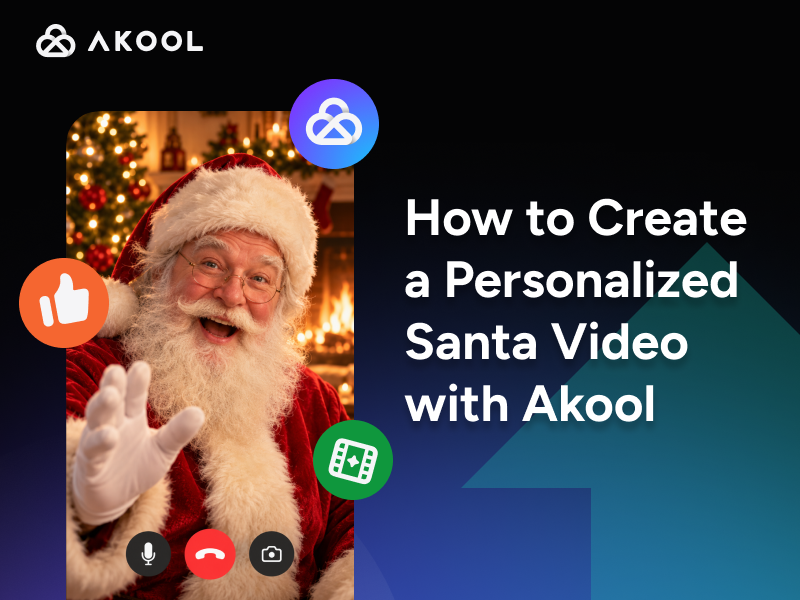

To create a personalized Santa video, choose a Santa portrait, write a warm message with the recipient’s name and a few details, then turn it into a speaking video. AKOOL’s Talking Photo can animate a portrait with a spoken message. You supply the Santa image and the script.
A good greeting feels personal because it includes something the recipient will recognize. Keep the details kind and simple. A first name, a hobby, and a small achievement are usually enough.
- Use an original Santa image or one you have permission to use.
- Write a short message with specific, friendly details.
- Test the name before generating the full greeting.
- Watch the finished video before sharing it.
What should a personalized Santa video include?
A personalized Santa video should include a greeting by name, one or two details about the recipient, and a warm closing. It does not need a long story or private information to feel special.
Use this plan to gather the details before writing.
| Message part | Detail to add | Example |
|---|---|---|
| Greeting | First name | “Hello, Maya!” |
| Personal detail | Hobby or interest | “I hear you love drawing animals.” |
| Kind moment | A small effort or achievement | “You have been practicing reading.” |
| Closing | A friendly seasonal wish | “Have a happy Christmas with your family.” |
Avoid promising a specific gift unless you know it will be given. Keep the message free of threats, shame, or claims that Santa has watched private moments.
How do you create a personalized Santa video with AKOOL?
Create a personalized Santa video with AKOOL by preparing a portrait, adding your message in Talking Photo, generating the clip, and checking the result. The AI video generator page introduces AKOOL’s video options. For a Santa portrait that speaks, use Talking Photo.
This is a portrait-based workflow. It uses the Santa image you provide rather than depending on a verified built-in Santa template.
Create a clear Santa portrait
Choose a portrait with a clear face, good lighting, and a mouth that is easy to see. A front view or slight angle gives you a useful starting image for a speaking character.
You can make an original image with AKOOL’s Image Generator. Try this prompt:
Portrait prompt: “A friendly fictional Santa Claus looking toward the camera, wearing a red hat and coat, with a soft white beard and a clearly visible mouth. Warm light, a simple festive room, natural face details, and space around the head. No text, logos, or other people.”
Check the image before using it. Make sure the beard does not fully cover the mouth and the hat does not hide the eyes. Use an image you created or are allowed to animate.
Write the Santa video message
Write the Santa video message before opening the video workflow. Use the recipient’s name near the start, add a personal detail, and end with a kind wish.
Read the script aloud. Cut any sentence that feels stiff or takes too long to say. Small pauses and short sentences help the message sound like a greeting.
Keep the spoken script and the details you want to display in separate notes. A phonetic spelling may help the voice say a name, while the visible name should keep its correct spelling.
Add the portrait and message to Talking Photo
Upload the Santa portrait to Talking Photo and add your script using the options available in the app. Check the voice and message before generating the full clip.
Start with one short line that includes the recipient’s name. If it sounds wrong, revise that line and test again. Then generate the complete greeting.
For more ideas on this format, browse the AI Avatars category and AKOOL’s guide to lip sync animation.
Review and download the finished greeting
Watch the finished greeting from start to end before sending it. Check the name, voice, lip movement, pacing, and message.
If a detail is wrong, correct the input and create a new version. Download the approved clip and test it on the kind of device the recipient will use.
What can you say in a personalized video from Santa?
A personalized video from Santa can mention a hobby, a kind action, or something the recipient has worked hard to learn. Use details that sound encouraging and avoid judging a child’s worth by behavior.
The scripts below are original examples. Replace the names and details with information you want to include.
Santa message script for one child
A single-child message works best when it includes one clear personal detail and a gentle, cheerful wish. Keep the wording warm and easy to follow.
Sample script: “Hello, Maya! Santa here, sending you a cheerful greeting from my cozy workshop. I hear you love drawing animals and have been working hard on your reading. Learning something new can take time, so keep enjoying the practice. I hope you have fun sharing stories, helping with a small family task, and making happy memories this Christmas. Remember, it is always kind to include someone who feels left out. Have a lovely holiday, Maya. Ho, ho, ho!”
Custom Santa video script for siblings
A custom Santa video for siblings should give each child a personal moment. Mention both names and balance the details so one child does not feel left out.
Sample script: “Hello, Leo and Amira! What a joy to send a greeting to both of you. Leo, I hear you have been building some wonderful things with your blocks. Amira, I hear you have been learning new songs and sharing your music. You each bring your own kind of fun to your family. I hope you find a little time to make something together this Christmas. Perhaps you could draw a card or tell each other a funny story. Have a happy holiday, Leo and Amira, and enjoy the time with the people who care about you!”
Santa video message for a family or adult
A Santa video message can also be a playful greeting for a family, friend, or team. Use a shared interest or a friendly detail that the recipient will understand.
Sample script: “Hello, the Rivera family! Santa here with a warm Christmas wish. I hear your kitchen is the place to be when the holiday cookies are ready. Save a little time for stories, laughter, and those people you have been meaning to call. Wishing you a restful holiday and a cheerful start to the new year!”
Which AKOOL tool should you use for an AI Santa video?
Use Talking Photo for an AI Santa video based on one portrait. Consider Avatar Video when you want a presenter-style message with a script or your own recorded audio. Choose the workflow that matches the materials you have.
| What you have | Relevant AKOOL tool | What to prepare |
|---|---|---|
| A Santa portrait and short message | Talking Photo | Clear face image and reviewed script |
| A presenter scene and written or recorded greeting | Avatar Video | Suitable avatar input and script or audio |
Avatar Video supports scripts and audio input for presenter videos. Check the available custom-avatar options before choosing this route. This guide does not assume that the app includes a ready-made Santa presenter.
How do you fix a name that Santa pronounces wrong?
Fix a name by testing it in a short line, adjusting the spoken wording, or using a suitable recording through a workflow that supports audio input. Do not wait until the full message is finished to check the name.
Try these steps:
- Generate a short greeting with the name once.
- Listen on speakers or headphones.
- Try a phonetic spelling in the spoken script.
- Keep the correct spelling in any visible text.
- If needed, record the greeting and use Avatar Video’s audio-input workflow.
For example, you might test a name in “Hello, [name]!” before adding the rest of the script. The right spoken spelling depends on the voice and the name, so listen to the result rather than assuming a spelling will work.
Can you make a free personalized Santa video?
You may find services that offer a free personalized Santa video, but free access can come with limits on templates, downloads, or message options. Check the current terms before creating a greeting.
AKOOL’s cost and export options depend on the current plan and generation settings. Review those details before starting. This guide does not promise a free, unlimited, or watermark-free Santa video.
If you use a free template from another service, check how much of the message you can change. A custom portrait and script may offer a different level of control.
How long should a video from Santa be?
A video from Santa can start at about 45 to 90 seconds for one recipient. This is an editorial suggestion for a simple greeting, not an AKOOL duration limit.
Use enough time for the name, personal detail, and closing. Add time for siblings so each gets a clear mention. Check the app’s current input and plan limits before generating.
Read the script aloud to estimate its length. If the message drags, remove repeated praise and keep the detail that means the most.
How do you share a personalized Santa video?
Share a personalized Santa video by downloading the reviewed clip and sending it through your usual messaging, email, or file-sharing tool. Test playback before the recipient’s planned viewing time.
For a surprise, ask another adult to check the file on the receiving device. Keep a local copy of the final greeting so you can replay it.
The sharing step happens through the service you choose. This workflow does not assume a built-in AKOOL connection to WhatsApp, email, or a holiday-gift platform.
What should you check before sending the Santa greeting?
Check the recipient details, voice, face movement, and message before sending the Santa greeting. A quick review can catch an error that would make the video feel less personal.
| Problem | First thing to check | Practical fix |
|---|---|---|
| Name sounds wrong | Spoken script | Test phonetic wording or supported recorded audio |
| Mouth movement looks unclear | Portrait and final clip | Use a clearer face with a visible mouth |
| Message feels rushed | Script and pacing | Split long sentences and remove extra details |
| A personal detail is incorrect | Your source notes | Correct the script and generate a new version |
| Video will not play well | Download and receiving device | Test the file and use a suitable sharing method |