Introduction to Recraft V3
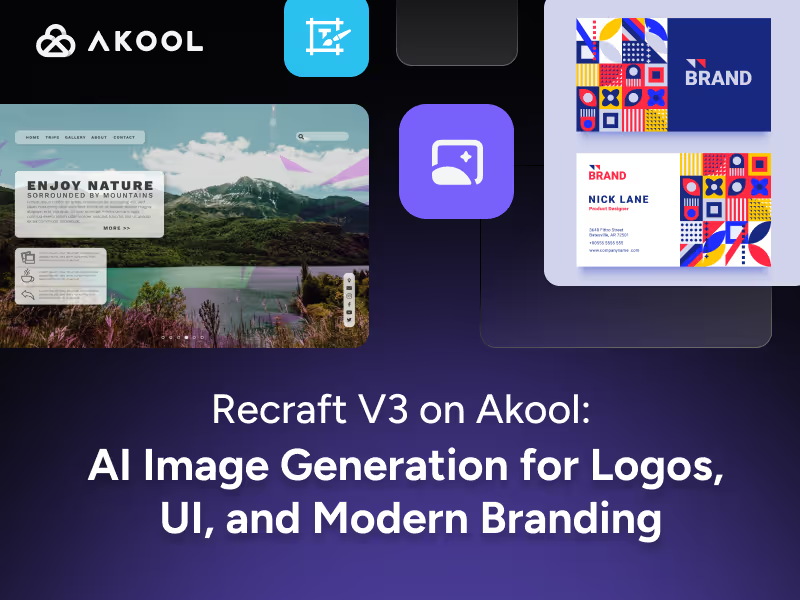
Developed by Recraft AI, Recraft V3 (code‑named red_panda) is a state‑of‑the‑art text‑to‑image model built specifically for designers. It excels with long prompts, generates diverse high‑fidelity images in many styles, and uniquely supports vector art and long text generation for UI, logos, icons, and brand visuals.
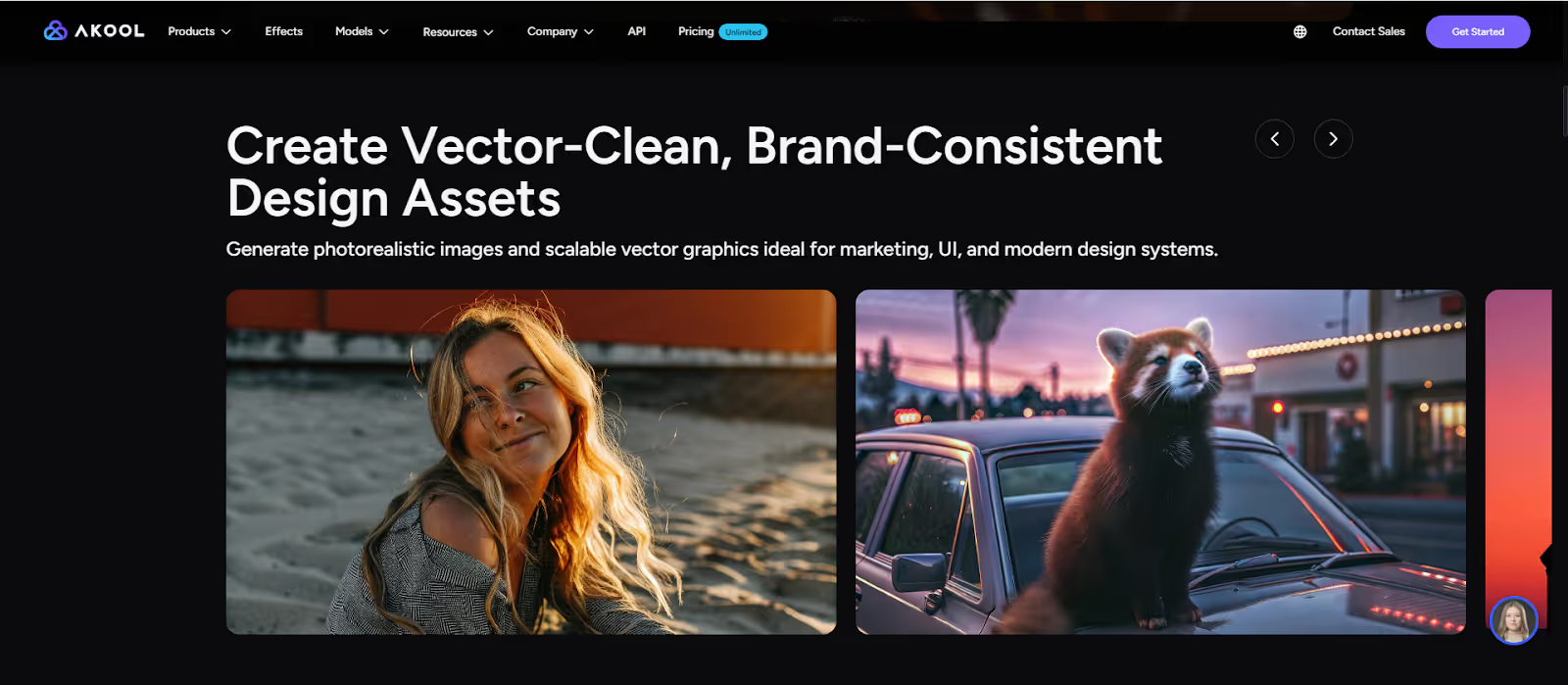
Now, Akool has integrated Recraft V3 as a dedicated vector‑style AI image generator, letting you create photorealistic images, clean vector‑like graphics, and brand‑consistent design assets in a few seconds.
If you’re looking for an AI design tool that actually thinks in design language rather than just painting random pixels, Recraft V3 on Akool is built for you.
Key Features & Major Upgrades
1. Design‑Native, SOTA Text‑to‑Image
Recraft V3 is not a generic art model. It’s a state‑of‑the‑art image generation model designed for professional designers, with a large architecture that “thinks in design language.” It consistently ranks at the top of independent text‑to‑image benchmarks, outperforming many popular models on visual fidelity and usability for real design work.
What this means in practice:
- Your prompts produce well‑structured compositions, not chaotic collages.
- You can ask for detailed direction—colors, layout, lighting, style—and Recraft V3 follows closely.
- Outputs feel like they belong in real UI kits, brand systems, and marketing campaigns.
For AI image generation that needs to look professional and usable, Recraft V3 is built to meet that bar.
2. Vector‑Style & SVG‑Ready Artwork
One of Recraft V3’s biggest strengths is vector‑style AI art.
On platforms like WaveSpeed and Replicate, Recraft V3 SVG is presented as a text‑to‑image model for high‑quality SVG images—logos, icons, and vector illustrations in many styles.
On Akool, Recraft V3 is positioned as a vector‑style AI image generator that can:
- Generate clean lines and consistent shapes ideal for UI, logos, and icons.
- Produce flat illustrations and logo‑style graphics that feel intentional and refined.
- Create vector‑clean, brand‑consistent assets that drop smoothly into design workflows.
This makes Recraft V3 a strong choice whenever you need AI vector art, icon sets, or minimalist design visuals.
3. Long‑Text & Layout‑Aware Generation
Recraft V3 is one of the very few models that handles long text prompts and long in‑image text well. According to Recraft’s own documentation and partner platforms, V3 can:
- Generate images containing extended text content, not just one or two words.
- Place text at specific positions in an image, which is crucial for posters, UI mockups, and layouts.
This is a huge SEO‑friendly advantage for:
- Social banners with headlines and subcopy
- Product graphics with labels or pricing
- Presentation slides and infographics generated via AI image generator workflows
Instead of fixing mangled lettering, you get text that is more legible and structurally where you expect it.
4. Brand‑Style Consistency & Precise Control
Recraft V3 also shines on brand‑style consistency. Recraft and Akool both highlight its ability to keep colors, shapes, and overall style uniform across many assets, which is essential for campaigns and UI systems.
With Recraft V3 on Akool, you can:
- Generate multiple images in a cohesive brand style (same palette, same look & feel).
- Create consistent icon sets or social tiles that match.
- Iterate quickly on a concept while keeping the core design language stable.
For teams trying to scale AI design without losing visual identity, this is a big deal.
Example Prompts for Recraft V3
Here are some ready‑to‑use prompt ideas you can try in Akool with Recraft V3:
- Logo & Branding
- “Minimalist vector logo of a hummingbird made from geometric shapes, flat design, two‑color palette, centered composition, SVG‑style line work.”
- “Modern wordmark logo for ‘Luna Studio’, lowercase letters, rounded sans serif, soft lavender gradient background, clean vector style.”
- UI & Product Design
- “Landing page hero illustration for a fintech app, flat vector art, characters using a mobile phone, blue and teal color scheme, clean UI shapes.”
- “Icon set of 12 rounded app icons for productivity tools, consistent line weight, pastel colors, vector‑style shading, white background.”
- Social Media Graphics
- “Instagram carousel cover: bold headline ‘Grow on Social in 2025’, gradient background, large sans serif text, vector shapes and abstract blobs.”
- “YouTube thumbnail illustration, vector style, person working at laptop, high contrast colors, space at top for text, modern design.”
- Print & Poster‑Style Layouts
- “Event poster for a tech conference, long title text, date and location, abstract geometric background, clean layout, vector art, high contrast typography.”
Use these as starting points, then layer in your own brand colors, fonts, and content.
How to Use Recraft V3 in Akool
Because Akool has a dedicated Recraft V3 model page, using it is straightforward—even if you’re new to AI image generation.
Step 1 – Open the Recraft V3 Model in Akool
- Log in to your Akool account.
- Go to the Models or Image Generation section.
- Select Recraft V3 from the model list.
Step 2 – Choose Style & Aspect Ratio
- Pick a style preset (e.g., vector, flat illustration, photorealistic, icon‑like).
- Set the aspect ratio:
- 1:1 for logos and icons
- 16:9 for banners and thumbnails
- 9:16 for vertical social content
This helps Recraft V3 tailor the layout to your use case.
Step 3 – Write Your Prompt
In the prompt field, describe:
- Subject (logo, UI layout, icon set, illustration, etc.)
- Style (minimalist, flat, skeuomorphic, photorealistic)
- Colors and mood (brand palette, bold, pastel, corporate, playful)
- Any text content and where it should appear
Example:
“Vector hero illustration for a SaaS analytics dashboard, two characters discussing charts, blue and purple brand colors, headline text ‘See Your Data Clearly’ at the top.”
Step 4 – Generate and Refine
- Click Generate and let Recraft V3 create initial options.
- Review for composition, style, text accuracy, and overall fit.
- Refine by:
- Adding or adjusting brand colors
- Clarifying layout instructions (e.g., “headline at top, CTA button at bottom”)
- Requesting more or fewer details
Because Recraft V3 is optimized for design use, each iteration should feel closer to a usable asset, not just a random image.
Step 5 – Export & Integrate
Once you’re happy with the result:
- Export the image from Akool in the format that fits your pipeline (e.g., PNG for web, high‑res assets for print).
- Drop it into Figma, your website, slide deck, or social media scheduler as you would any other design asset.
You’ve just used Recraft V3 on Akool to speed up your AI design and content creation workflow.
Conclusion
Recraft V3 is more than another AI image generator. It’s a design‑native text‑to‑image model built for logos, vector‑style graphics, UI, and brand assets. With advanced long‑text handling, layout awareness, vector‑style rendering, and strong brand‑style consistency, it delivers images that are much closer to final, production‑ready designs.
If you’re ready to speed up your design process with high‑quality AI vector art and brand‑ready imagery, this is the time to explore Recraft V3.